
Tag Archives for " search ranking "

Here’s What You Should Do When Your Search Rankings Drop
If you’ve ever done SEO, you know how good it feels to see your rankings go up.
You put a ton of hard work into moving up in the SERPs and it finally pays off.
But then the unexpected happens. Your rankings drop.
Few things in SEO are more discouraging than a fall in the rankings.
It makes you feel like everything you did was useless.
You wonder what went wrong or if you made a mistake. You beat yourself up for not doing it right.
You’re back to square one again, and you have to start all over.
Or do you?
In my experience, that’s not always the case.
My rankings have dropped more times than I can count. At first, I panicked.
As I learned more, I found out that it’s not the end of the world if you go down a position or two.
It’s obviously not ideal, but there’s a lot you can do to fix it.
That’s what I’m going to show you today.
Even if your rankings are where you want them to be, you need to be aware of how to bring them back up when they drop (because they will).
Analyze the drop
Before you take action to raise your rankings, you need to track your rankings, ideally on a daily basis so you can see if they are increasing or decreasing.
The reason you want to track your rankings on a daily basis is that Google makes 3200 algorithm changes per year, which is a bit more than 8 algorithm changes per day.
Hence you don’t really have a choice but to track your rankings daily.
So how do you do that?
First, you’ll want to head to the Ubersuggest dashboard and click on “Add Your First Project”.
It’s as simple as adding in your URL.

Then select the locations you do business in and want traffic from.

Then add in the keywords you currently rank for or want to go after.
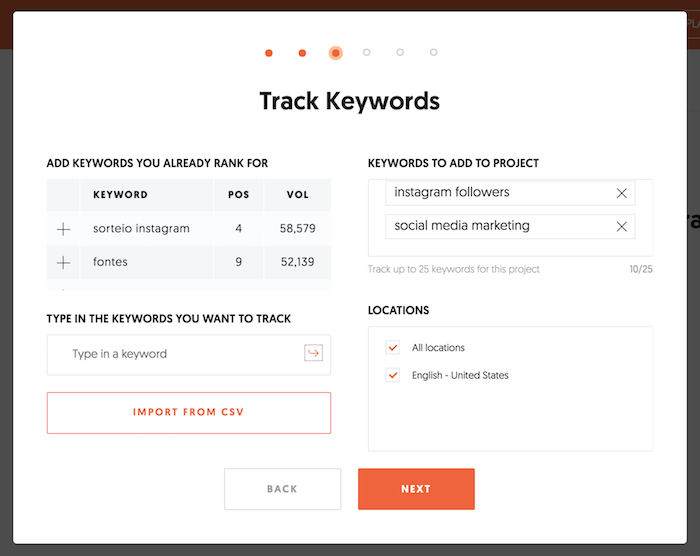
And of course, set up your traffic preferences.
Make sure you select “daily” rank tracking and you turn on mobile rank tracking.
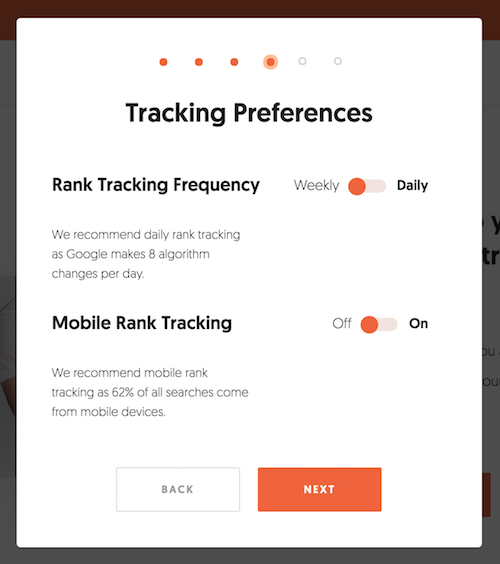
And then you’ll be good to go.
Then you will be notified via email when your rankings go down (or up) as there is no way you are going to have the time to manually check every day.
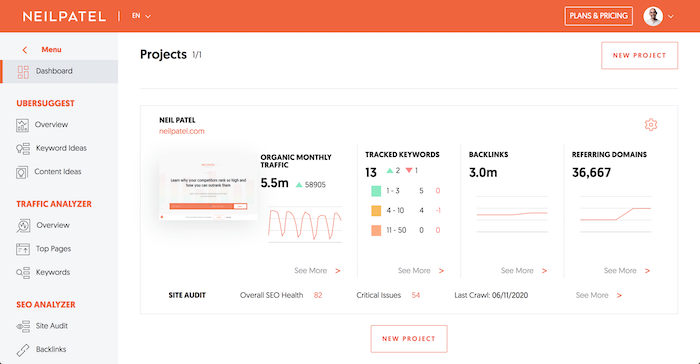
Or when you log into your Ubersuggest dashboard you’ll see an updated view of your site:
And then when you drill down into your rankings you’ll see a report of what is increasing or decreasing.
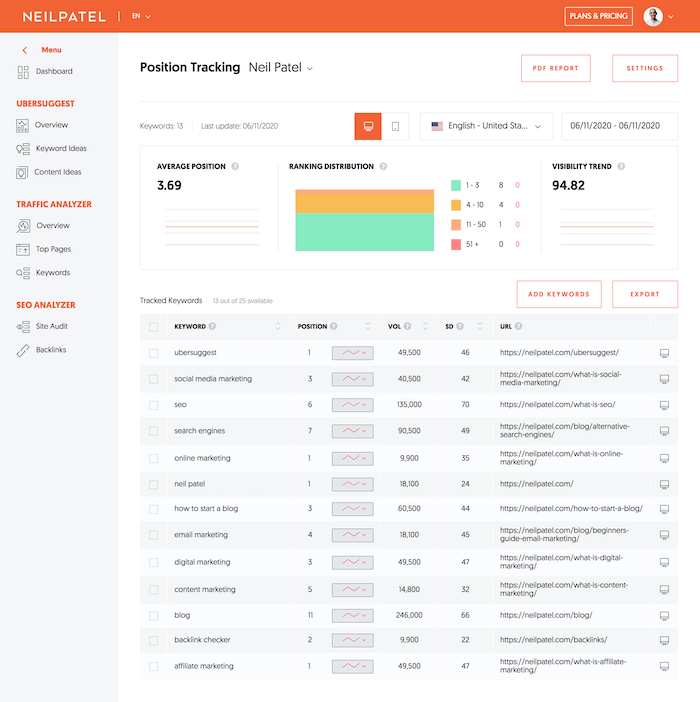
Now when looking at your rankings it is normal for them to fluctuate a few spots here or there… but if you see all of your rankings all of a sudden drop, then you know you need to do something.
Did you get penalized?
In most cases, your site has not been penalized and you don’t need to worry about this.
If you didn’t do anything fishy like “buying links” you don’t really need to worry about a penalty.
If you are unsure, read through this list and ask yourself if your site is guilty of any of these SEO sins.
If so, identify the problems and take steps to fix them.
Even if you haven’t done anything on that list, you could still have gotten a penalty.
Google’s algorithms are updated frequently, and they’re incredibly complex.
They take hundreds of factors into account when considering ranking.
One day, your site might not deserve a penalty, and the next, it might.
It’s important to understand the types of penalties: manual and algorithmic.
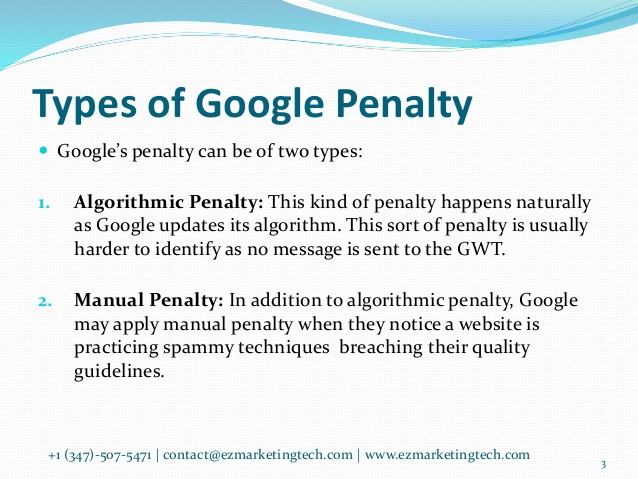
Source: Slideshare.net
Manual penalties are given out by Google’s webspam team when they get alerted of suspicious activity.
This could be the result of having unnatural links, or someone could have filed a spam report against you.
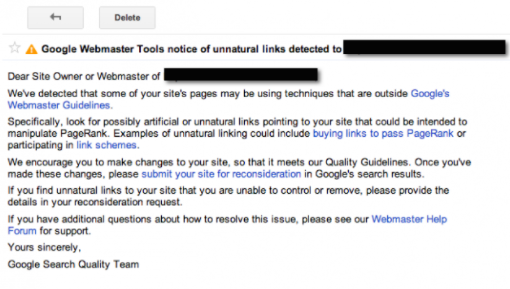
If you’ve received a manual penalty, you should have gotten a notification in Google Webmaster Tools.
Here’s an example of a message about unnatural links:
The other type of penalty is an algorithmic penalty.
These penalties are harder to track because there’s no definitive way of knowing you received one.
To determine if you’ve gotten an algorithmic penalty, you have to understand how Google’s algorithms work.
If you find that you’re doing something an algorithm doesn’t like, there’s a good chance you’ve got a penalty.
But you also have to think about new penalties.
If your rankings dropped randomly, check Moz’s handy directory of Google’s algorithm updates to see if there’s a new one at work.
A new algorithm could be the reason why you’re seeing lower rankings.
If that happens, research the algorithm and find out what it’s penalizing.
One cool way to keep track of new penalties (and a bunch of other Google-related stuff) is to follow Gary Illyes, John Mueller, and Google Webmasters on Twitter.
Gary and John, in particular, give out a ton of awesome advice, and you can often find them talking with other Twitter users.
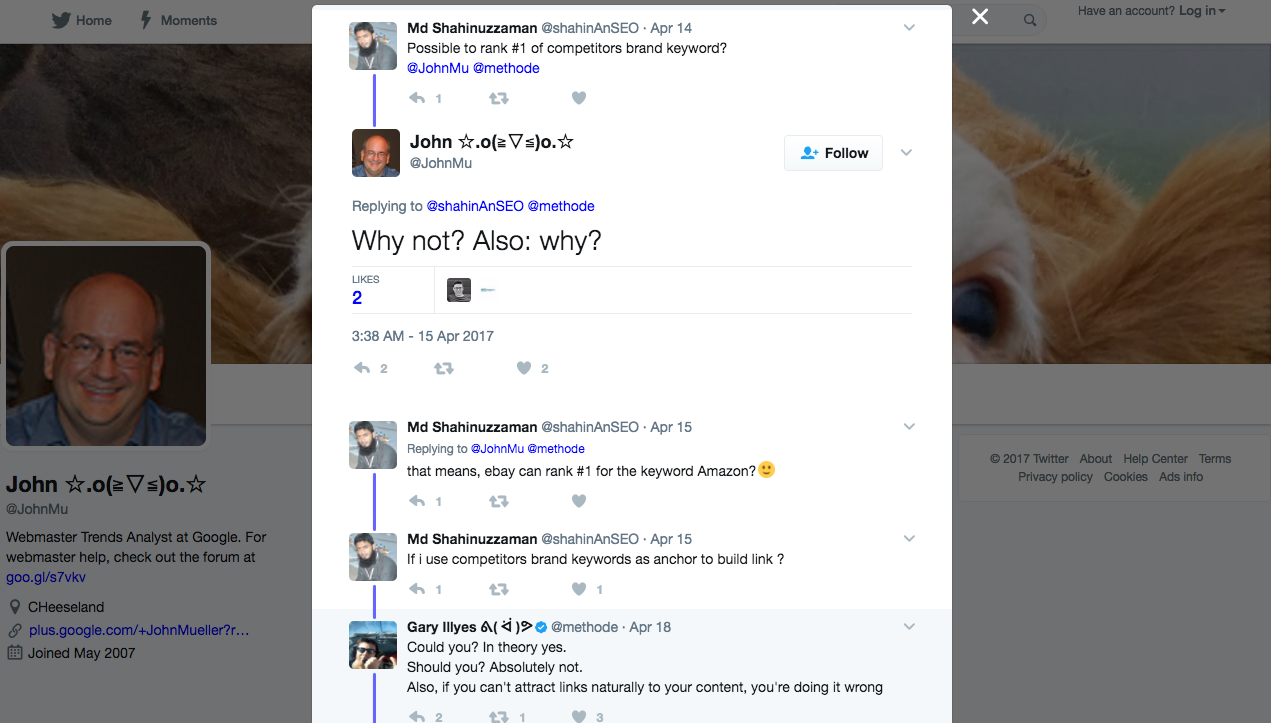
You can even ask them a question directly and get it answered… you may not get a response, but it is worth a shot.
Do you have link problems?
This is a big one.
Think of links as the currency of SEO. It’s essentially how you “gain” authority.
So it’s no surprise that a strong link profile is correlated with high rankings.
The flipside is that a weak link profile is correlated with low rankings.
I spend lots of time working with clients on SEO, and I’ve seen lots of sites that have numerous link problems.
Usually, the business isn’t aware.
That’s because weak links are the silent killer of SEO. That’s why you need to make sure your link profile is robust.
First, conduct a link audit of your site. Here’s a step-by-step guide on how to do that.
For the short version, use a backlink analysis tool like SEMrush Backlink Checker to see where your bad links are.
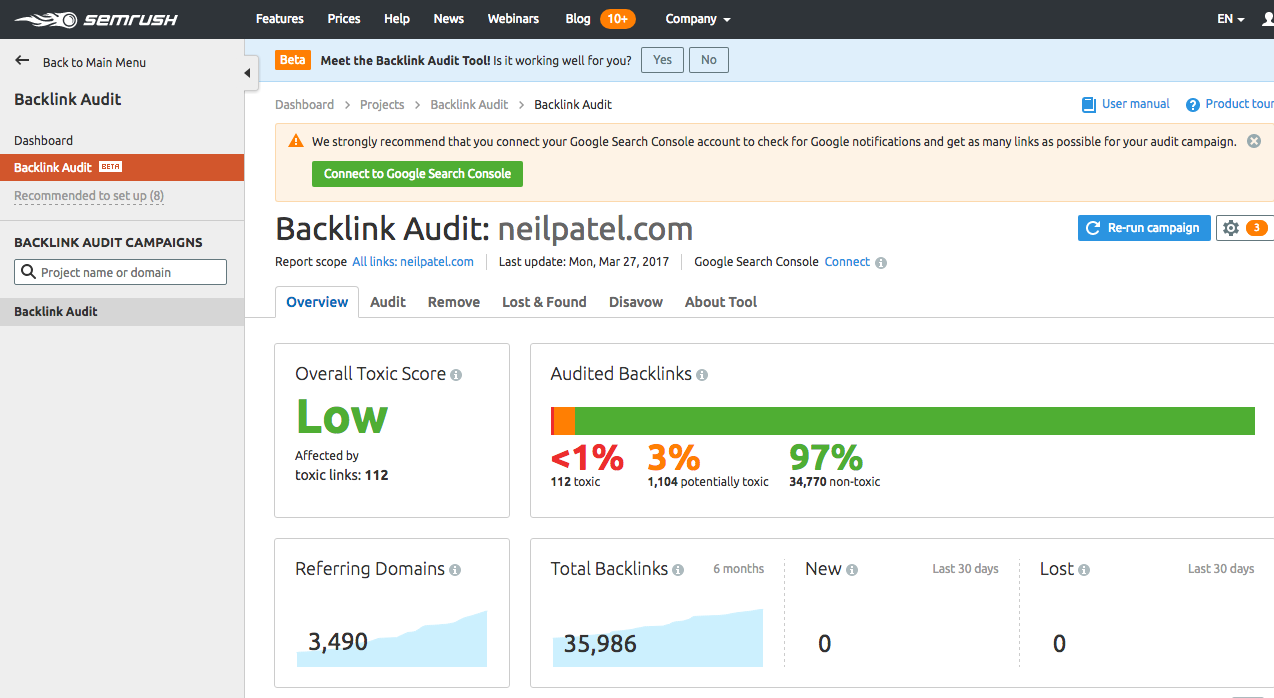
When you find bad links, contact those sites and nicely ask them to remove the link.
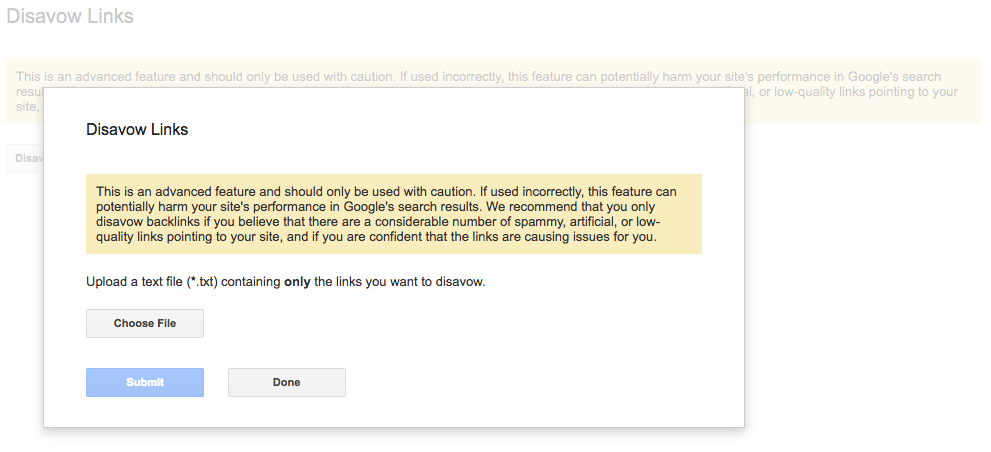
If that doesn’t work, use Google’s Disavow tool as a last resort.
 However, I’ve found that about 90% of the time, conducting a backlink audit will help you find bad links.
But there’s a problem here. Often, the reasons behind link problems aren’t so obvious.
If your link profile looks okay after an audit, there could still be problems. Here are a few of the issues your link profile could be facing.
Losing links
Did you know you can lose links? Both internal and external links?
It could be the cause of your ranking drop as well.
Yep, you can lose internal links even if it’s to content you already own.
Let’s talk about those first.
If you often relaunch, rebrand, or redesign your site, you may lose some links along the way.
Why does this happen?
It has to do with redirects and transitioning your site over smoothly.
Let’s talk about site transitions first. If you deleted an old blog post, then links to that post aren’t going to work.
In turn, this will weaken the internal linking structure of your site and compromise your SEO.
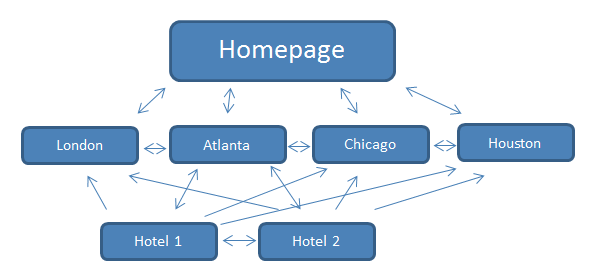
You’ll have one less link, which is removing a part of your internal linking network.
This isn’t optimal because it means two things:
- You’ll have to fix the link
- You’ll have less content on your site to link to.
That’s why I recommend not deleting content unless you absolutely have to.
You can always update it.
That’s just one example of a lost link.
Another reason you could lose an internal link is a faulty redirect.
This often happens with 301 redirects. I’ve talked about 301s before, but there’s a unique issue you need to be aware of.
Because a 301 is called a permanent redirect, lots of people assume that the redirect will always work.
But it doesn’t.
Here’s precisely how a 301 redirect works:
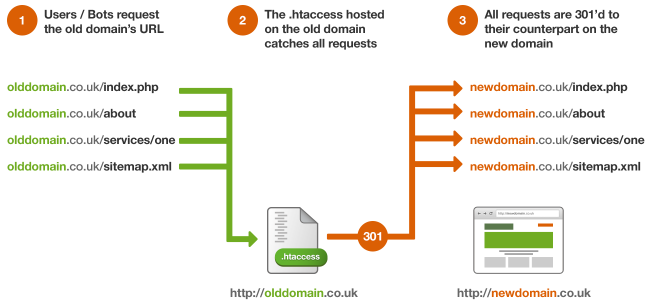
If you just set up a new site, you can 301 from the old domain to the new one without a hitch. The issue is when you revamp your site more than once.
That’s because redirects from older versions of a site are rarely passed on to newer ones.
On top of that, if you get a new domain and an older domain expires, it could cause a significant loss in traffic because the 301s will no longer work.
It’s messy.
If you discover a bad 301 giving you problems, you need to fix that.
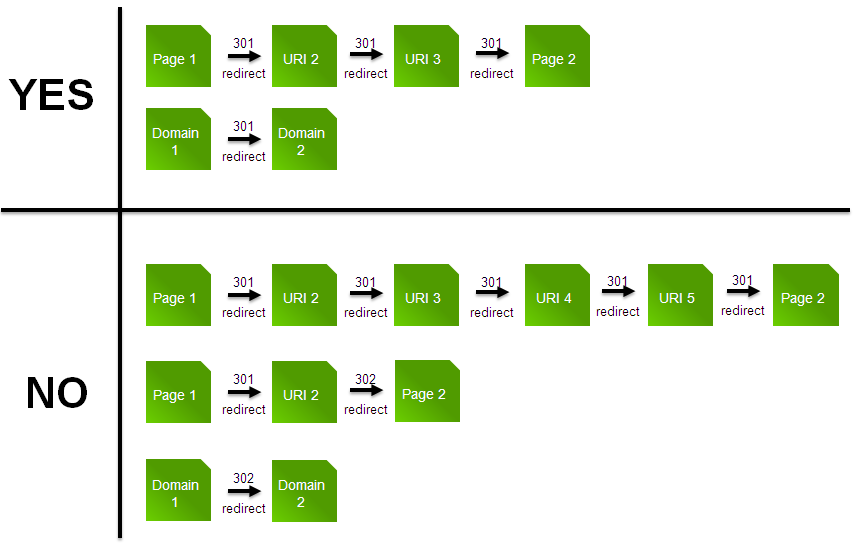
First, you need to find the target links your 301s are trying to go to.
If those links are dead, you’ll most likely need to remove the link.
You could also put the old content back up or create new content to keep the link on your page.
This is a good idea if the page in question gets a lot of traffic.
You need to do what’s best for your visitors. If they’ll miss out on great, comprehensive content, you should make sure that content is still on your site.
You should also check for broken links.
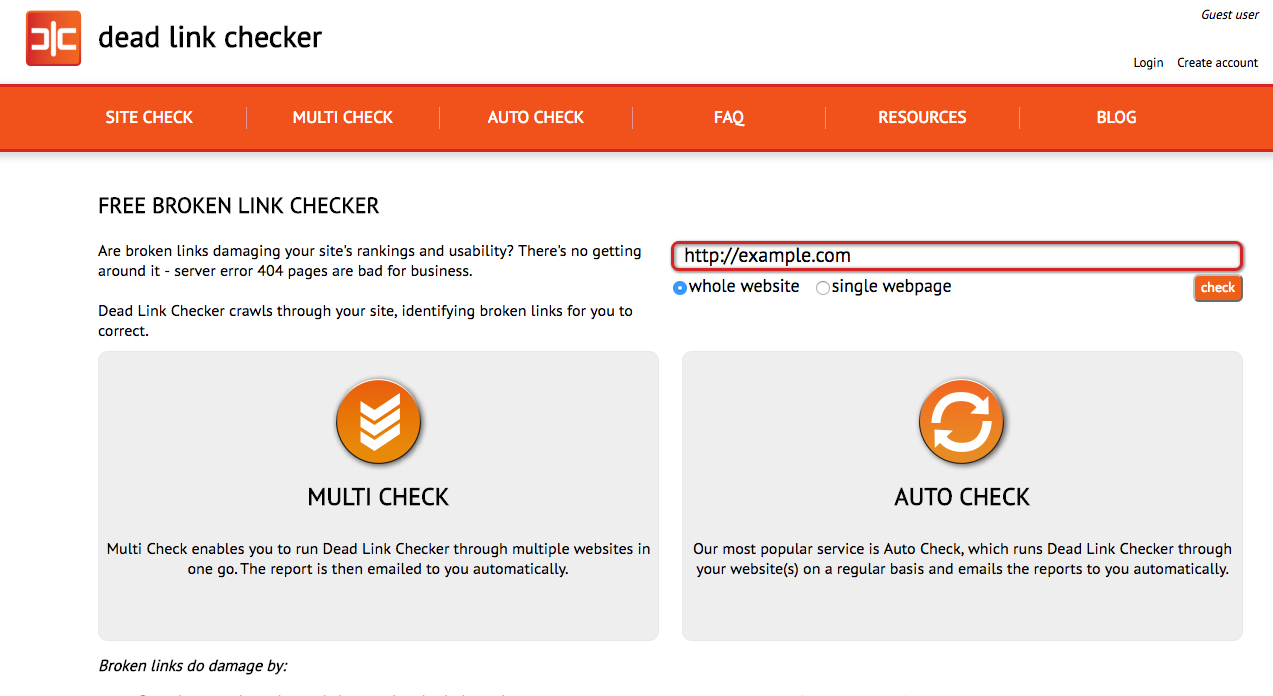
You can use a tool like deadlinkchecker.com to do this:
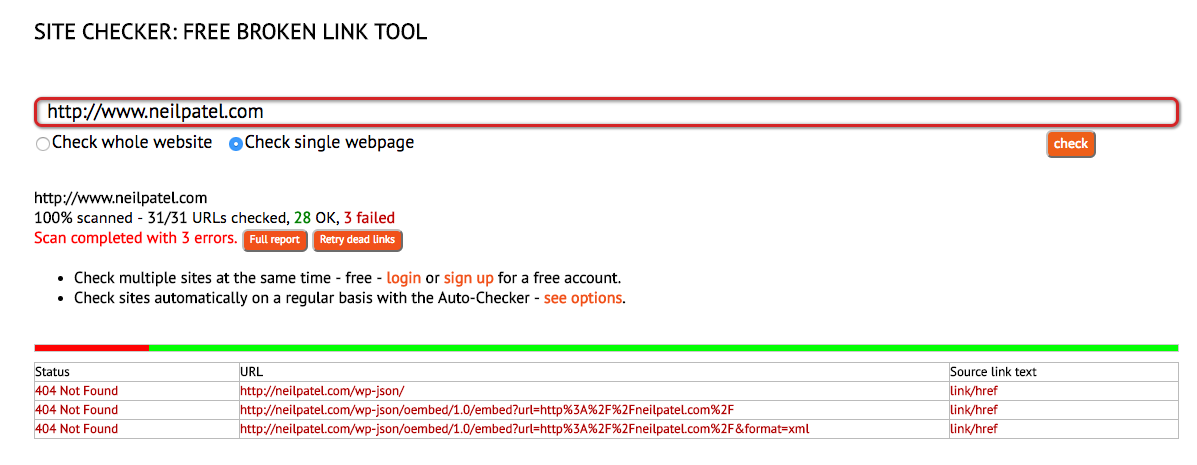
Ideally, you want to see no errors:

But if you do see errors, you’ll be able to see the URLs that aren’t behaving correctly:
But what about outbound links? If you find an outbound link that no longer works, just remove it and replace it by linking to another authority site.
Finally, let’s talk about backlinks you’ve gotten from other sites.
Go here and type in your URL.
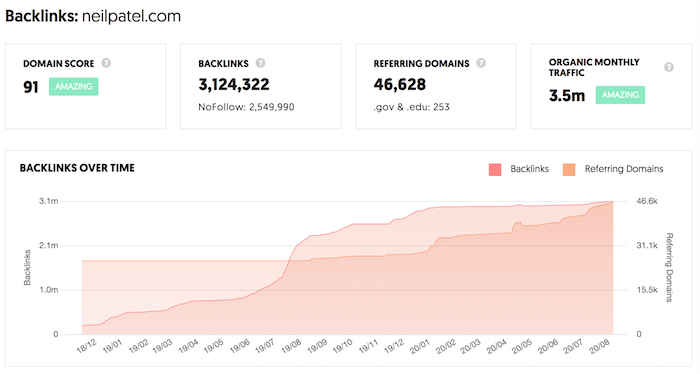
If you see your link chart going up and to the right, you are fine. If it is going down, then we have to fix it. For example, using Ubersuggest you can see which sites don’t link to your anymore.
And for those sites, you can use a template like this one to get those links back:
Hi [Name of site owner],
I hope you’re doing well!
You linked to my site a while back, and I want to thank you for that. However, it looks like the link is actually gone.
The link appeared in your [piece of content/page here], but it seems that it’s not there anymore.
Here’s the page on my site you linked to: [Link URL here]
If you could put the link back up, I’d really appreciate it. I’m a big fan of your site, and it’d be my pleasure to return the favor if I can.
Sincerely,
[Your name]
Most people will ignore you, but a percentage of the people you email will link back.
Polish up your site
If all else fails, you might need to spend some time improving your site.
I’m talking about design, user experience, and speed. Each of these is integral to a site that performs and ranks well.
I’ll go over each category briefly:
Design
Having a mobile-friendly design is important as there are more searches on mobile devices using Google than there are for desktop.
If you’re not considering mobile users first, you need to start doing that.
Having a mobile-optimized site isn’t as simple as making sure your site is responsive.
That’s definitely important, and you should do that, but it’s not enough by itself.
Think about making all of your content mobile-friendly.
There’s one big reason you should focus on this. Google has a mobile-first index.
That alone should be more than enough to persuade you to focus on mobile-first design.
You might want to read my article on mobile usability for more information on this.
User experience (UX)
This is another reason why a responsive design is so important.
Your mobile users should have a great experience that’s designed for mobile devices.
Similarly, your desktop users should have a great experience that’s designed for desktops.
If your UX is bad either way, you will lose visitors.
If you take a look at the most popular sites in your niche, you’ll notice that 9 times out of 10, they’ll have great UX.
Say you’re in SaaS. Without a doubt, Salesforce is one of the biggest SaaS players in the niche.
And sure enough, their desktop and mobile UX is fantastic.
Desktop:

Mobile:

This is what you should strive for when polishing your own site.
Speed
Search engines (and people) love fast-loading pages. In fact, 47% of customers expect a page to load in 2 seconds or less.
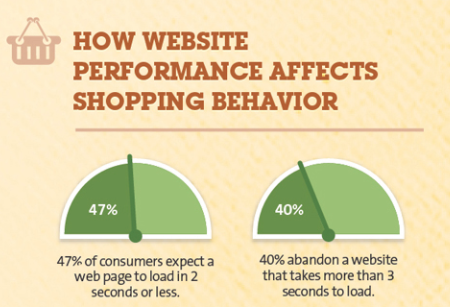
So if your site speed is longer than 2 seconds, you could lose traffic.
Yikes.
Making your site faster is a long-term strategy.
You have to monitor your site and make sure nothing’s dragging it down.
Start by adding compression.
Next, make sure your server has adequate speed.
It should be no longer than 200 milliseconds.
You can test your site speed by using Ubersuggest’s “Site Audit” feature.
Type in your URL and click “Search.”

From there, click “Site Audit” in the left sidebar and scroll down to “Site Speed.” Here’s what you’ll see:
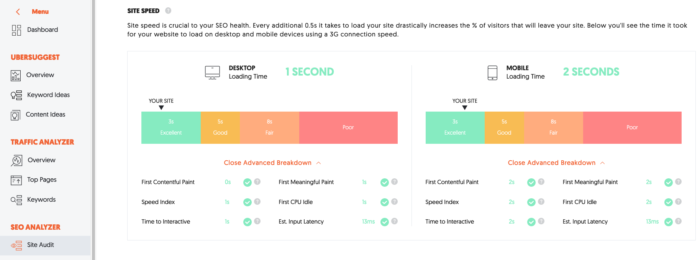
There are tons of factors that can cause slow site speed, so the best way to prevent slowness is to keep your site as lightweight as possible.
And Ubersuggest will break down how to do that and what to fix.
As a rule of thumb, if you have anything unnecessary on your site, remove it so your speed is the best it can be.
Don’t forget about content
Through Ubersuggest we track millions of popular sites around the world to get better data insights on algorithm changes.
We know for certain that 641 sites we track are updating old content on a daily basis.
Can you guess how many of them saw a search traffic dip of 10% or more from the last algorithm update?
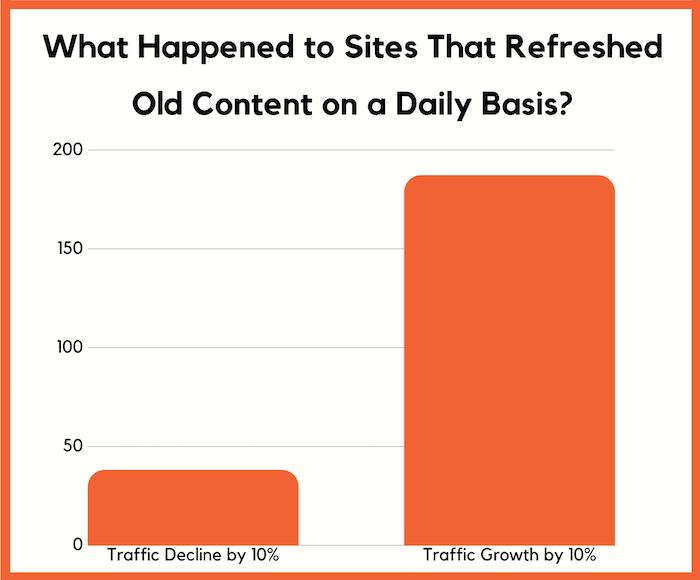
Only 38! That’s 5.92%, which is extremely low.
What’s crazy, though, is that 187 sites saw an increase in their search traffic of 10% or more.
So make sure you are keeping your old content up to date.
Because why would Google want to rank old, stale content, when they can rank something fresh and useful for people?
Another strategy I love to deploy is to expand my content that is already ranking well.
For example, let’s say you rank for the term “digital marketing”.
You’ll want to head to Ubersuggest and type in the phrase “digital marketing”.
You’ll see a report that looks like this:
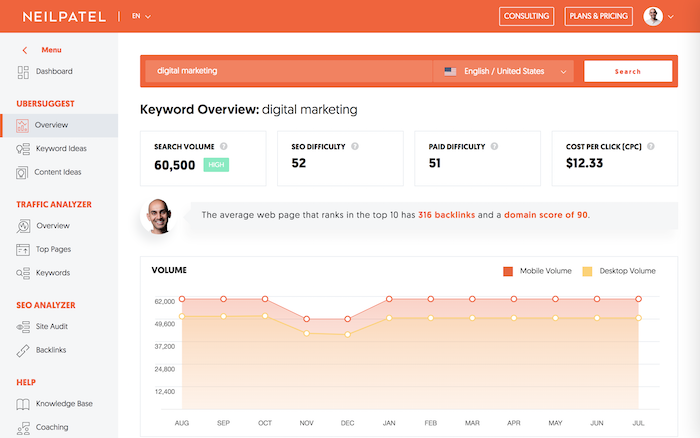
From there in the left navigation bar, click on “keyword ideas”.
You should now see a report that looks like:
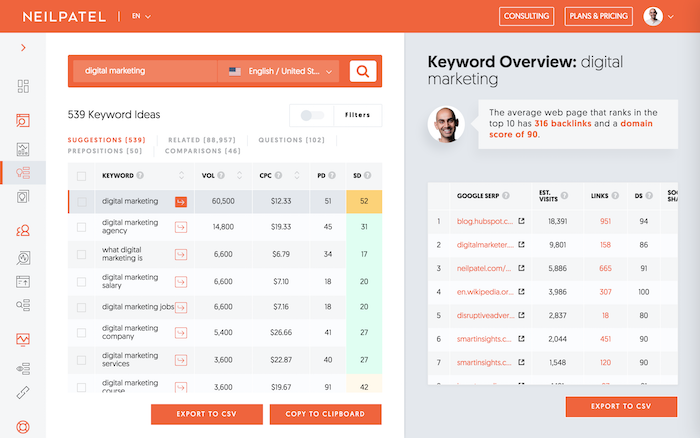
This will give you a list of keywords that are similar, long-tail terms that also are searched frequently.
If you rank for the main term, it is easy to also rank for the longer tail terms.
So make sure you add the relevant ones to your content.
It may seem tedious but go through 100s if not 1000s of keywords in the keyword ideas report as it will allow you to get quick traffic gains.
When adding the new keywords into your content, don’t just stuff them in there.
It has to flow naturally and make sense for your website visitor.
And if you can’t make it make sense for a particular keyword, don’t do it… put the user first.
Remember you are writing for humans, not Google.
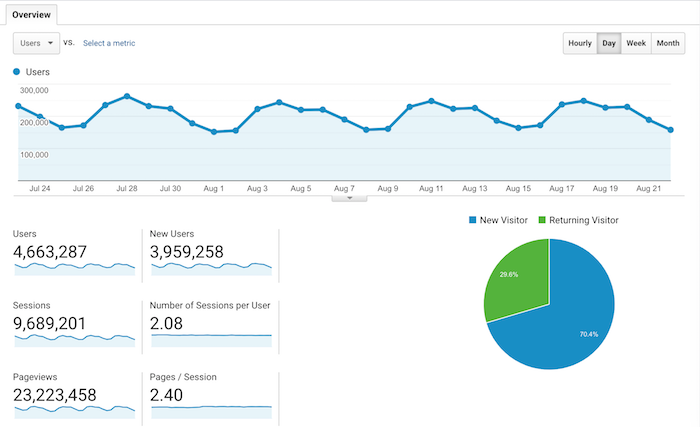
Now the strategy I broke down here may seem simple and silly, but it’s one of the big reasons why I am getting roughly 9 million visitors a month.
Conclusion
Going down a position or two in the rankings happens to the best of us.
It’s even happened to me.
If this happens, don’t panic.
Almost every client I’ve had who’s experienced a loss of rankings got really scared when it happened.
You probably felt this way too. But you don’t need to worry.
You can easily bounce back from a ranking drop.
Don’t believe me? Give these strategies a try.
These aren’t just little tips.
They’re tried-and-true methods that will help you reclaim your spot on Google.
No one deserves to lose ranking when they have an amazing site that users love.
What’s more, it’s easy to fix.
Don’t let the initial shock stop you from getting your ranking back.
So, when was the last time your rankings dropped?
The post Here’s What You Should Do When Your Search Rankings Drop appeared first on Neil Patel.
Source: feedproxy.google.com

Image Compression Techniques That Will Help You Rank Higher
Whenever we talk about SEO and the idea of optimization, some of the first things that come to our minds are content, backlinks, or keywords. This is not wrong, but it isn’t exhausting the possibilities of SEO either. Especially since there are plenty of factors that weigh in a page rank that are not purely backlink or content-driven.
So it should not have come as too much of a surprise when Google announced that page load speed is a ranking factor for both desktop and mobile searches.
Of course, one factor out of more than 200, but one that is still worth considering.

1. Website Speed as a Ranking factor
Site speed, according to Google, “reflects how quickly a website responds to web requests” and for all intents and purposes serves both the user and the site owner.
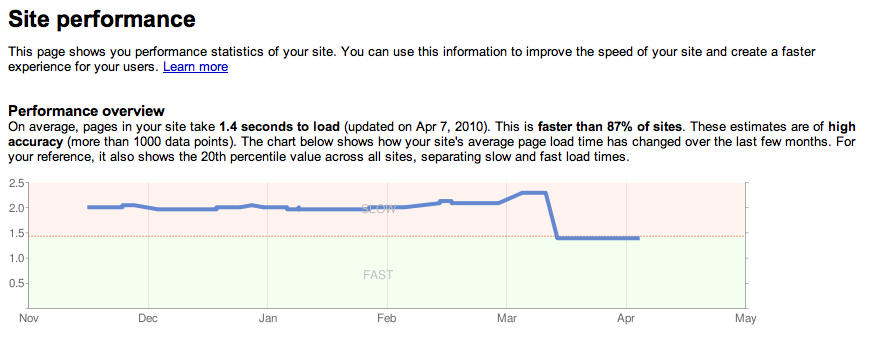
Users get an enhanced experience, site owners are more likely to get reduced operation costs, and… well, more users, who stay on the website longer.
Google thinks the same, as indicated by the very fact that it provides us with tools to check up on our site speed and suggests solutions for sluggish pages.
There is the PageSpeed module in the Google Developers section and a Page Speed Insights for making a speed audit for every website.
Even Yahoo has a developer module for page speed improvement, called Yslow.
The slew of freely available tools is certainly meant to wear off some of the concerns that only big sites can benefit from this change. I
n fact, chances are smaller sites have the upper hand here in terms of flexibility and adjusting.
Some questions and concerns remain though, the most important being:
What is and how exactly does Google measure “site speed?”
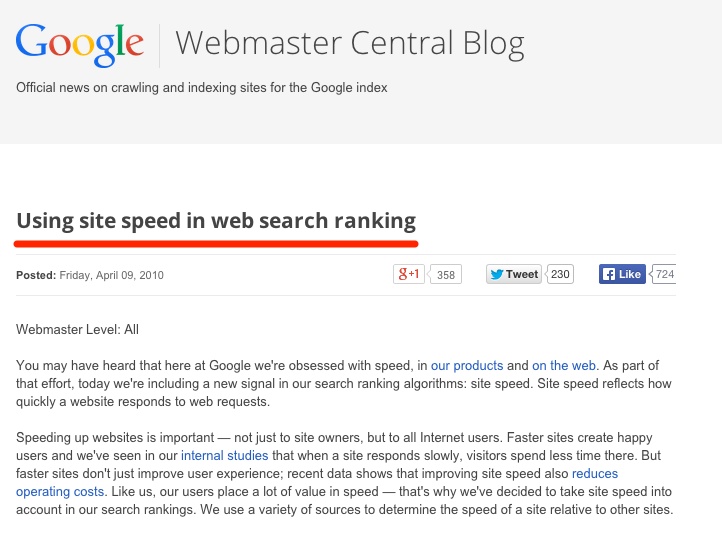
For instance, the difference between “document complete” and “fully rendered” time when loading a page was mentioned.
The former means that while not all the elements on a page are showing, you can start clicking and navigating.
The latter means that everything is clearly visible on the page, even background stuff like ads and images.
Even though it is difficult to pinpoint specifically and with certainty which aspect of speed directly helps your rankings, working on your site loading speed, in general, is bound, at the very least, to enhance your users’ experience.
So, for instance, having a “document complete” time that is faster than the “fully rendered time” could help.
2. Reducing the Image File Size Using the Lossy and Lossless Compression Techniques
Images can play a major role in the difference between “document complete” and “fully rendered site” loading times, especially for mobile sites.
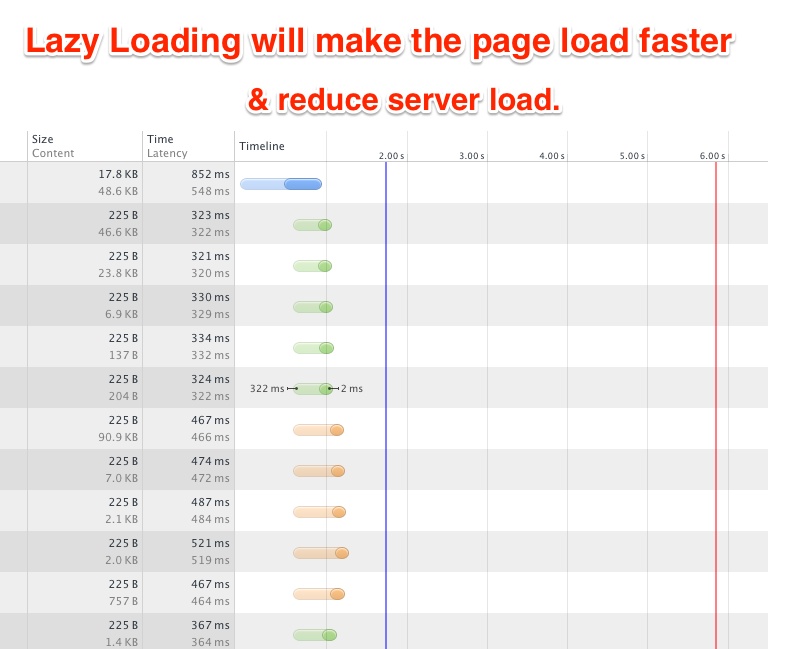
One solution is to simply delay loading images.
Let everything else load first and then only at the end start loading images.
This ensures that your site is functional long before you get to the bandwidth-chugging portions of the page.
As with everything else nowadays, there are lots of plugins that can help you.
On WordPress, you can try Advanced Lazy Load or Smush.
But if you need to do that, maybe the problem is simply that your images are too big and they slow down your site speed anyway.
So why not compress them, to begin with?
We used two techniques for image compression for our case study:
- lossless compression, which means the image quality remains largely the same.
- lossy compression, which means some loss of fidelity may occur, though in general, it may be imperceptible.
Brian Jackson, Director of Inbound Marketing of Kinsta, explained each compression method:
Lossy image compression refers to compression in which some of the data from the original file (JPEG) is lost.
The process is irreversible, once you convert to lossy, you can’t go back.
And the more you compress it, the more degradation occurs.
Lossless image compression refers to compression in which the image is reduced without any quality loss.
Usually, this is done by removing unnecessary metadata from JPEG and PNG files. RAW, BMP, GIF, and PNG are all lossless image formats.

BRIAN JACKSON
Dir. of Inbound Marketing Kinsta
You can see below the representation of both reduced files using these two techniques.
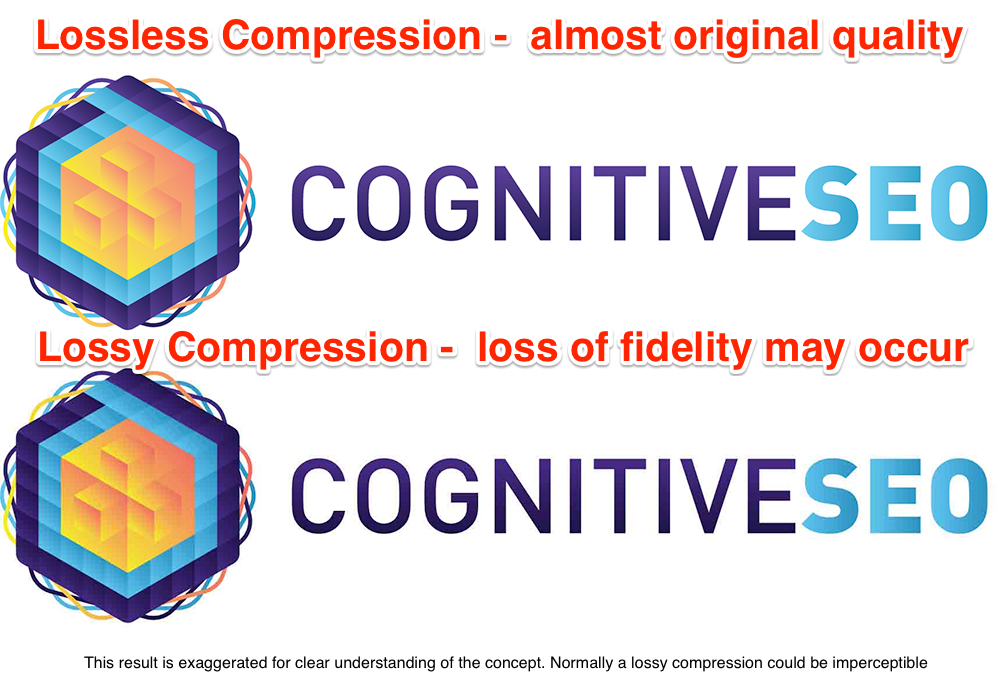
To be more exact on this, the correct term is perceptually lossless.
A human can’t tell between a JPEG optimized version and the Original photo.
JPEG is a lossy format.
PNG is lossless.
3. Case Study – Image Compression Tools Tested to the Limit
We went out and researched some of the best image compression tools out there which use the lossless and lossy techniques for image compression.
After we identified them, we made a list of the most relevant tools that would be up to the job:
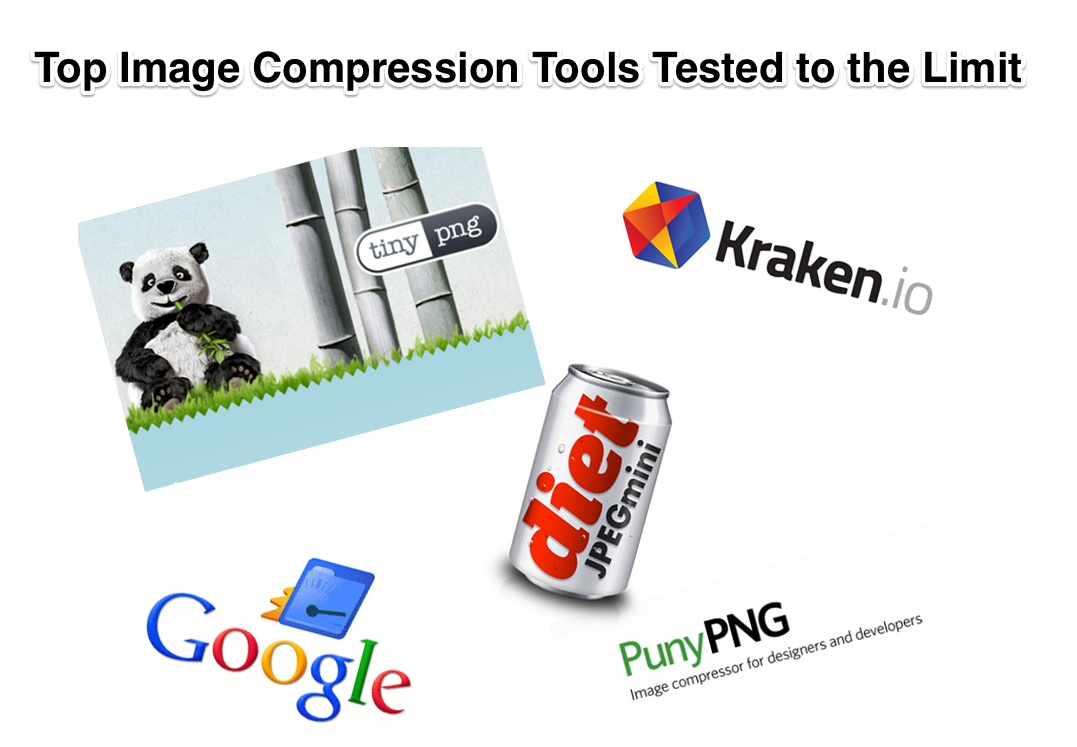
I hope it’s useless to mention that this analysis is unbiased and none of the mentioned tools offered to take us out for a beer or promised any goods in exchange.
So we are going to test those 4+1 tools on the same artifact and see if we can notice any difference in loading speed results.
To make the analysis more encompassing we added a 5th element to the comparison (a 5th dimension, if you will), which is slightly different from the other 4: Google’s PageSpeed.
Unlike the other image compression tools we have included in our research, Pagespeed isn’t really a compression tool as much as an optimization tool that works holistically through a series of custom filters that are executed when the HTTP server serves the website assets.
What gets it a spot in our test is the fact that it “dynamically optimizes images by removing unused meta-data from each file, resizing the images to specified dimensions, and re-encoding images to be served in the most efficient format available to the user.”
Sounds pretty nifty, right?
We’ll see if the boast stands at the end of the day.
3.1 How the Image Optimization Test Was Performed
The test had to be the same for all and give these tools a run for their money, so we decided on optimizing our blog’s entire image data (gallery), which rounded up at 3,824 images.
This was done on a test version of the site and it has not gone live yet.
It was designed for testing purposes only.
Most of the services we used to compress the images have their own API and some example scripts but for our test, we’ve built our own scripts which send a request for each image.
Some services have a “batch upload” feature, but for consistency, we’ve sent a single image per request since we cannot do a “batch upload” on all servers.
We don’t want to lade you with too many technical details.
Yet, a few comments on the process are in order.
Where an API was not available, the images were processed with the service provided by that particular software.
The first comment is that JPEGmini was the only tool that was a downloadable software, the rest being hosted online.
The second is that all of the tools have APIs, except for JPEG Mini.
Last but not least, for Pagespeed we used the Nginx module.
3.2 Top 6 Metrics Tested for Finding the Best Image Compression Tool
We measured several metrics, which we could split into two categories:
- Image compression-related metrics.
- Page load speed-related metrics.
For the first category, we only had results for the 4 image compression tools, since Pagespeed is a bit of a different type of tool, as discussed earlier.
It is worth noticing that not all tools had the same workload:
- TinyPNG only compressed both PNG and JPEG format files.
- JPEGmini only compressed the JPEG format files.
- Kraken compresses both PNG and JPEG format files.
- Puny PNG compresses both PNG, JPEG, and GIF format files.
The metrics in both categories, however, were calculated relative to the actual work and not to absolute standards. And here they are:
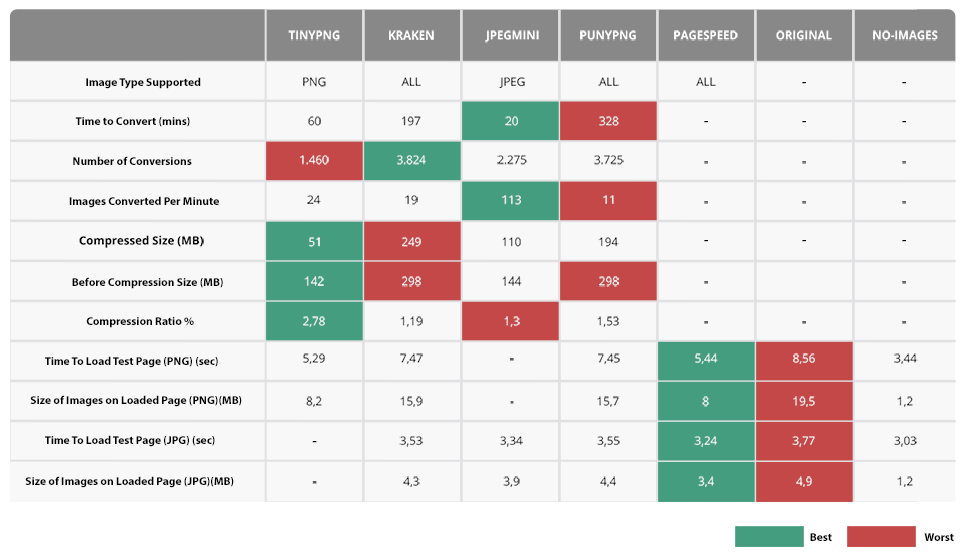
Metric 1 – Conversion Time
We ran tests for each tool to see which one of them manages to convert the image faster and our winner was JPEGmini.

Let’s start with the conversion time, measured in minutes.
Since the number of conversions wasn’t the same for all tools (in fact, it was slightly different in each case), it makes more sense to look at the number of conversions per minute.
The detached leader is JPEGmini, with roughly 113 conversions per minute, or close to 2 conversions per second.
The other 3 tools trail significantly behind, with little difference between them, by comparison.
TinyPNG and Kraken are at 30, respectively 21 conversions per minute, while PunyPNG is utterly unimpressive at merely 11 compressions per minute.
Metric 2 – Compression Power
Next, let’s look at compression power.
This, again, is a metric resulting from the relation between two different measurements: the compressed size of the output relative to the original size of the input.
The winner, by a margin, is TinyPNG, with a 2.78 compression ratio, with the other three being at less than half the rate (1.19 for Kraken and 1.3 for JPEGmini), or at best, just slightly better than half the rate (1.53 for PunyPNG).
So far the format-specific tools seem to fare much better than the format general ones.
Metric 3 – Pages with Mainly PNG Images

And now for the real test: does any of this impact the time to load the page?
For PNG-related pages, the time after compression is best improved with TinyPNG (5.29 seconds) or Pagespeed (5.44 seconds).
The difference between the two is by and large negligible.
Kraken and PunyPNG, however, are significantly lower (with basically no difference at all between them, however: 7.47 and 7.45 seconds respectively).
The latter loading times are more than double than if the web pages used no images and closer to the load speed if there were no compression at all (8.56 seconds).
The sizes of images loaded on the web pages are, as expected, in line with the loading times.
The average size is 8 MB for Pagespeed and 8.2 MB for TinyPNG, practically half the size of images obtained from Kraken (15.9 MB) or PunyPNG (15.7 MB).
For comparison, the average size of the PNG images on a loaded page is 19.5 MB, not much bigger than for the compressed results for Kraken or PunyPNG.
Metric 4 – Pages with Mainly JPEG Images

What about JPEG image format?
It’s another win for Pagespeed and the format-specific tool.
This time, however, the result variable is nowhere near as dramatic as in the case of the PNG files.
In fact, the times to load the page are really close:
- 3.24 seconds for Pagespeed
- 3.45 seconds for JPEGmini
- 3.53 seconds for Kraken
- 3.55 seconds for PunyPNG.
- 3.77 seconds for the Original Images
- 3.03 seconds with No Images
Hardly noticeable, isn’t it?
Add to that the fact that all of these values are still not that much different from the page load time when there are no images on the page (3.03 seconds) or even when all the images on the page are at their original size (3.77 seconds).
As you would expect, the difference in the average size of images loaded on-page is similarly unremarkable.
- Pagespeed gets the best compression, at 3.4 MB,
- with JPEGmini following closely at 3.9 MB.
- Kraken and PunyPNG are both above the 4 MB mark, with 4.3 MB and 4.4 MB respectively.
While the first two values are significantly different than the average size of the page with uncompressed JPEG images on it (4.9 MB), they are nowhere near the size of the page with no JPEGs on it (1.2 MB).
Let’s do a quick recap on the JPEG and PNG compression.
Best JPEG Compression (Best is First)
- PageSpeed
- JPEGMini
- Kraken
- PunyPNG
Best PNG compression (Best is First)
- PageSpeed
- TinyPNG
- PunyPNG
- Kraken
The best JPEG compression is done by PageSpeed, then JPEGmini, followed by Kraken and PunyPNG.
When it comes to PNG files, Pagespeed leads the way, tied with Tiny PNG, followed by PunyPNG and Kraken.
Barring Pagespeed, the better tools seemed to be the ones that are geared for specific image formats (JPEGmini and TinyPNG), with the all-around tools doing poorer in terms of results.
Metric 5 – Bulk Conversion Speed
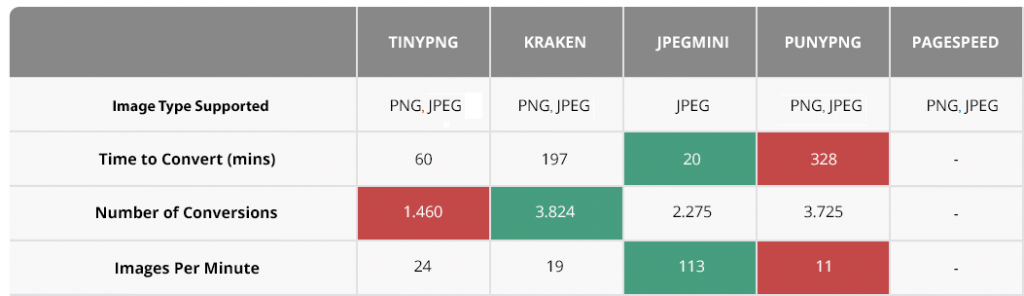
Total Conversion Times by Tool
- JPEGmini – 20 minutes / 2275 images converted
- TinyPNG – 60 minutes / 1460 images converted
- Kraken – 197 minutes / 3824 images converted
- PunyPNG – 328 minutes / 3722 images converted
- Pagespeed – On the Fly Conversion / no initial conversion time
Images Converted per Minute by Tool
- JPEGmini – 113 images/minute
- TinyPNG – 24 images/minute
- Kraken – 19 images/minute
- PunnyPNG 11 images/minute
- Pagespeed – On the Fly Conversion
In terms of bulk conversion speed, there are some aspects that need to be mentioned.
First of all, PageSpeed executes the conversion instantly, on the fly, and JPEGmini is downloadable software.
So, there are some technical differences between these two tools and the others, which might make the comparison between them a bit harder.
At the same time, JPEGmini and PageSpeed’s way of functioning regarding this matter is their competitive advantage so we need to give the credits to Pagespeed and JPEGmini for being the fastest.
PageSpeed seems to be the best as it makes the conversion instantaneously and JPEGmini is the next best thing, but it is limited to JPEG files.
TinyPNG and Kraken are tied up in terms of speed (both not very impressive), with the former only being useful for PNG files.
PunyPNG, while good for all image file formats, has the least impressive bulk compression speed of all five tools.
The conversion speed indicator is important to take into account when deciding on the tool if you want to use it on web pages that rely extensively on images.
If your website’s total count of images is comparable or higher than ours, it might be worth going for PageSpeed or JPEGmini as they have the best results in terms of total conversion times and images converted per minute.
Metric 6 – Conversion Process Easiness

Figures and numbers are highly important but we all know that is not all about them.
Software must provide great results but must also be easy to use, intuitive and simple to understand.
After all, a software’s success is given by the end-user.
For instance, PageSpeed is a great product and can be the detached leader in many chapters but is definitely not the most user-friendly product.
If you are not computer literate and you don’t know how to install and configure the requested Apache or Nginx modules, then no matter how good the results are, PageSpeed might not be for you.
In addition, you will need to have the right to alter webserver configurations in order to install the PageSpeed module (it won’t work for shared hosting).
Unless you want to turn to a tech expert, the use of this tool will make you feel inadequate and will, paradoxically, make things look harder.
JPEGmini, Punny PNG, Kraken, or TinyPNG, on the other hand, have an easy-to-use interface and don’t require high technical skills.
From the easiness of conversion point of view, these tools are made simple, helpful, and really meet the user’s needs.
Deciding on the Winner
Deciding on a winner is hard, yet necessary in order to conclude our in-depth query.
Before doing so, let’s take a look at the tools’ overall presentation and take a sneak peek at what they have to offer.
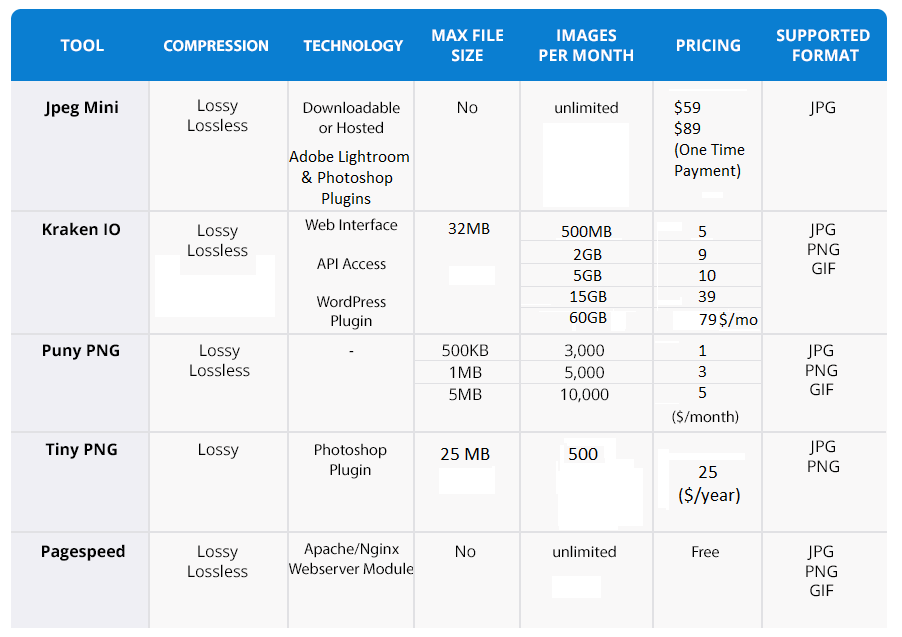
The distinction of the best all-around image compression tool when taking into account all the results goes to PageSpeed: it’s either tied for the lead or the leading tool in terms of both file size and time it takes to load the page for both JPEG and PNG image file formats and none of the other four tools manage to do so consistently (it shares the distinction with two separate tools: TinyPNG for PNG files and JPEGmini for JPEG files).
So how much does PageSpeed actually help you?
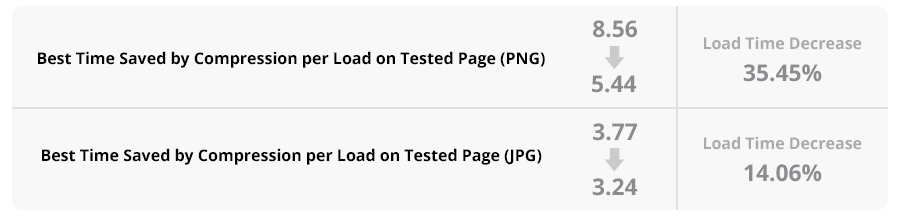
Well, the best way to measure this is by looking at the time you save by compression per load on the tested page.
For PNG, you get from 8.56 seconds (with the uncompressed files) to 5.44 seconds for a page to load.
This means the page loads at a 36.45% faster rate.
For JPEG files, we got from a loading time of 3.77 seconds (for uncompressed images) to 3.24 seconds loading time, meaning pages load at a 14.06% faster rate.
Less impressive than for PNGs, but still noteworthy.
Think of it this way: every time a user lands on one of your pages, their experience is up to 36.45% faster and better.
After all, the life of the web surfer is improved with every second one is looking at relevant information rather than at a blinking hourglass.
The one thing to keep in mind with Pagespeed is that there is some loss of image quality with its compression, but it is so small that it shouldn’t be a serious drawback for most websites (i.e. unless high image quality is what you’re actually going for, in which case maybe image compression is not really the best way to optimize speed on your website).
This is the fully complete metrics table data compared.
And the Winner is …

Looking back at all the graphs and figures it is not hard to say that PageSpeed stands out from the rest of the tools.
In a world where the user doesn’t have the patience to wait more than 10 seconds before page loads,
Page Speed can be seen as one of the webmaster’s best friends.
PageSpeed Modules are open-source server modules that optimize your site automatically.
It is definitely not the average webmaster’s tool as it requires high technical skills in order to use it.
All in all, from our research results that PageSpeed gives the best-added value to a website optimization process overall being, maybe, the best option in what concerns a page’s loading time.
Conclusion
A site’s speed clearly plays an important role in user experience and in the Google Algorithm.
People from the SEO industry are making a big investment in content and that is great.
Yet, what’s the point of all the struggle if it takes too long to load?
Knowing the tools that can help you optimize your site’s speed and make your life as a webmaster a bit better might really come at hand.
To summarize the result of our research, we can say that PageSpeed seems like a very helpful tool.
PageSpeed is a free-to-use tool that can be used on Apache and Nginx Servers and allows you do to all of your changes on the fly.
It also has a cache so it won’t put too much burden on the server.
If you do not have access to a server configuration, we would recommend using the JPEGmini for JPEG compression and TinyPng for PNGs.
You could simply decide on only one format to use and go with the one you choose since that would make things simpler for you and allow you to use the most efficient tool.
And don’t forget the Lazy Loading technique ;). All these together will make your site “lighter” and “faster”!
Note: This blog post is an improved version of an older one we had.
The post Image Compression Techniques That Will Help You Rank Higher appeared first on SEO Blog | cognitiveSEO Blog on SEO Tactics & Strategies.
Source: cognitiveseo.com