
Tag Archives for " HTTP "

HTTP to HTTPS Migration Guide | Do SSL Certificates Affect SEO?
Not long ago, Google has released version 68 of the Chrome Web Browser. In this version, websites that don’t run on HTTPS will be marked as Not Secure. This might lead to the following question: does Google value websites with SSL certificates more? Will they rank better? Is it worth making the switch?
In this article (Updated 2020) you’ll find out whether SSL certificates matter for SEO or not.
You’ll also learn exactly how to migrate your website from HTTP to HTTPS without suffering any ranking drops.
Yes, you heard that right. If you’re not careful, you can mess up your search engine rankings!
Warning: Switching a website from HTTP to HTTPS the wrong way can heavily mess up your search rankings! There are many things that must be taken into consideration. A simple backup of the website will not help!
That’s because you’re playing with the URLs which Google has already indexed. Changing those without a proper 301 redirect from HTTP to HTTPS on the entire website will cause Google to think the old, indexed URLs have vanished.
The HTTP to HTTPS migration guide at the end of the article will help, but if you’re not sure what you’re doing, please contact an SEO professional who can assist you with the migration. We can not be held responsible if things go wrong!
- SSL Certificates, HTTPS & Their Importance
- How Does HTTPS Affect SEO?
- How to Switch from HTTP to HTTPS
SSL Certificates, HTTPS & Their Importance
I’ll try to keep it short. Cryptography isn’t something easy to digest, but without having a general idea of how it works and what problems it solves, we can’t really understand its importance.
If you have any specific questions, ask them in the comments section and I’ll do my best to reply.

What is HTTPS?
HTTP stands for ‘Hyper-Text Transfer Protocol’ (it’s actually Hypertext Transfer Protocol, but that should be only HTP, right?). What you need to know is that it’s a protocol that web servers, data centers, and browsers use to transfer information across the web.
The S at the ending of HTTPS just stands for Secure.
The security comes through the use of SSL (Secure Sockets Layer). Sometimes, it might also be referred to as TLS (Transport Layer Security). It’s a method of securing the data which needs to be transported.
The method through which the data are secured is called Cryptography. By encrypting a message, only the ones that know the decryption key will be able to read it.
For example, if we both decided upfront that A = 1, B = 2, C =3 and so on, I could send you the message 8 5 12 12 15 and you would read it as Hello. This is called symmetric cryptography.
The issue with symmetric cryptography is the fact that both parties must know the encryption/decryption key upfront in order to properly communicate, so at least one secret meeting must be arranged prior to messaging.
Pretty difficult to do when you want to chat with someone across the Globe.

So, to overcome this issue, we can use asymmetric cryptography. This type of cryptography uses 2 keys. A private one and a public one. They can both decipher each other.
This means that any message encrypted with the public key can be read using the private key and vice versa.
If I want to make sure nobody publishes information under my name, I can use asymmetric cryptography. I generate both a private key and a public key.
The public key I send out for everyone to know. If I publish something online and encrypt it with my private key, you could only decipher it with my public key.
This way people will know the work is original. If you want to send me a private message, then you would just have to encrypt it using the public key. Only I will be able to read it.
This comes in handy in these modern days when communication happens over very big distances. People can now share information securely without both parties needing to know each other’s keys.
What is SSL & What are SSL Certificates?
SSL stands for Secure Sockets Layer. Let’s say it’s related to the S in HTTPS. However, we usually hear about SSL in relation to Certificates. So what are SSL Certificates?
Well, SSL certificates are only used to confirm the identity of a website. These certificates are emitted and signed by certificate authorities with their private keys.
Before getting a certificate from them, you must somehow confirm your identity and prove you are the organization and website owner.
I could emit a public key out there saying that I’m Adrian, but how would you actually know it’s me? That’s why we have Secure Sockets Layer Certificates.
There are different types of SSL Certificates, but the most common ones are Domain Verified Certificates. These certificates can even be obtained for free these days (keep reading and I’ll tell you how).
The verification process is pretty simple and very similar to the Google Search Console one. You upload an HTML file to your server, proving you’re the entity.
Of course, when you want to prove you’re a person or an entire company, you need to provide some sort of proof. For this, there are other types of SSL certificates, such as Organization Validated (OV) or Extended Validation (EV) certificates.
They are more expensive and require further verification, such as company documents or IDs. The verification process might take a while. There are all sorts of SSL brands too, such as RapidSSL, Symantec, GeoTrust, or Comodo SSL Certificate.
Before the new Chrome updates (in which they stopped displaying HTTP and HTTPS as well as the WWW prefix), certificates with Extended Validation used to look like this:
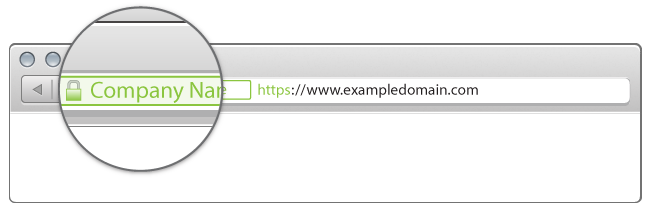
source: DigiCert
However, today you’ll have to click the lock icon to see if a website has a regular SSL Certificate or an entity validated one.
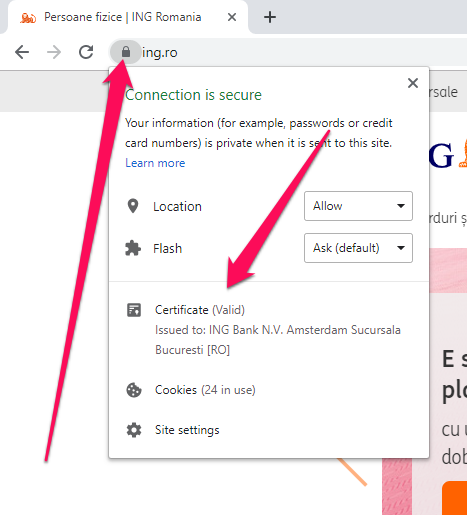
Considering the above mentioned, there isn’t much of a difference between free, regular SSL certificates and premium ones, at least not anymore. Very few users will check the certificate if any (as long as the lock is green).
However, if your business relies on security and trust, then you should consider purchasing a premium SSL Certificate. This will ensure no errors will happen.
Web Browsers come packed up with a bunch of public keys from certificate authorities.
They check if the certificates have been signed with the proper private keys, therefore confirming that their identity has been verified by a trusted authority and not by some random certificate generator.
If the certificate is expired or not valid, a red warning will show up.
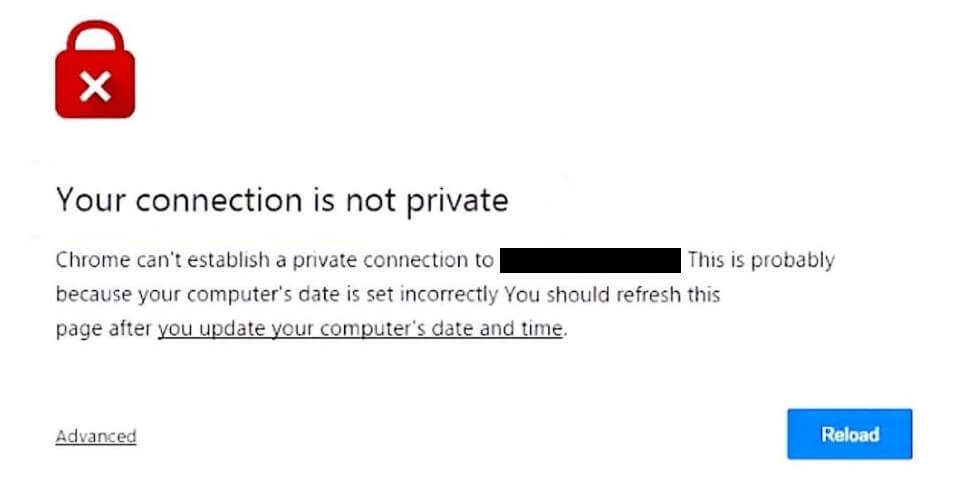
This will definitely turn the user down, so make sure that if you run through HTTPS, your certificate is valid and working properly!
It’s better to run through HTTP than to run through HTTPS with an expired SSL certificate!
After the identity of the website has been confirmed by the browser, the webserver and the client then establishes a secure communication channel.
Asymmetric cryptography is used to send a symmetric key that only the server and the client know.
Then, the communication channel is secure and any attempt to read the information which is passed between the server and client will require the decryption key.
So why is this so important? Why are people so crazy about HTTPS?
Well, when your users browse your website, they often send information, through contact forms for example. Without encryption, that information can be intercepted by what people call “Man in the middle.”
Although contact forms only contain names and e-mails, things get worse when we’re talking credit card information or bank accounts and passwords.
By using an SSL Certificate, webmasters can improve the security of their websites and better protect their users’ information.
How Does HTTPS Affect SEO?
Now that we better understand what HTTP is, we can take a glimpse at its importance. There are multiple ways in which SSL Certificates and HTTPS can impact search engine optimization and Google rankings.
Some of them are strictly algorithmic, while others can be less direct, but very meaningful as well. Let’s start with what we know for sure:
HTTPS as a ranking factor
First, you have to know that, theoretically, SSL Certificates do affect SEO. This is actually an official Google statement from 2014. They are considered a ranking factor, out wide in the open.
Why? Well, there are many reasons, but the main one is definitely security. If Google provides its users with better security, it provides better value and the users will be pleased. The fact that internet credit card fraud is on the rise definitely pushed Google into this direction.
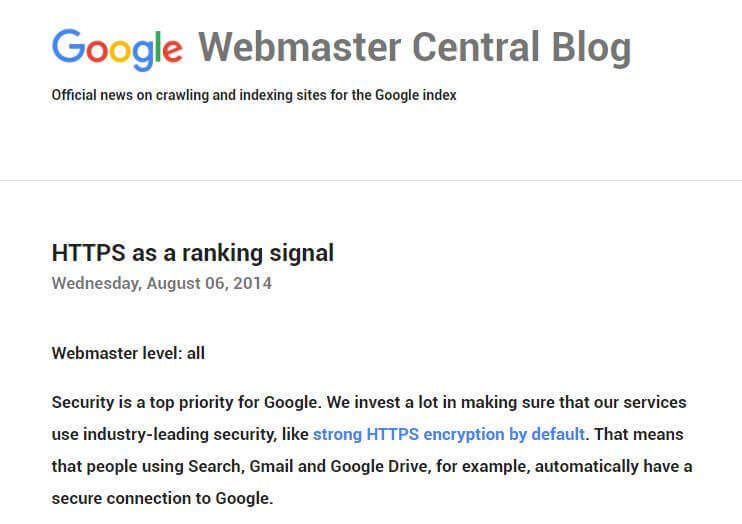
Google has tested its search results with HTTPS as a ranking signal and has seen positive feedback.
This could also mean that webmasters that take security seriously might generally present better websites. They care about the users.
Although this impact is fairly small, affecting less than 1% of websites, many webmasters have adopted HTTPS.
Not long ago, less than 10% of websites were secured with an SSL certificate. Now, more than half of all websites are probably secure.
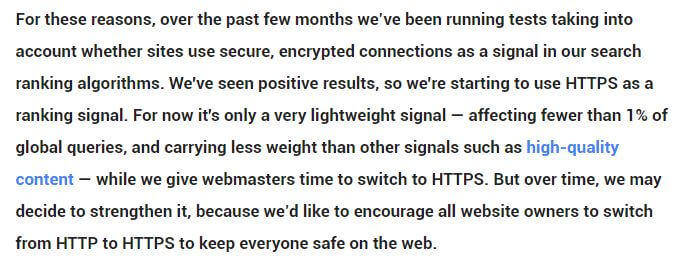
Why didn’t Google do this earlier? Well, to be honest, I think it’s because it would’ve been a little bit unfair. Back in the day, SSL Certificates were not so easy to obtain and some of them were quite expensive.
Today, however, almost anyone can secure their website with a free one. This means that money won’t really have a say in this.
Quick Tip: Basic SSL Certificates can be obtained for free. If you’re just starting out, don’t spend unnecessary money. Keep reading to find out how to get one!
This HTTPS SSL Certificates update is one of the weaker ranking signals in Google’s algorithm. Let’s say that… adding HTTPS won’t get you an SEO ranking boost, but not adding it might affect your Google rankings over time.
Why?
Well, it’s because internet users will trust it less and they will leave it quicker. Your conversions will drop.
These are all ranking signals that the site isn’t doing well, which Google translates into “I should rank this ‘unsecured site lower and reward a website with a secure connection instead.”
The truth is that a modern, dynamic website can’t work well without HTTPS.
User’s trust
Another way in which SSL Certificates could affect SEO is related to the user experience. Some internet users might have no clue what’s happening, but others prefer to browse websites that are secure.
This is where an Extended Validation SSL might come in handy. Here’s the difference between a regular, Domain Validated SSL Certificate and a more expensive Extended Validation SSL Certificate.

Regular Domain Validated SSL Certificate (easily obtained for free)

Extended Validation SSL Certificate (more expensive)
Starting with Chrome Version 68 (24th July 2018), the browser now shows the warning Not Secure when you access a website through HTTP.
Users will now definitely ask themselves more questions when seeing that message instead of just the Information icon.
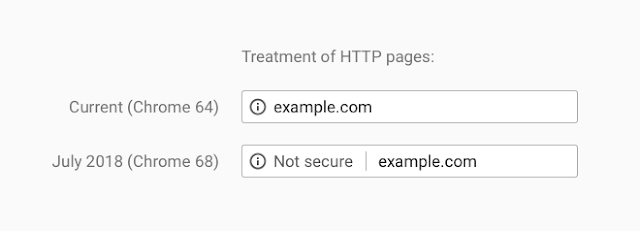
Screenshot from the Chromium Blog
Who knows, in the future you’ll probably going to see a red warning, just like the one with invalid SSL certificates. That day has not come yet, but it’s probably not far!
GDPR issues
It’s obvious that people are more and more interested in the safety and privacy of their personal information, especially when it comes to websites.
Just imagine a breach into Facebook’s servers! You would know EVERYTHING about EVERYONE. Now I know, Facebook is already selling that data to whoever pays good, and you’ve accepted all the terms at signup.
But when it comes to security, websites like Facebook are pretty solid.
Still, maybe a picture of what you’ve eaten this morning isn’t so concerning if it gets hijacked and stolen, but your credit card information when you’re making payments on ecommerce websites is!
As of May 25th 2018, GDPR has had a huge impact on websites. GDPR specifies that any personal data should be handled securely.
This forces webmasters that have even the smallest contact form to switch their website from HTTP to HTTPS to ensure the security of their users’ personal data.
So, not only can it benefit your SEO rankings if you switch to HTTPS, but it might also get you a fat fine if you don’t.
Although usually you will see some ranking boosts, if you mess up your redirects and don’t implement HTTPS correctly, your entire site can drop from the search engine results.
Make sure you know what you’re doing before you start.
Does HTTPS Affect Website Performance?
Ok, now we know how HTTPS affects websites from a search results perspective. But how does it affect a website technically? Will it affect its performance? Will the site be slower?
Well… theoretically… yes. You can expect a delay of about 0.1 seconds compared to regular, unsecured HTTP requests. However, it really depends on your server’s performance.
Most servers today are fast enough to handle SSL Certificates and HTTPS. You won’t notice the difference.

Using services such as CloudFlare (3rd Party SSL implementation) will probably result in a slower PageSpeed Insights score, but it can be fixed with plugins such as WP Rocket.
However, the small hit in loading time and virtual points generated by some tool is far from outweighing the benefits of having a secure site connection.
How to Switch from HTTP to HTTPS
Switching from HTTP to HTTPS can be a hassle, especially if you’re not running on a popular CMS, like WordPress. However, you can take a look at the following guide to make sure you don’t make some of the biggest mistakes.
Acquire & Install an SSL Certificate
The first step is to acquire an SSL Certificate and install it. You might already have one, even if your website isn’t already running on it.
Some hosting providers also offer free SSL Certificates. To find out, just go to https://yourdomain.com instead of the regular HTTP.
If you see a red warning, you probably don’t have one (or it has expired). Then, just click the Information icon:
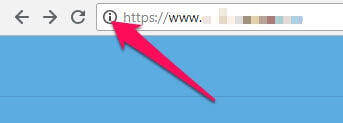
If the popup says Certificate: Valid then you have an SSL Certificate. Click it to see more details about it, such as for how long it is valid.
If you don’t see the word Certificate there, then you probably don’t have one.
You can get an SSL Certificate anywhere. Just search Google for SSL Certificate and you’ll find plenty of providers. Search for the best deal and also look at user reviews.
You should also be able to purchase certificates directly via the cPanel on your server, if you’re looking for an EV Certificate, for instance.
However, for most people, a Free SSL Certificate is most likely the best way to go. A really easy way to do that is by using CloudFlare.
Instead of using your server, CloudFlare uses its own servers to secure your connection.
To activate CloudFlare, you’ll have to create an account and register on their website. Setup is usually automatic, but they have step-by-step instructions as well.
After that, you’ll have to log in to your Domain Registrar and add CloudFlare’s nameservers instead of your server’s.
This way, the traffic will first pass through CloudFlare’s firewalls, which will secure the connection and will ensure hackers stay out.
One downside (at least for the free version) is that when their servers are under heavy load, your site might load slower. You can fix this with WP Rocket, though.
You have a special section for CloudFlare settings there. I’ve been using it on websites for years, and I can say the free version is awesome and the websites are fast.
If CloudFlare isn’t the thing for you, you can also try Comodo or Let’s Encrypt via Zero SSL. We’ll go with the Zero SSL example.
First, you’ll need a signing request from your server’s cPanel. If you don’t know how to get one, ask your hosting provider. You’ll find that under the SSL section.
Just add the details for your website and a request will be generated. You can download it as a file.
Then you have to upload it to Zero SSL. The website provides step-by-step instructions.
You’ll have to provide some sort of verification, most of the time by uploading a file on your web servers (just like with Google Analytics or Google Search Console).
They usually provide step-by-step guides on how to verify your identity. There’s more than one method, so pick the one that’s easiest for you.
Once you get the certificates, you’ll have to install them in your cPanel in the SSL Certificates section (Generate, view, upload, or delete SSL certificates). The process is pretty simple. Just scroll down and add the certificate.
After installing the certificate, you should be able to access your website via HTTPS.
Add HTTPS Version to Search Console
The next step is to go to your Google Search Console and add the HTTPS version of your website.
You can also set the preferred version, but I highly recommend that you let Google choose for now and only do this after you’ve successfully implemented the HTTPS.
You should also make sure that Google Analytics or any other web analytics software you’re using is also able to track HTTPS from now on.
Set up 301 redirects
Warning: This is the crucial step. If you don’t redirect properly, your SEO rankings will drop! Why? Because Google will have to deindex the old HTTP site and index the HTTPS one, without having any idea that they’re actually connected. Also, users that land on HTTP versions (from old backlinks for example) will never get to see the HTTPS version.
To redirect from HTTP to HTTPS, you can either use a plugin or do it via the server. If you’re running on Apache Web Server, you can set the redirects via the .htaccess file.
However, it’s a little technical and, depending on other functionalities, conflicts may occur.
If you’re running on WordPress, you’re lucky! You can use the Really Simple SSL plugin and it will do everything for you (set up 301s, change the main domain to HTTPS, and change all the links from the database to HTTPS).

Really Simple SSL WP Plugin
So make sure that all HTTP versions will properly redirect to their HTTPS counterparts. Take into account www, non-www, slashed vs non-slashed, and parameters.
Here you should also change the main URL of your website to HTTPS. This is usually done in some sort of configuration file.
In WordPress, it can be changed in the General Settings area. The Really Simple SSL plugin will do this for you, anyway.
Note that some platforms might not fix all the URLs. It is mandatory that each URL properly 301 redirects to its new HTTPS counterpart.
So
- http://www.domain.com
becomes
- https://www.domain.com
and
- http://www.domain.com/page-1
becomes
- https://www.domain.com/page-1.
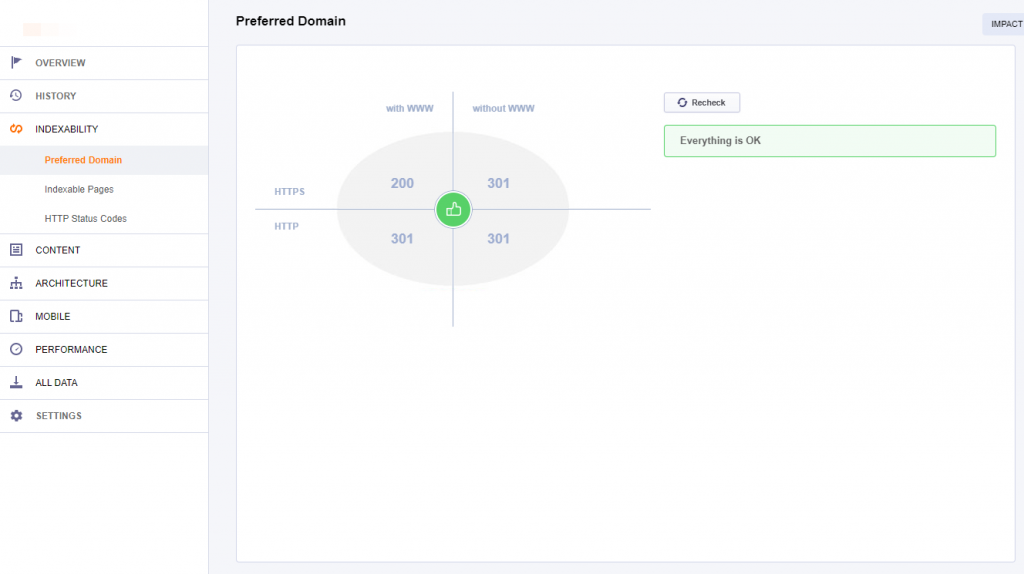
You should make sure that all other variants of your website redirect to a single one, with HTTPS, be it WWW or non-WWW. This is called a Preferred Domain Version.
It’s best if the redirects don’t happen in the chain.
So instead of having
http://domain.com > http://www.domain.com > https://www.domain.com
it should be
http://domain.com > https://www.domain.com
and
http://www.domain.com > https://www.domain.com.
You can check that quickly with the CognitiveSEO Site Audit. Go do Indexability, then Preferred Domain.
Change All Internal Links
Even if you change your main URL to HTTPS, some static content might stay unsecured. You have to make sure you fix this, otherwise, some issues may occur.
- Canonical Tags: Canonical tags are often forgotten. If you’re running through HTTPS and your canonical tag points to the HTTP version, Google will think that it has to index HTTP.
The problem is that if HTTP 301 redirects to HTTPS then Google will get into a loop and it won’t be very pleased.
To find out if your canonical tags are properly set up to HTTPS, press CTRL + U while on your website in Google Chrome to view the site’s source, then search for canonical with CTRL + F.
- Hreflang: Same thing as with canonical tags, the hreflang tags should point to the correct HTTPS counterpart, even though 301 redirects are in place. Make sure you check that in the source of the site.
- Internal links: If don’t change the links from HTTP to HTTPS, you’ll get a mixed content warning (we’ll discuss this in more detail below).
Most of the times, this won’t happen when you’re using a popular Content Management System, but it can often happen on custom platforms and the effects can be devastating. Make sure everything is in order.
Other things that should be taken into account are XML sitemaps, external tools and e-mail systems (that might’ve run through unsecured channels).
Fix Mixed Content Issues
Many times, after implementing SSL on your website, you will get an exclamation mark instead of a green lock, or might even get the red lock. This error is caused by Mixed Content.
Mixed content actually means that some resources on your website load through HTTPS, but others load through HTTP. When you click the lock icon in the browsers, you should see a message as follow:
Your connection to www.xyz.xyz is encrypted with 256-bit encryption. However, this page includes other resources which are not secure. These resources can be viewed by others while in transit, and can be modified by an attacker to change the behavior of the page.
If you have mixed content, the green lock and secure message won’t appear, even if you have a valid SSL certificate installed.
Update:
Starting from December 2019, Google will block mixed content pages, meaning they will show up as unsecured!
To fix this issue, you must identify the resources on your website that are loaded through HTTP and force them to load through HTTPS.

Evil SEO Cactus Mixing Some Content
There are multiple causes that can generate mixed content warnings:
Static links in pages:
Maybe you’ve written an article and linked to a page of yours through an absolute URL. Absolute URLs look like this http://www.cognitiveseo.com/pricing.php while relative ones are just /pricing.php. Relative URLs change automatically, but absolute ones don’t.
You might have also linked to an external site’s image. Since the resource loads through HTTP, it isn’t secured.
Unfortunately, these links won’t change unless you update them manually, as they might not be linked to the platform’s URL generation. In WordPress’ case, for example, they don’t change.
You can always try a plugin that fixes mixed content such as SSL Insecure Content Fixer. However, they do not always work.
Another good way of trying to fix everything quick is to download your Database and edit it with a tool such as Notepad++. Then you can find and replace every HTTP instance with HTTPS (start with your own domain first and then expand to external ones).
Warning: Make sure to have a backup of your original database, before any replacing is done.
Mixed content from CSS files:
Sometimes, web design elements such as CSS files can also contain static resources (images) that load through HTTP.
Those are a little harder to identify because they can’t be found within the source code of the page (unless the CSS is generated in-line).
Old themes often create this mixed content issue, due to the fact that once upon a time, using HTTP was fine.
A good way of identifying hidden mixed content is to use Google Chrome’s- Inspect Tool. Hit CTRL + Shift + I on your keyboard (or hit right Click > Inspect) while browsing a page with mixed content issues.
Then you have to go to the Network section. If you press F5, you’ll see all the resources loading.
There you can identify which resource is loaded through HTTP and causes an error. Under the Initiator column, you can find the file that is responsible, such as the CSS file.
Proceed to edit the CSS file from your server and replace HTTP with HTTPS. Note that if this fix isn’t patched into the Theme itself, updating your theme will overwrite the modified CSS file with the one with problems.
However, this method is time consuming and you won’t be able to analyze every page! You can use the CognitiveSEO Site Audit to speed up the process.
If you’re looking to quickly identify all the mixed content issues on your website you can always check out the CognitiveSEO Site Audit‘s Mixed Content section.
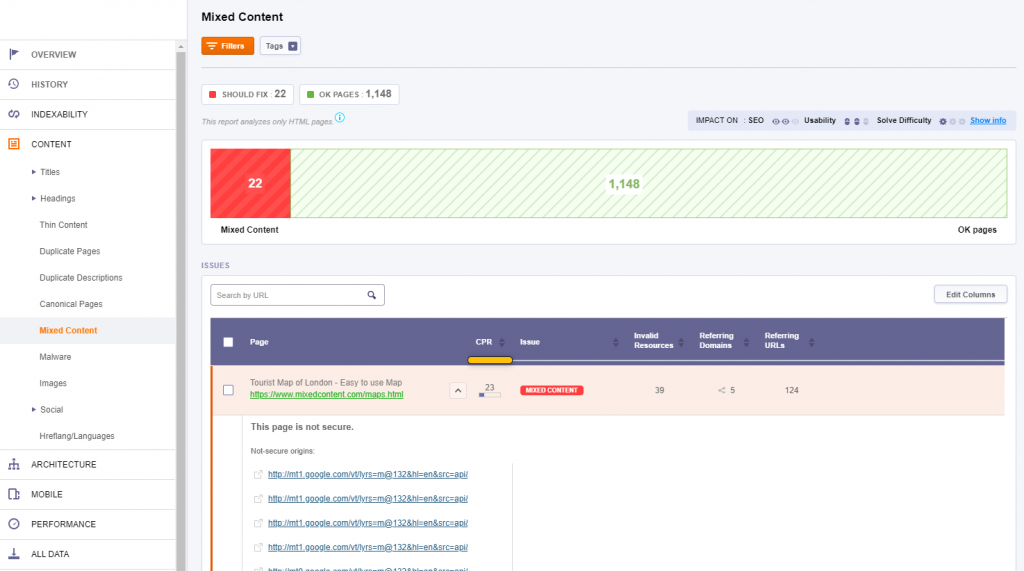
Once you fix things, make sure to recrawl the pages in the tool to see if you’ve missed anything.
Make Sure Everything Works Properly
Switching to HTTPS can often cause issues with plugins, APIs, and other functions within the website.
Make sure you browse your website properly for a couple of hours and test every segment of it.
Access every page to see if it loads and test if the contact forms, online orders and filtering/search features are working properly.
You can also now set HTTP as your preferred version in Google Search Console. WWW vs. non-WWW is irrelevant, but non-WWW tends to be shorter, so there will be more space for the URL when it shows up in Google.
However, if you’ve been running on WWW so far, it’s a good idea to keep the WWW even with HTTPS.
Resubmit Disavow File & Change Your Backlinks
Many forget that they have to resubmit the disavow files. If you have ever suffered from a negative SEO attack you must download the disavow file from the HTTP version in Google Search Console and upload it into the HTTPS version.
Although the 301 redirects are in place, it’s really important not to forget this step!
A final step would be to change as many of your old backlinks as possible from HTTP to HTTPS. Even with the 301 redirects in place, a small percentage of the link equity might be lost.
Start with your social media profiles and backlinks you know you can change for sure in very little time.
It’s not worth it to spend countless hours and e-mail everyone to switch your URL from HTTP to HTTPS, but if you have some way of managing it faster, it’s worth a shot.
Gather a list of your contacts on social media and blast them a message asking them to replace the HTTP backlinks with the new HTTPS ones.
Conclusion
Merging from HTTP to HTTPS can help you improve your search rankings.
We can’t really go as far as to say it boosts rankings, but even if it doesn’t have any effect on your website right away, you’ll definitely see an improvement over time thanks to a better user experience.
To be honest, the only downside of implementing HTTPS on your website is the fact that it’s a little bit of a tricky process.
However, once you get over it and implement it correctly, nothing bad can happen. Your site is safer, your information is safer and your user’s information is safer and that peace of mind is priceless.
What’s your experience with HTTPS and SSL Certificates? Have you encountered problems when merging your domain from one version to another?
Have your rankings increased/decreased?
Which SSL Certificate provider are you using?
I’m curious. Let’s talk about it in the comments section!
The post HTTP to HTTPS Migration Guide | Do SSL Certificates Affect SEO? appeared first on SEO Blog | cognitiveSEO Blog on SEO Tactics & Strategies.
Source: cognitiveseo.com

What is an SSL Certificate and How It Can Help Your Website
You might be wondering: “Why is my website showing up as an unsecured site in Google Chrome?” The answer is because you don’t have an SSL certificate that converts your pages into secure, encrypted HTTPS pages.
Some people may think that there’s no need for an SSL certificate if your website isn’t used to store or process sensitive information, or that an HTTP protocol is enough.
That may have been the case a decade ago, but it simply doesn’t hold true today.

When visitors see the “Not secure” tag that comes along with the lack of an SSL certificate, they’ll be less likely to stay on your site or interact with your company.
Or buy anything from you at all.
In this post, we’re going to cover what an SSL certificate is and how it can be used to help your website.
So what does SSL stand for, anyway?
What is an SSL Certificate?
SSL certificates are data files that add a cryptographic key together with a company’s details. SSL stands for Secure Sockets Layer.
In layman’s terms, SSL certificates bind a domain name, server name, or hostname together with a company name and location.
When they’re installed on a web server, they activate a padlock that shows that a secure connection is present between a browser and the webserver.
These padlocks, which are added to most of your favorite websites, look something like this:
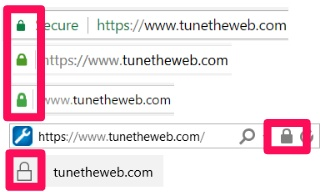
They signify to site visitors that the owner of a website is encrypting connections on the page, which makes for a more secure experience.
Usually, SSLs can be used to secure transactions, logins, and data transfer. In today’s world, it has become commonplace for social media sites to have SSL certificates, too.
Twitter has one:

Facebook has one:

And even Reddit has one:

When you open an SSL certificate up, it usually looks something like this:
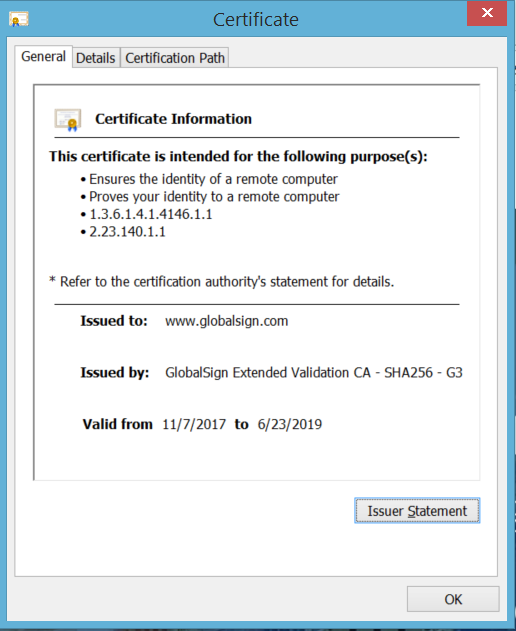
This particular certificate lists who it was issued to, who it was issued by, and the dates that it is valid from and to. This one is valid until 2019.
That way, site visitors won’t have to second guess if your web page is safe, secure, or legitimate.
The bottom line? If you want your site to be trustworthy, you’ll need an SSL certificate.
Here’s how an SSL certificate works.
How Does an SSL Work
When you access a website, the browser or server requests that your web server reveals its identity.
A webserver with an SSL certificate sends the browser or server a copy of it for review.
Then, the browser or server will check to determine whether or not it trusts the certificate. If it does, it relays the message back to the webserver.
Then, the webserver sends back a digitally signed acknowledgment and an SSL encrypted session begins.
Encrypted, secured data is then shared between the browser or server and the webserver.
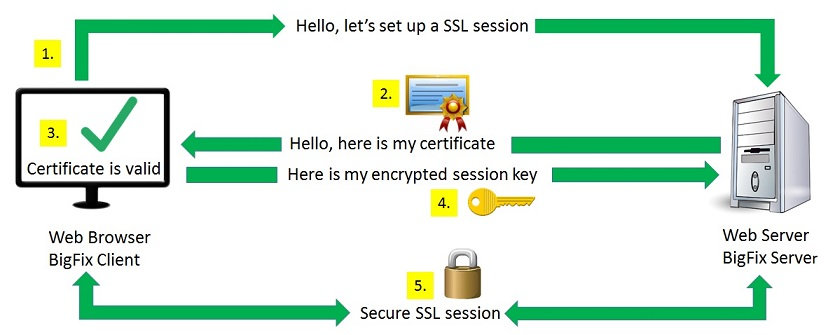
The benefits of using SSL certificates are huge. For starters, SSL makes browsing safer for your customers, builds trust and boosts conversions, and protects both internal and customer data.
They also help you rank higher in Google since they’re made possible with HTTPS.
But what is HTTPS and why is it important?
Why HTTPS?
HTTPS stands for Hypertext Transfer Protocol Secure. It is an application layer protocol that was created to transfer and receive data over the internet.
In comparison to plain old Hypertext Transfer Protocol, or HTTP, HTTPS encrypts all communication between a browser and a website.
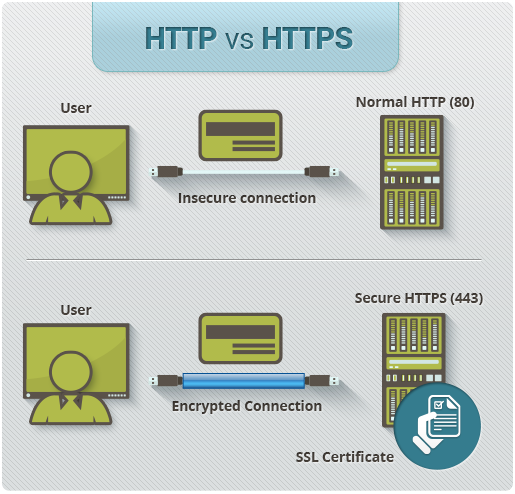
HTTP does not. The added S in HTTPS is much more than a letter.
This means that data sent through an HTTPS connection is converted into a nearly impenetrable code to prevent unauthorized hackers from getting their hands on it.
And even if they do, they won’t be able to understand it or make sense of it. Encryption can take a simple message, like “hello” and turn it into an unidentifiable code, like “6EB6957008E03CE4.”
An application layer protocol doesn’t discriminate when it comes to how information is transferred between sources, so your site visitors will all be treated with equal security.
HTTPS is commonly used by e-commerce websites in order to ensure secure transactions for customers when purchasing products.
Let’s take a closer look at the importance and advantages of the HTTPS protocol that SSL certificates provide.
The Importance and Advantages of SSL
Google’s main goal is to provide users with secure browsing options. That’s why they’re encouraging site owners to make the switch over to HTTPS.
In fact, Google is now marking all non-HTTPS sites as insecure.
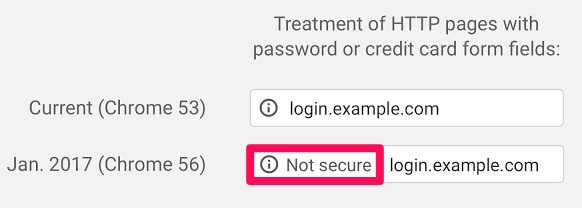
And if you’re selling products or services from your site, an HTTPS seal of approval could help you sell even more.
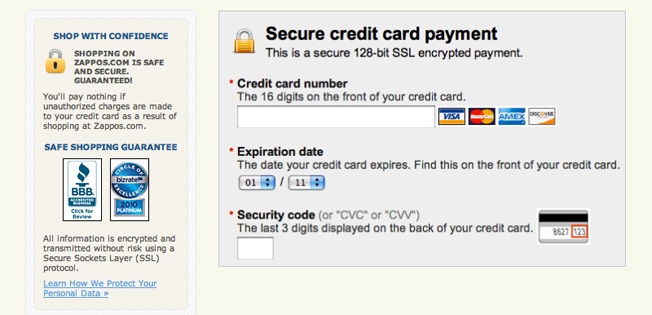
Think about it: would you hesitate if you were ready to buy something and you saw a header like “Secure payment?” Probably not.
But if you saw something on a checkout page mentioning that things were “not secure,” you’d probably be gone faster than a toupee in a hurricane.
Once you have an SSL certificate and an HTTPS protocol, don’t be afraid to show it off to your customers and boast about it to help boost sales and transparency.
HTTPS can also help your SEO and conversions.
How SSL Can Help Your SEO And Conversions
Google rewards URLs with HTTPS protocols for being secure, which gives them a minor SEO boost in comparison to sites without them.
This means increased rankings and more referral data.
Referral data is preserved when it passes through HTTPS sites, which can also help to increase your search engine placements.
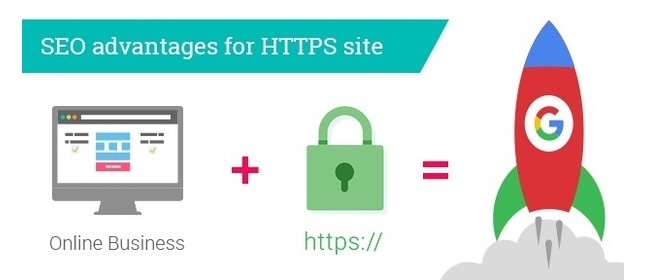
Rankings will continue to increase over time if your site operates on HTTPS since visitors can always rest assured that browsing on your site is secure.
But there are several different types of SSL certificates you should be aware of.
Types of SSL Certificates
When choosing an SSL certificate, you need to pick the one that works best for you and your site.
There are three main types of SSL certificates.
- Domain Validated (DV SSL) Certificates
- Organization Validated (OV SSL) Certificates
- Extended Validation (EV SSL) Certificates
DV SSL certificates are issued almost immediately, and no company paperwork is required to obtain one.
No company identity is displayed on this type of SSL certificate other than encryption information, but it is enough to activate the “secure” padlock on your URL.
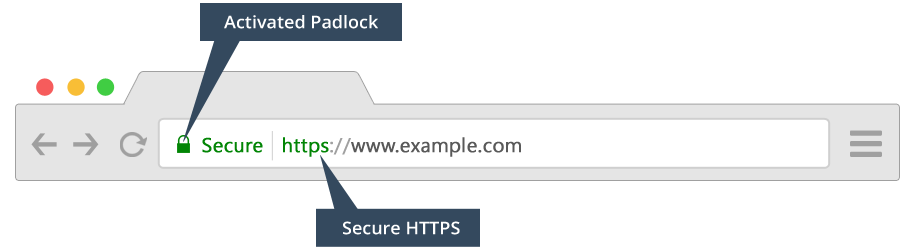
While there’s no questioning that your information will be encrypted when visiting a site with a DV SSL certificate, there’s no way for customers to verify who is on the other end of the data.
These certificates are the easiest and quickest to get, and they’re also the cheapest. But they’re the least secure of all SSL certificates.
If you just have a small personal website or forum that needs some added encryption, a DV SSL certificate is a solid choice.
OV SSL certificates are more secure than DV SSL certificates but less secure than EV SSL certificates. They’re also usually right in the middle of the two when it comes to cost, as well.
They are issued within a couple of days and require you to:
- Authenticate your organization
- Prove your right to request a certification
When you obtain an OV SSL certificate, the “secure” padlock will be added to your URL, as well as some kind of site seal, depending on where you purchase it from.

If you have a large, public-facing website that handles some non-sensitive transactional data on a regular basis, an OV SSL is a good certificate to go with.
EV SSL certificates, on the other hand, require several steps before they can be obtained. To get an EV SSL certificate, you must usually:
- Verify the legal existence of your company
- Verify that the identity of your company matches official records
- Verify that your company has the right to use the domain listed in the EV SSL certificate
- Verify that your company has authorized the issuance of the SSL certificate
EV SSL certificates are harder to get in comparison to other types, but they are more secure than DV SSL and OV SSL certificates.
You know exactly who is on the other end of the website with this kind of certificate.
These certificates are usually issued within several days and are the most expensive to obtain. The company name is displayed in the URL next to the “secure” padlock.
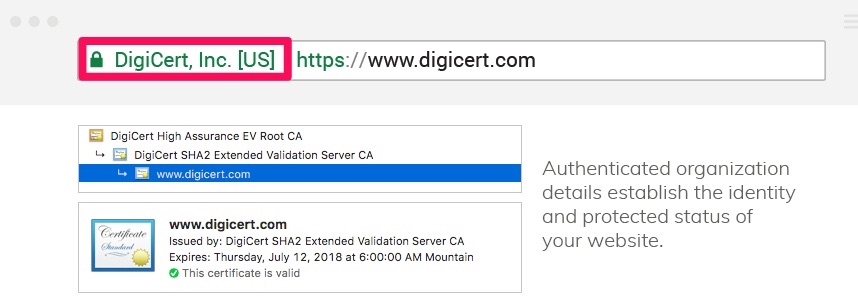
Your address bar may also turn green.
If you are an e-commerce site or you handle credit card payments and other sensitive data regularly, you need an EV SSL for maximum security.
How do you know what the best SSL certificate is for you?
What’s the Best SSL Certificate?
While all three different kinds of SSL certificates are better than no certificate, you have to pick the one that works the best for your budget and site needs.
Most sites that offer SSL certificates, like GoDaddy, Cloudflare, and Comodo, offer all three.
Let’s analyze GoDaddy first.
GoDaddy
All SSL certificates from GoDaddy include SHA-2 and 2048-bit encryption, which is about the strongest out there on the market today.
With a certificate from GoDaddy, you’ll be able to protect unlimited servers, reissue your certificate as many times as needed for free, and reach 24/7 security support.
You’ll also receive as much as $1 million in liability protection and 30-day money-back guarantee.
A DV SSL is $59.99 a year, an OV SSL is $103.99 per year, and an EV SSL is $99.99 per year.
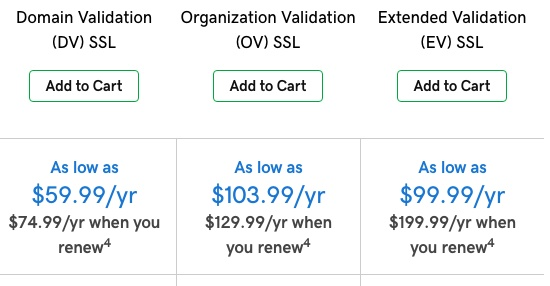
With Cloudflare, you can get a base SSL for a more affordable price.
Cloudflare
With Cloudflare, you can get the base SSL service for free. There are no hidden details or fine print.
For more advanced features or SSL certificates, you’ll need to upgrade to a paid plan.
All that you need to implement Cloudflare’s SSL services is to create an account and update your site’s DNS records.
Cloudflare’s HTTPS options provide additional services beyond regular HTTS that can help you boost page loading times and site speed.
Cloudflare serves your site visitors a cached version of your site to help make it faster for users.
However, SSL with Cloudflare only encrypts the connection between site visitors and the cached version of your site.
It doesn’t encrypt the connection that exists between your site and your server.

This means that your server connection could still be hacked.
If you want a full SSL certificate complete with encryption for your server, you might have to pay as much as $200 per month per domain for Cloudflare’s Business plan.
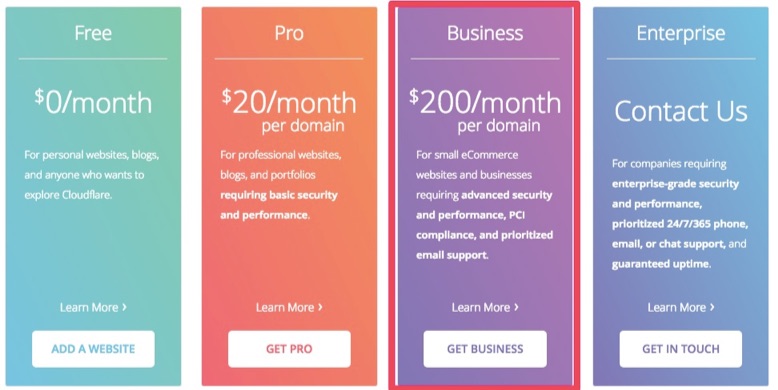
Other features included in the Business package include a web application firewall, prioritized email support, and guaranteed 100% uptime for your website.
Comodo SSL certificates are a bit more secure than Cloudflare.
Comodo
A DV SSL certificate from Comodo will set you back about $70.95 per year. A warranty level of $10,000 is included.
OV SSL certificates can cost anywhere from $88.95 to $427.95 per year, depending on the one you choose. Warranty levels are anywhere from $50,000 to $250,000 for this SSL.
An EV SSL is $199.50 per year and includes a warranty level of $1,750,000.
Every SSL certificate from Comodo features 128/256-bit encryption, 2048 bit root keys, unlimited re-issuance, and a 30-day money-back guarantee,
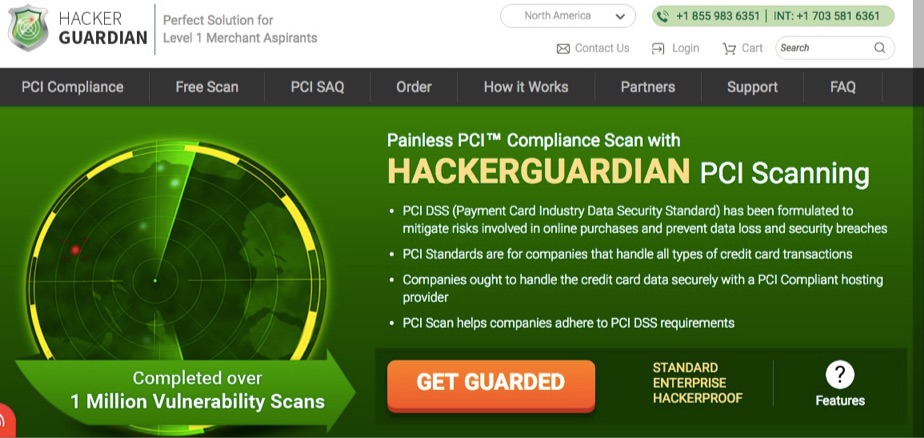
Each certificate features HackerGuardian PCI scanning service, as well.
Once you decide on the SSL certificate that works best for you, get ready to install it.
How to Install an SSL Certificate
Installing an SSL certificate might sound intimidating, but it isn’t anything to be afraid of. Start off by purchasing the SSL certificate of your choice.
1) Purchase the SSL certificate
Be sure to only purchase an SSL certificate from a reputable source.
After all, you don’t want to compromise your company’s security, so don’t just purchase an SSL certificate from anywhere.
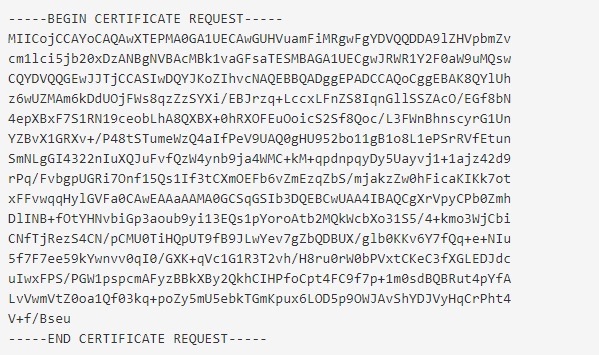
You will probably need to upload a copy of your Certificate Signing Request (CSR) when you order the SSL certificate of your choosing.
A finished CSR should look something like this:
You can find a list of all CSR creation instructions for nearly every platform and operating system here.
Once you’ve purchased your SSL certificate, you’re ready to activate it.
2) Activate it
The method used to activate your SSL certificate will depend on where you ultimately decide to purchase it from. Sometimes, your web host will activate your SSL for you.
For example, if you purchase an SSL from GoDaddy, you’ll have to log into your account, head to “SSL Certificates” and click “Set up.”
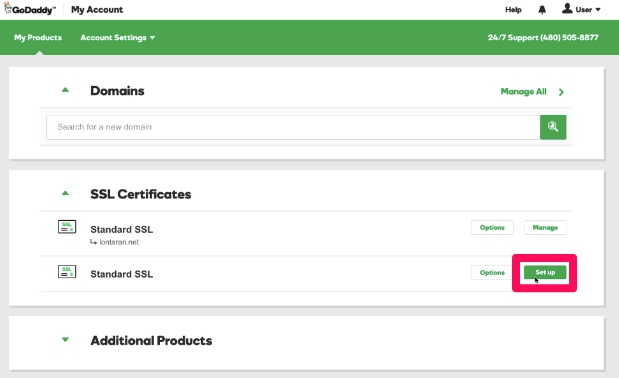
Once you refresh the page, you should see your new and ready-to-use certificate.
When you have activated your certificate, you should validate it.
3) Validate the certificate
Before you officially begin to use an SSL certificate, you need to diagnose any issues with it.
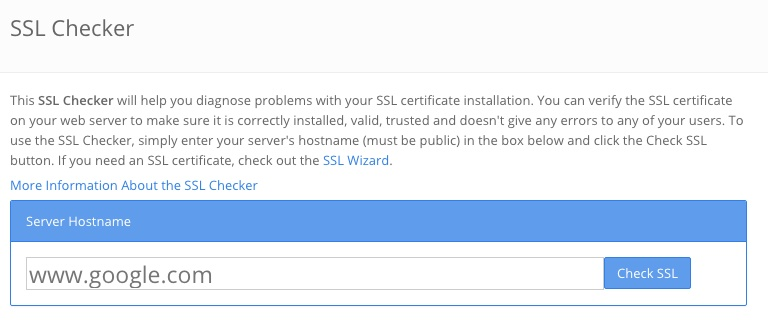
Use an SSL Checker tool like this one from SSL Shopper to validate your certificate.
Next, install the certificate on your hosting server if it hasn’t already been done by your web host.
4) Install the certificate on the hosting server
The process for installing your certificate on your hosting server will depend on where you’ve built your site.
For example, if you’ve used Duda to build your website, you can navigate over to “Site Settings” and click “Site SSL” to set up a certificate.
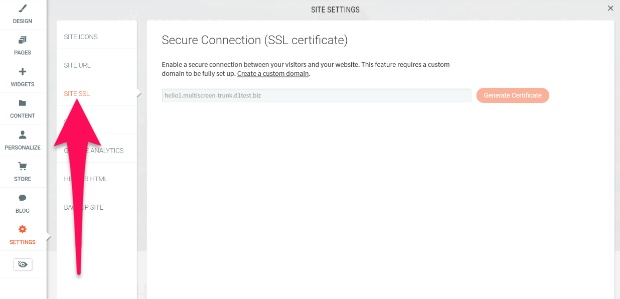
Then, click “Generate certificate.”
Note that your SSL certificate should never be removed unless you manually take it off of your site.
Once your SSL certificate is up and running, you need to set up 301 redirects and check your links.
5) Set up 301 redirects and check the links
If you have old google links or dated links to your pages on other sites, you need to set up a redirect so that HTTP requests can be changed to HTTPS ones.
You can do this by adding the following code to the top of your .htcaaccess file located in your root folder:
RewriteEngine On
RewriteCond %{HTTPS} off
RewriteRule (.*) https://%{HTTP_HOST}%{REQUEST_URI} [R=301,L]
Once you’ve added that code, double-check that your site is still working well and that requests are being redirected to the new version of your URLs.
You can also use HTTP Strict Transport Security (HSTS) to force all connections to become HTTPS links all at once.
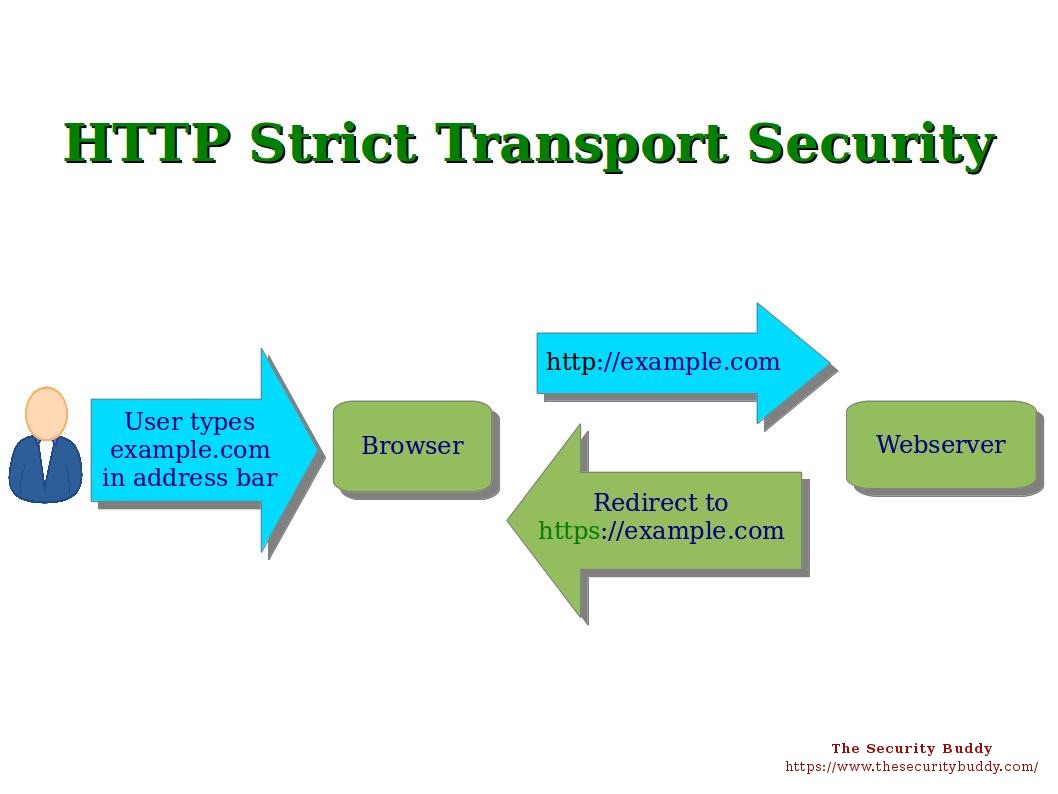
All you have to do is add the code to your site.
For example, if you have an Apache web server, you can add the following code to your .htaaccess file:
# Use HTTP Strict Transport Security to force the client to use secure connections only Header always set Strict-Transport-Security “max-age=300; includeSubDomains; preload”
Here’s how to view SSL certificates in Chrome.
How to View SSL Certificates in Chrome
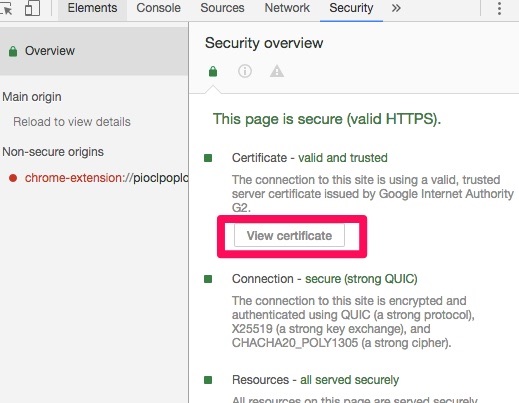
To view SSL certificates for any site (including your own) in Chrome, open Developer tools.
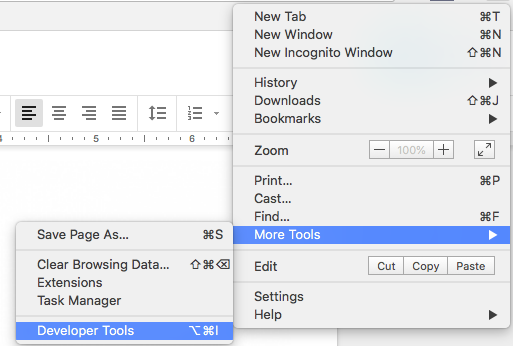
From there, head to the Security tab and click “View certificate.”
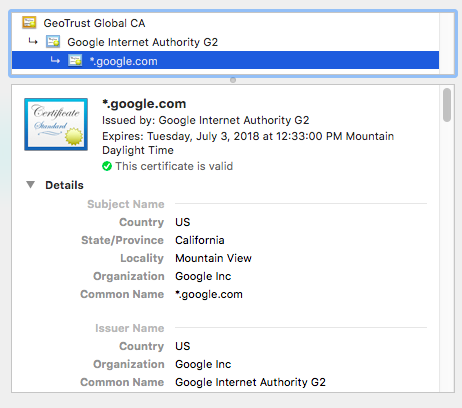
Then, the full certificate should appear for your viewing.
Finally, you need to test your HTTPS to make sure that all web elements are as secure as possible.
Testing your HTTPS
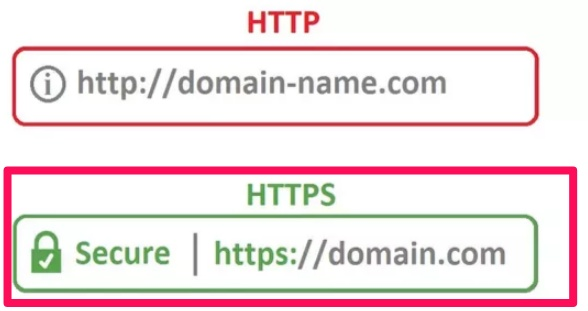
The easiest and fastest way to verify that your HTTPS is working is to head to your website and verify that you see HTTPS: before your site name.
If you want a more in-depth test, use an advanced SSL-Check tool like this one from JitBit.
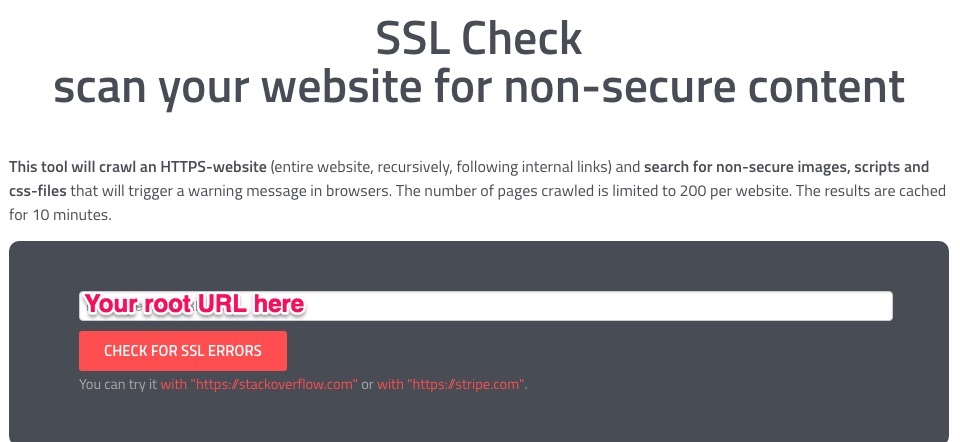
This tool will crawl an entire HTTPS website (and even it’s internal links) to uncover unsecure images, scripts or CSS files that trigger unsecure warnings in browsers.
You can crawl 200 pages of your site for free using the tool if you tweet about it, which is a pretty small price to pay for zero cost HTTPS testing.
Conclusion
If your site is marked as unsecure, you’re losing valuable site visitors every minute.
An SSL certificate can help, since it verifies and encrypts your website, making your pages safe for both you and your customers.
If you think you can avoid getting an SSL certificate, you’re wrong. The HTTPS protocol that SSLs provide is vital if you want to build a trusted and reputable site.
HTTPS tags show up with a padlock and a “secure” tag in visitors’ browsers, notifying them that your site is legit.
And HTTPS can help your SEO and conversions, since HTTPs pages are proven to have higher rankings and more referral data.
There are three different types of SSL certificates to choose from.
- These include Domain Validated (DV SSL) Certificates, Organization Validated (OV SSL) Certificates, and Extended Validation (EV SSL) Certificates.
DV SSLs offer the least amount of security, while OV SSLs are more secure. EV SSLs are the most secure form of SSL certificate.
- Choose an SSL certificate that works best for you, your company, and your budget.
If you want a reasonably priced SSL with high encryption, try GoDaddy. With Cloudflare, you can get a free DV SSL extension, but it may not be as secure as other certificates out there.
Comodo offers a wider variety of certificates than GoDaddy with similar encryption. However, they’re a bit more expensive.
- To install an SSL certificate, you’ll have to purchase one from a trusted source, first.
Then, activate it and validate it. Install the certificate on your hosting server and set up 301 redirects to your new HTTPS URLs. Don’t forget to check the links.
If you want to view SSL certificates in Chrome, you can open them up for any site you visit using Developer Tools.
Finally, to test your HTTPS, use an advanced SSL Checker like the one created by JitBit.
Double-check that your URLs have a secure padlock, too, just in case.
Which type of SSL certificate are you going to add to your website?
About the Author: Neil Patel is the co-founder of Neil Patel Digital.
Source: feedproxy.google.com