
Tag Archives for " code "

Why A Simple PHP Framework Works for Websites
As a developer, chances are you’re always looking for ways to improve your website’s functionality or create a more dynamic experience for your audience.
Typically, you might rely on languages like HTML and JavaScript. However, there’s another cool processing language that could improve your site structure called PHP.
With PHP, you can reduce development time and streamline your coding, while improving the user experience. Does this mean you need to build out a whole app from scratch, though?
Nope. The best (and most efficient) way to use PHP is through a simple PHP framework. Here’s how these templates work and a look at some frameworks you might choose from.
What Is a Simple PHP Framework?
First, PHP, or “Hypertext Preprocessor,” is a programming language you can use to improve websites. Web developers use it to build PHP applications and services to make websites more interactive, for example, by adding web polls.
To build PHP apps, developers use PHP frameworks. These templates typically include prebuilt components which allow developers to speed up the process.
What’s a “simple” PHP framework, then? Well, the clue’s in the name: it’s a simple, streamlined version of a typical PHP framework. You might use it to build, for example, interactive web apps, and so on.
Here’s an example of what some basic PHP code might look like:
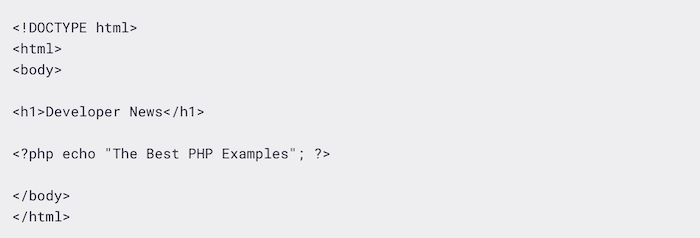
Essentially, simple PHP frameworks help you build solid programs without composing huge amounts of code. They allow you to get fully-functioning apps up and running quickly, which is precisely what we’re aiming for when trying to start and grow a business.
Want to find the source code for this framework? It’s hosted over on GitHub. However, it might be easier and faster to use a simple PHP framework that is already packaged and ready to go. We’ll cover a few of those a bit further down.
Reasons to Use a Simple PHP Framework for Websites
If you’re not sold on PHP frameworks yet, or if you’re still unclear on why they’re useful, here are just some of the reasons why you should give a simple PHP framework a try.
1. Simplified Coding
As a programming language, PHP can be tricky. If you want to introduce new concepts or, for example, improve a website’s functionality, you need to write long and complex lines of code.

This is where the template comes in. With a simple PHP framework, you can quickly generate the code you need, which helps you build impressive PHP apps with little coding experience.
2. Quicker Development
Here’s what else is great about simplified coding: it’s a time-saver!
Rather than spending time writing repetitive code or building out apps from scratch, you can let the framework generate the code for you. As a result, you can focus your time on business and app marketing, rather than coding.
3. Increased Security
At its core, PHP is fairly secure. However, as with any programming language, it’s easy to accidentally write in vulnerable code, especially if you rely on outdated tutorials or guidelines.

Frameworks provided by reliable platforms are constantly tested for vulnerabilities and updated where necessary, so your apps will be as secure as possible.
4. Easier Maintenance
It’s much easier to maintain your application if you have a clear template to follow, which is where the PHP frameworks really help.

Not only do PHP frameworks include documentation to help run your apps smoothly, but developers are constantly building community libraries to help other programmers manage their code more efficiently, which allows for easier maintenance.
5. Improved Teamwork
If you’re programming alone, it’s simple to keep track of the code as it develops. However, it’s challenging (not to mention time-consuming) for new team members to come in and learn your whole code from start to finish.
A PHP framework boosts collaboration. With a template, your team can quickly skim the template and understand how it applies to your particular application.
Simple PHP Frameworks to Try
OK, so that’s what a simple PHP framework is and why you might use one.
How do you pick a framework for your needs, though? To help you get started, here’s a selection of simple PHP frameworks, each with slightly different benefits.
1. CodeIgniter
If you’re a newbie looking to make your website more dynamic or build some functional apps, check out CodeIgniter. From creating simple news items to complex web services, CodeIgniter can help you out:
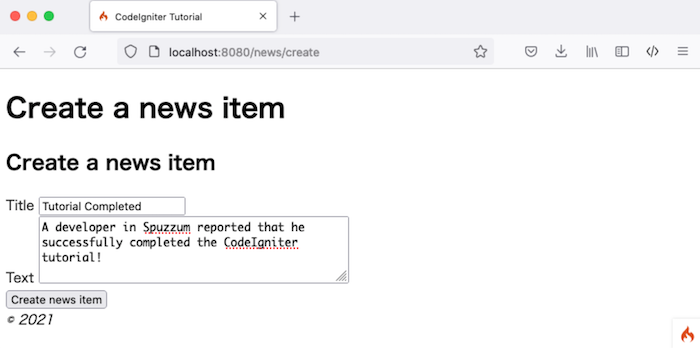
Lightweight and nimble, CodeIgniter is a simple PHP framework aimed at developers who want to create scalable apps without a fuss. There’s very little configuration involved and it comes with clear documentation, so you can be up and running in no time.
Compared with similar frameworks, like Laravel, it’s easy to learn and simple to navigate, but it’s no less impressive. Give it a try if you want to build on a comprehensive framework without taking up too much space on your device.
2. Laravel
Do you want to build a scalable, sophisticated app with advanced features? Then consider Laravel.
Laravel is all about providing a great experience for those looking to innovate and develop apps quickly. It’s based on a neat, elegant structure, and you can quickly generate skeletal templates to build into complex apps without compromising on quality or security.
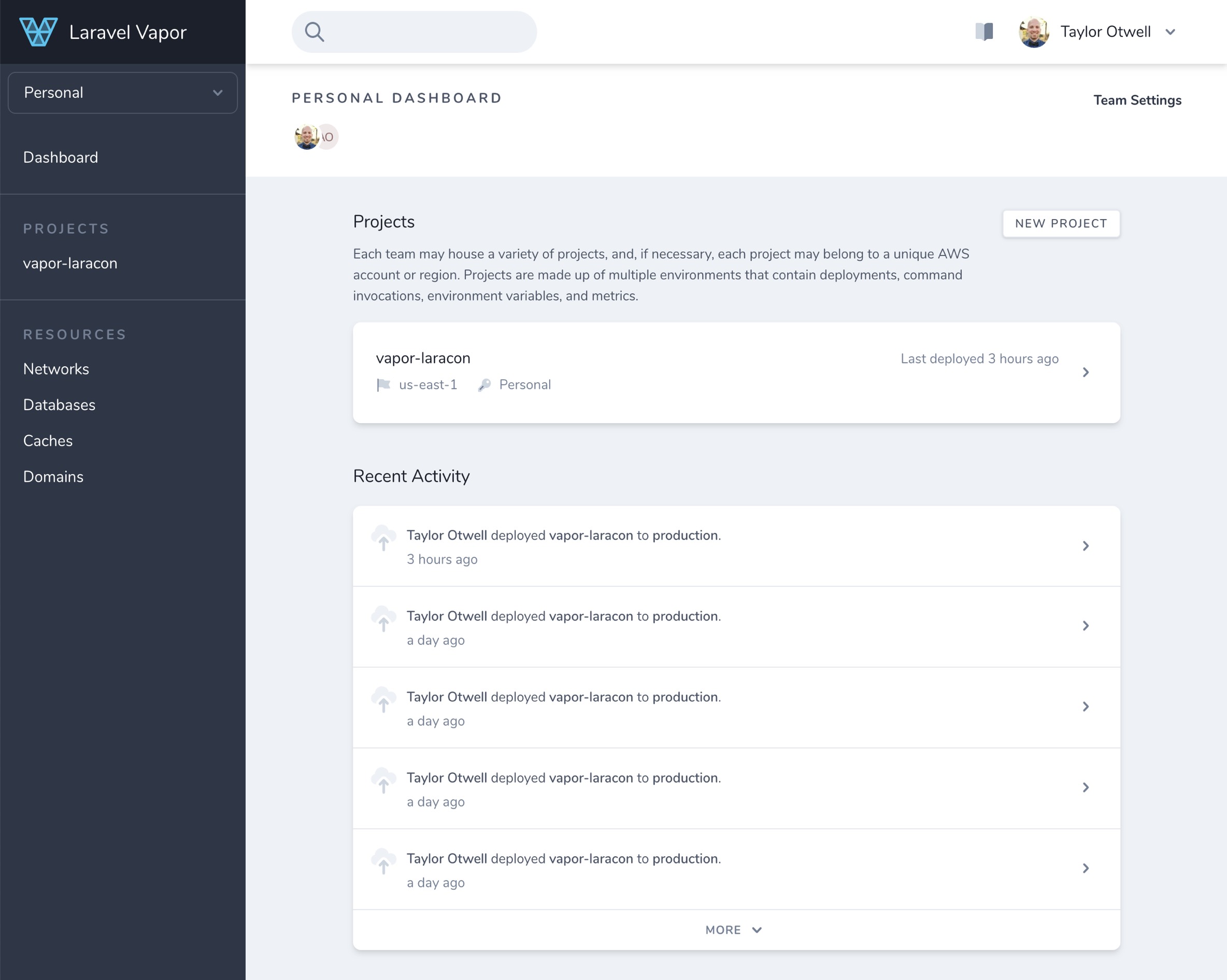
What’s great about Laravel is how scalable and flexible it is. The entire framework is designed to “grow” with your business, so you can rapidly scale your apps as your audience grows.
Whether you run Mac, Windows, or Linux, it’s simple to launch Laravel and get building. That said, it’s not the easiest PHP framework to learn, so new developers might prefer other templates.
3. Phalcon
Do you need a framework to help you build a high-performing website? Phalcon might be an option for you.
Phalcon is all about low-level architecture. The framework prioritizes performance and speed over complex configurations, so it’s one of the fastest PHP frameworks out there and offers a sleek, streamlined coding experience:
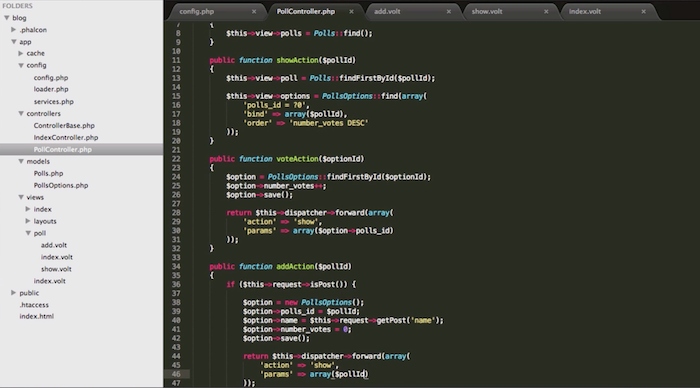
Why is it so fast? It’s all about memory usage. Phalcon is “memory-resident,” meaning you can load it once, and it runs continuously in the background. It’s ready and waiting whenever you need it, so you can work quickly and efficiently.
What’s more, it’s flexible enough for either small app developers or enterprise-level designers. You’ll also find a great range of documents, screencasts, and tutorials for more help when you need it.
The takeaway? Phalcon is an option if you need a fast framework with a little freedom to configure your own directories.
4. Yii
Are you new to coding and seeking a simple PHP framework to learn the ropes? Then check out Yii.
Yii, which translates to “simple and evolutionary” in Chinese, aims to streamline web app development. What does this mean? Well, the base code is fairly simplistic. However, this is why Yii stands out.
It’s essentially a universal template, meaning you can use it to build a whole host of different PHP web apps. All you do is add components from the library to your core template, and you can build high-performing apps with relatively little code:
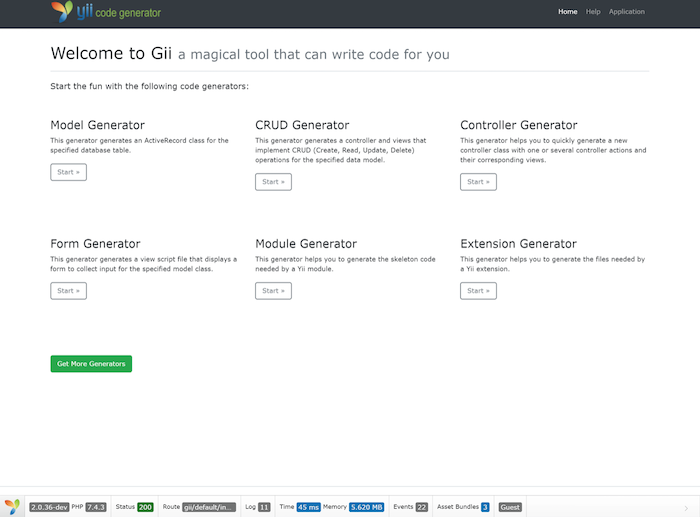
Is it a popular framework? Sure! Developers use the Yii framework for developing a huge range of tools, ranging from simple apps to scalable web services. There’s an active user community, too, so there’s always support on hand when you need it.
Bottom line? Yii is speedy, easy to install, and just as secure as the other frameworks. It’s probably the most accessible framework on this list, so give it a try if you’re unfamiliar with making PHP apps or you want to build tools fast.
5. Slim
Looking for a lean, compact framework to create basic functional apps in minutes? Slim could be the answer.
Created in 2010, Slim targets developers to build smaller or more simple web services. For example, you might use Slim to build REST APIs for the web, or web apps that rely on a simple HTTP request and response model.
It’s easy to get up and running, too.
First, install Composer. Then, install Slim by executing the right framework command. Finally, make sure you’re running the right implementation to launch Slim on your device (check out the website for help with this.)
Once you’re all set, run the “Hello World” tutorial to see just how easy it is to compose through this simple PHP framework:
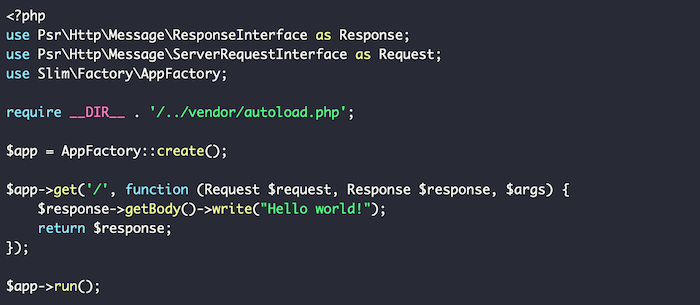
As with the other PHP frameworks, you’ll find an active user community and plenty of online documentation to help you jump in. However, what truly sets Slim apart is its sleek, simplistic template designed to create small but mighty web tools in no time.
For app developers seeking a secure PHP framework for no-frills prototyping, look no further than Slim. Don’t let the simplistic functionality fool you, though: advanced developers can add more code to make Slim web apps more dynamic.
6. Symfony
If you have some experience with PHP, or you’re building an enterprise-level app, consider Symfony. It’s simple to operate, easy to install, and gives you the freedom you need to build more complex configurations.
What’s so great about Symfony is its large library of reusable components, which means there’s no need to spend time writing repetitive code for different apps. You can just select the base code you need from the library and get going!
What’s more, you can easily link Symfony PHP frameworks with larger enterprise-level platforms like Drupal, so you can seamlessly integrate your apps into a wider content management strategy.
If you need a little help figuring out Symfony, don’t worry. There’s a whole library of text and video tutorials to walk you through everything from installation to app creation.
In short, while Symfony’s not the most accessible framework on the list, it’s exactly what more experienced developers need to build large-scale apps and web solutions. Check it out if you’re ready to take app development to the next level.
Frequently Asked Questions About PHP Frameworks
What is the purpose of using a PHP framework?
A PHP framework simplifies the process for building websites and web applications. It’s useful for anyone trying to design PHP-based apps and services to grow their business.
Is PHP popular in 2021?
Absolutely! The PHP language is advancing all the time, which means it’s sophisticated enough to handle the demands of modern web services. You’re definitely not wasting your time by learning simple PHP frameworks in 2021.
What is the best framework for PHP?
There’s no one “best” framework. The right framework for you depends on your particular business needs, and how comfortable you are with code. If you’re new to PHP, you won’t go wrong by selecting one of the frameworks we talked about earlier.
Why should I use a PHP framework?
A framework is a huge time-saver. With even a simple PHP framework, you can simplify the coding process, speed up app development times, and make your website easier to maintain in the long run. If you’re looking for an efficient app and web design approach, even for beginners, you should check out PHP frameworks.
Simple PHP Frameworks Conclusion
If you’re a web developer looking to improve efficiency without compromising code quality, you might want to try PHP frameworks.
Simple PHP frameworks are uniquely designed to help you build the apps and services you need quickly and securely, so you can focus on designing useful tools rather than wasting time on repetitive coding.
Are you still unsure where to start with PHP frameworks? Check out my consulting services to see how I can help.
Have you tried using a PHP framework yet? How easy did you find it to work with?
Source: neilpatel.com

Best HTML Editors
Coding becomes faster and easier thanks to HTML editors’ spell-checking, syntax highlighting, and auto-completion features, among others.
Disclosure: This content is reader-supported, which means if you click on some of our links that we may earn a commission.
Everybody makes mistakes.
Some big, some small, but some of them are downright annoying.
And one of the most notorious headache-causing mistakes you make is messing up your code.
Coding is everything when it comes to web development. So you simply have to get it right for better security and to avoid glitches in the future.
Luckily, there’s a very effective solution to ensure this.
Just like how Grammarly and Hemingway can improve your text by checking them for spelling errors and improving readability, web developers can use HTML editors to write and improve their code.
Even those who don’t have any coding knowledge can create websites and put them online.
Coding becomes faster and easier thanks to HTML editors’ spell-checking, syntax highlighting, and auto-completion features, among others.
In this guide, we’ll look at the best HTML editors available to take your websites to the next level without much effort and time on your part.
Excited? Let’s dig right in!
The Top 5 Options for Best HTML Editors:
- Atom – The Best for Advanced Customization
- Notepad + + – The Best for Front-End Developers and Web Designers
- Brackets – The Best for Beginners
- Sublime Text – The Best for Multi-Language Support
- Adobe Dreamweaver CC – The Best for Web Developers
How to Choose the Best HTML Editor for You
HTML editors–both free and paid–come with several cosmetic features. Based on your business needs, you’ll find some to be absolutely necessary, while others you may not need at all.
We’ve compiled a list of features that we think a good HTML editor should have. You may not need all of them, but here is what you should be looking for when choosing an HTML editor.
Color-Coding or Syntax Highlighting
HTML has a tag-based markup language. You need an HTML editor with syntax highlighting or color-coding features to light up these tags. Doing this will help you identify the tags quickly, which, in turn, will make working with blocks of code easier.
Autocomplete and Suggestions
The autocomplete and suggestions feature helps to quickly fill in longer code at the press of a button.
The editor gives you pop up suggestions based on your work–all you have to do is click on it, and the code will autocomplete. Think of how you type text messages on your phone or when you do a quick Google search.
You can also automate creating closing tabs through this feature.
Find and Replace
We highly recommend looking for code editors with the find and replace feature, as it allows you to locate certain strings and replace them with something else very quickly.
Plus, HTML is constantly changing and updating standards and deprecation of inefficient tags. So, you’ll definitely find yourself wanting this feature sometime in the future to update your website.
Version Control
Editors with version control enable you to see the previous versions of your code and rollback when needed. As a result, you can store all the copies without making separate documents, and we know how crucial this is when you’re working with other developers.
Multi-Cursor Functionality
The role of multi-cursors is simple: It allows you to write code in multiple places at once. In other words, you can edit code simultaneously. This is especially useful when you want to add duplicates of the same tag.
FTP Support and Error Detection
Getting HTML editors with FTP support lets you connect to WordPress and upload changes you want to make without any hassle. As a result, you won’t find yourself logging into FileZilla or your preferred FTP client every time we want to update anything.
Live error detection is equally important.
HTML is a markup language and not a programming language, which is why it doesn’t compile. It also means you can’t test your code. With live error detection, though, you’ll know immediately whenever you write something incorrectly.
In addition to these, there are several other features like code folding and autosave. We mentioned what we think is vital and can help increase productivity and accuracy. However, you have the flexibility to choose, depending on your requirements and preferences.
Note: If you’re looking for a code editor with advanced features and platform integration, you‘ll need an integrated development environment or IDE rather than a text editor. While IDEs are similar to HTML editors, they are more beefed up designed for advanced developers.
The Different Types of HTML Editors
HTML editors are of two types. Although the core values of both are kind of similar, they have different features. It’s why the target clientele for each category is slightly different.
Let’s discuss this in more detail.
HTML Text Editors
HTML text editors are basic programs. You can use it to write basic coding projects, do simple HTML editing, and check for errors on the go.
You’ll find several free versions of text editors available online that are downloadable on all major operating systems. What’s more, these programs are general-purpose and can be used for multiple computing languages.
Keep in mind that basic text editors require you to write all HTML code by hand. You have to perfect every piece of syntax manually, so be prepared for a bit of trial and error.
HTML text editors are great for learning HTML. But if saving time is a priority, the next editor type would be more suitable for you.
WYSIWYG
No, this isn’t gibberish or a typo.
WYSIWYG is an acronym for “What You See Is What You Get.” Developers pronounce it as “wis-ee-wig.”
It’s a type of HTML editor that views content in the live product exactly like the preview. This helps enhance accuracy when you’re building or making changes to a website.
Think of WYSIWYG as the halfway point between coding from scratch and an instant template builder like WordPress.
Being more advanced than standard text editors, WYSIWYG editors allow users to write code, edit directly from the page and insert paragraphs and headings–all the while generating HTML code automatically. Creating or updating the layout of a site is possible within seconds as well with this editor.
#1 – Atom – The Best for Advanced Customization
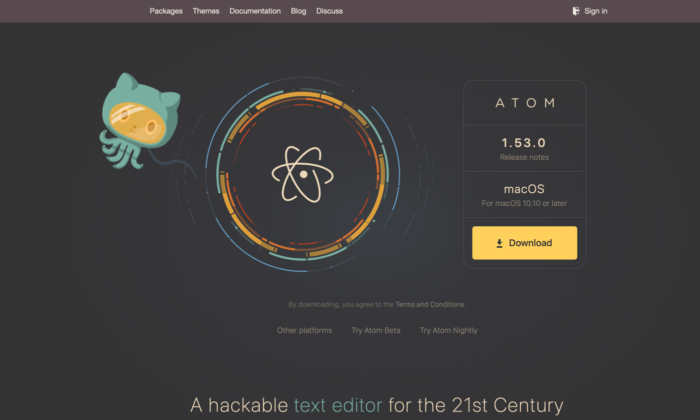
Atom is a free, open-source code editor developed by the GitHub team and maintained by the GitHub community. It comes with enough packages and theme collections, runs light, and loads super fast, making this HTML editor one of the best you can find.
It’s a modernized WYSIWYG HTML editor available for Windows, Mac, and Linux and is built for collaboration. Whether you’re a newbie or an experienced professional, Atom is everyone’s favorite with its premium feel and customization flexibility.
Think of it as an advanced text editor that has several features commonly limited to high-level coding programs.
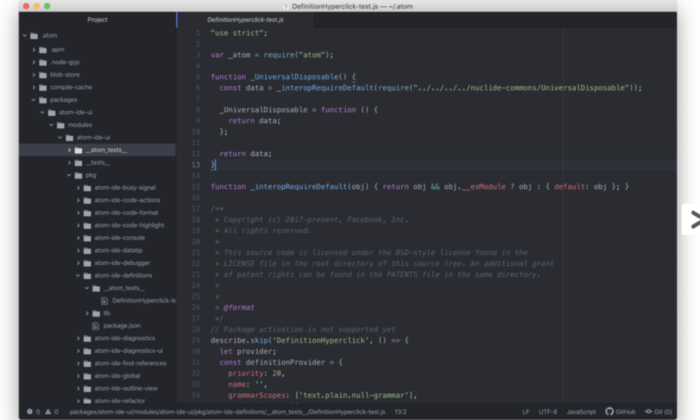
It also comes with a hackable text editor! It’s a feature that enables developers to edit, extend, change, and share the program source code and design their own packages to improve Atom.
Multiple pane support is another feature we like. You can split the interface into as many windows as you need to compare and write code side-by-side.
Other features include syntax correction and highlighting, autocompletion, project management, and Teletype (users can collaborate with other developers in real-time).
Atom is entirely free of charge! So you don’t have to shell out any money to use this excellent editor.
#2 – Notepad + + – The Best for Front-End Developers and Web Designers
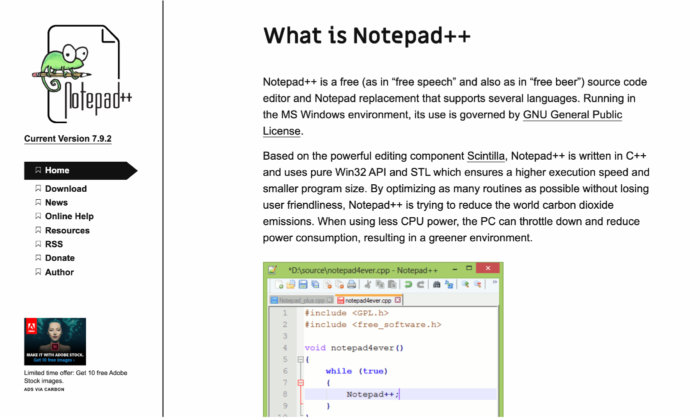
Fast working, time-tested, and foolproof, Notepad + + is one of the most popular HTML editors used by millions worldwide. It’s an open-code editor that offers multi-language support, which isn’t restricted to only HTML and CSS.
One of the primary reasons for Notepad + +‘s popularity is its feature-rich interface.
You get syntax folding, syntax highlighting, multi-view, document map, multi-document interface, auto-completion, bookmarks, and a fully customizable GUI. And even after this long list, there’s still more.
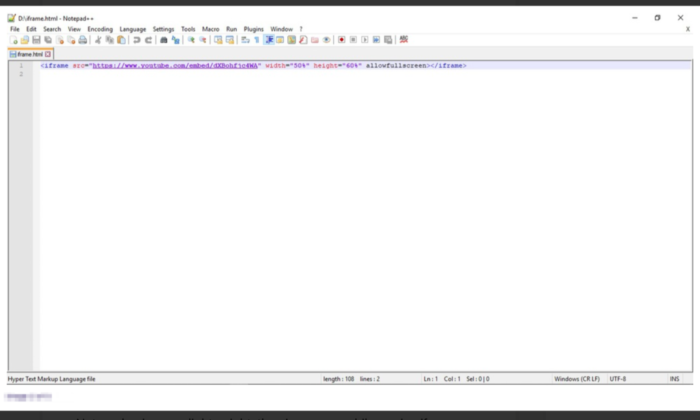
Notepad + + was developed for Windows-based machines, but Linux users can use it via Wine. As the name suggests, this editor is like an upgraded version of the Notepad software, which is already available in Windows by default. You also get its repository on GitHub.
A mobile version is also available if you fancy that.
Environmentalists would love Notepad + + as well. It has programs that run on less CPU power in a bid to reduce carbon emissions.
Notepad + + is free for all! So no extra money or hidden costs for you to worry about.
#3 – Brackets – The Best for Beginners
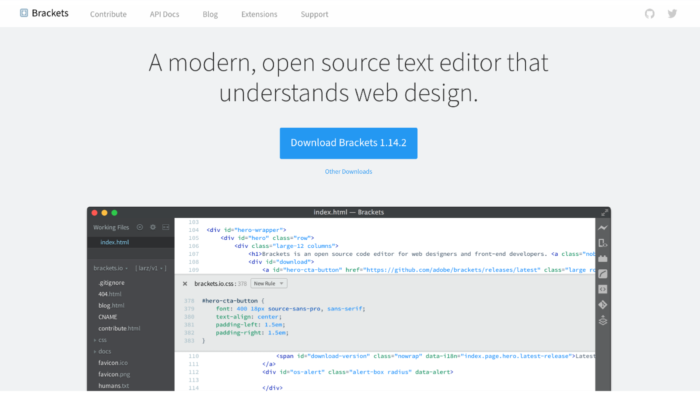
Brackets is another widely popular HTML editor for programmers compatible with different operating systems like Windows, Mac, and Linux. It comes with a built-in package manager that allows users to search and install any supported package they like.
We would highly recommend this open-source HTML editor for beginners due to its smart auto-completion feature that makes coding incredibly fast and accurate.
Bracket’s coding UI can be split into multiple panes, making writing and comparing codes between different files easy and precise. Its integrated file system browser enables you to access files within your PC.
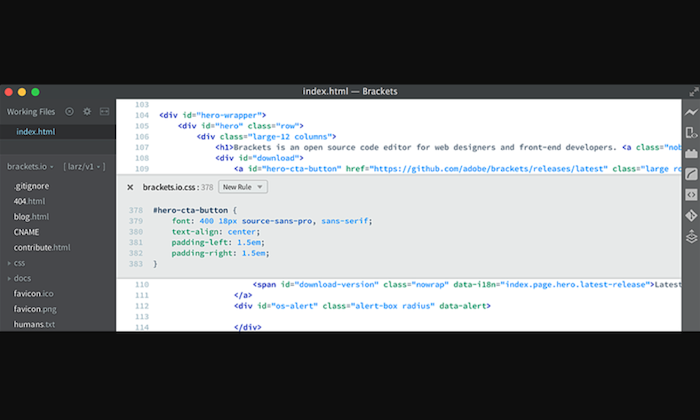
Plus, it has a find and replaces feature that allows developers to fine-tune the code when appropriate. This can be useful for novices and experienced professionals to ensure their website stays up-to-date.
Styling and customization are super easy and simple, so coding won’t ever get boring with Brackets.
The pre-installed syntax themes feature dark and flashy bright colors. With no shortage of packages on the platform, you can add as many features as you want, based on your use-case and preference.
Brackets is completely free! You can download it directly from the official website.
#4 – Sublime Text – The Best for Multi-Language Support
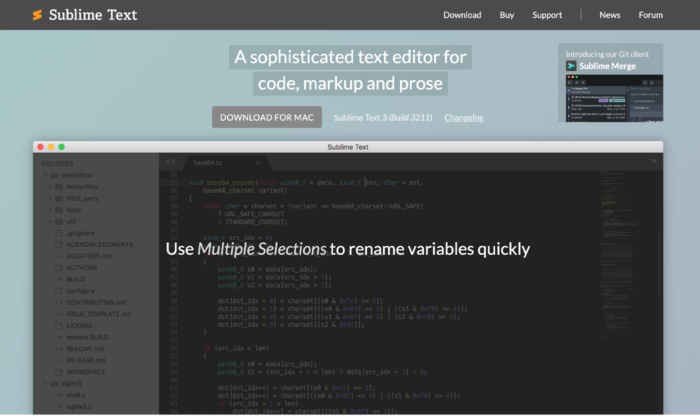
Sublime Text is the advanced version of Notepad + +. It comes with the standard features of Notepad + +, along with more modern ones to suit the sophisticated needs of the more experienced users.
You get cross-platform support, split editing, multiple-selection editing, proprietary command palette, and syntax editing to make web development simpler. The editor is incredibly powerful and promises high performance. However, you have a steeper learning curve ahead of you in exchange for this flexibility and power.
One of the more advanced features of Sublime Text is “Goto Anything.” Using this, you can find and replace the code within a considerably shorter period. The distraction-free mode is another great feature that displays only the code by hiding other elements.
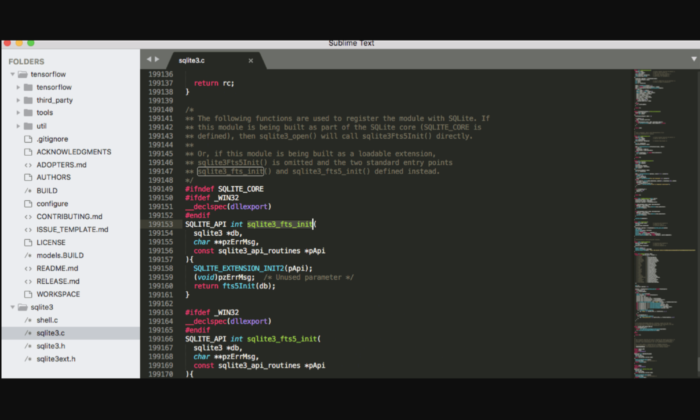
You can use keyboard shortcuts to execute tasks quickly–provided you can remember them. Everything is easily customizable in the editor as well, whether you want to personalize key bindings to snippets to menus.
Accessible on Windows, Mac, and Linux, Sublime Text also supports different languages like C, HTML, C++, C#, Java, CSS, JavaScript, PHP, Python, Ruby, and many more.
Sublime Text has a free version available that’s enough for beginners, but if you want access to all its features, you have to pay a one-time cost of $80.
#5 – Adobe Dreamweaver CC – The Best for Web Developers
Most of our other options work great for front-end development, but having an HTML editor that facilitates back-end development is also necessary, which is where Adobe Dreamweaver CC comes in.
Made by renowned company Adobe, this editor is hands down one of the most famous and influential options on the market. You get all sorts of plugins and premium features that you wouldn’t normally have access to with other HTML editors.
Whether it’s creating more responsive sites or editing the website code, Dreamweaver makes everything possible.
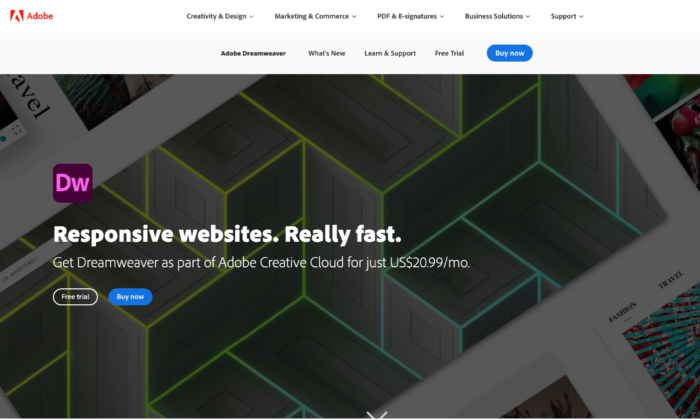
This editor is a closed source software, designed to work within the Adobe ecosystem. It supports both the textual and WYSIWYG methods, allowing you to choose between coding with a live visual presentation or take the traditional route. You can write code in any major programming language and enjoy access to creative cloud libraries.
Web developers would particularly love Adobe Dreamweaver CC. It automatically confirms the code and page accessibility, making it easier for developers to follow Web Content Accessibility Guidelines (WCAG), and even reviews the end product.
Plus, the direct access to an abundant supply of assets in the Adobe ecosystem like graphics, layers, colors, words, characters, and much more, is another advantage.
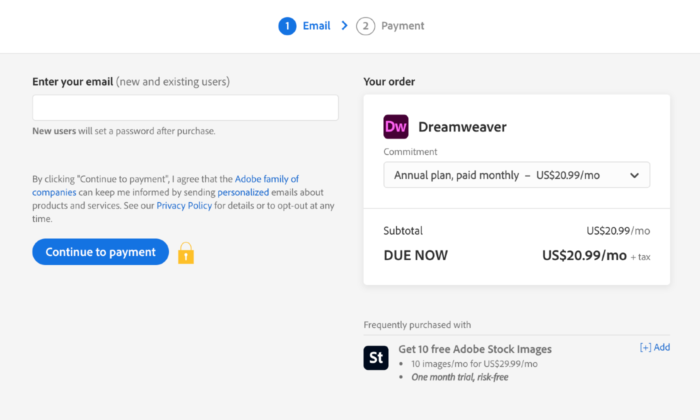
Dreamweaver has a free version, but you can opt for premium plans as well. You have three options:
- Annual Plan, Payable Monthly – $25.99 per month
- Monthly Plan – $31.49 per month
- Annual Plan, Prepaid – $239.88 per year
Final Thoughts
HTML editors are a must for any web development and design toolkit. Not only can you create code faster, but it also simplifies the whole process by helping you avoid errors.
The only catch is to select an option that aligns with your needs.
You can select an option from our top picks or look for other alternatives in the market. Try to look for prospective editors that include syntax highlighting and live preview. If you want something more sophisticated, a find and replace feature will be a great asset.
The post Best HTML Editors appeared first on Neil Patel.
Source: neilpatel.com

Best Business Process Management Software
There’s a constant war between growing a business and keeping an operation lean, mean, and agile. How does a company stay efficient, even as they are trying new things and bringing on employees? It’s actually quite simple: business process management (BPM) software. Rarely are answers this easy.
Disclosure: This content is reader-supported, which means if you click on some of our links that we may earn a commission.
BPM software helps organizations of all sizes streamline operations and minimize waste.
Visualize every process from end to end. Find opportunities for efficiency and automation. Get more done with fewer mistakes.
If optimizing your business processes sounds like a good idea, this post will tell you everything you need to know about how to find the perfect BPM software for you.
The Top 5 Options for Business Process Management Software
- Orchestly – Best for simple workflow automation
- Pipefy – Best BPM software for Kanban
- Creatio Studio – Best low-code solution
- Tallyfy – Best for automating recurring processes
- Zoho Creator – Best for customizable workflows
How to Choose the Best Business Process Management Software for You
These tools are supposed to make life easier, right?
Yes. 100%.
And not just you, but your employees, customers, and potential clients, too.
Any organization can benefit from implementing BPM software. Because of their broad usefulness, these products come in a lot of shapes and sizes.
Thankfully, you can break your search down into three essential goals.
You are looking for BPM software that will help you:
- Clearly visualize business processes
- Automate more business processes
- Monitor and improve business processes
Design. Run. Automate. Improve. Repeat.
Once you get set up, it will be that simple.
Figure out which features you need by considering each product in light of how it will help you visualize, automate, and monitor the daily work of your business.
Process Visualization
The first responsibility of BPM software is to help companies define and document their business processes.
These platforms have a visual workflow builder that lets you map out every step of every process from start to finish.
Missing steps and redundancies are plain as day. If there’s a breakdown in the billing process, for example, it will be easy to understand and address with BPM software. There’s a clear picture of how the paperwork is moving (or not) from start to finish.
This is way better than finding out there’s an issue from a confused or angry customer. By providing a full, end-to-end visualization of the process, BPM software is really helpful for diagnosing and treating common symptoms of business inefficiency.
What’s really nice is that you can quickly modify workflows without writing code.
Check out the drag-and-drop workflow builder in Orchestly, where you can see how each stage and transition can be easily defined:
Each product does it a little differently. It’s a good idea to watch their videos to see what the UI is like. This will give you a base-level sense of how each BPM software thinks about process management.
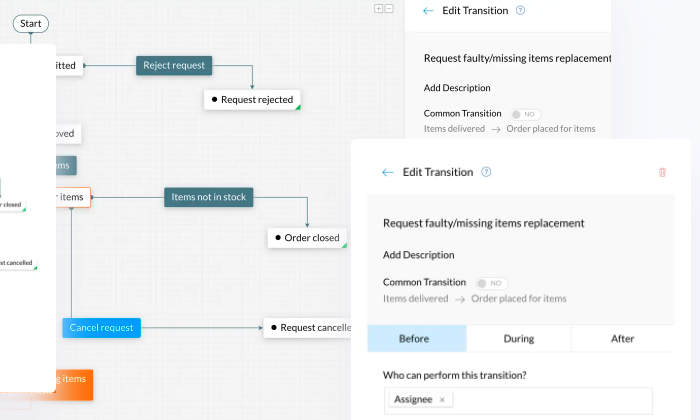
If you are a fan of the flow chart style, Orchestly is going to work well. Tallyfy wants to get away from flow charts and works off what they call a blueprint. Pipefy is designed to work best in board-based and Kanban settings.
Which one looks like it’s swimming in your current?
Process Automation
As elegant and useful as the visualization aspects of BPM software are, the process automation is where you’re going to see the major impact on your operations.
With workflows represented in a clear fashion, you can identify different points and transitions where you can add automation.
In the Pipefy workflow builder, for example, you can make it so one action triggers another. There’s no code to write, just select the option that pushes the workflow along.
This can take an incredible amount of busywork out of people’s day-to-day. A sales rep completes their proposal and it’s automatically routed to the right manager for review and approval.
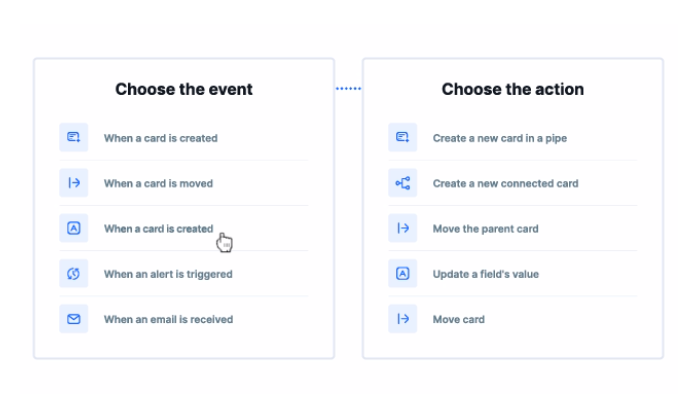
Not only is that rep moving on to their next task, but the pending approval is also queued up exactly where it needs to be for the manager.
Nothing gets missed or held up.
BPM software is great at automating routine and recurring processes like:
- Requests for approval
- Inventory updates
- Time-off requests
- Promotions
- Customer onboarding
- Training new hires
There’s really no limit to the applications. You can implement uniform policies, keep everyone informed, and ensure that every last lowercase j is dotted.
With regards to automation, you want to choose BPM software that strikes an appropriate balance in your workspace. Something sophisticated enough to handle the job that is still within your IT wheelhouse.
The big edge that the code-heavy platforms have is that they can be 100% customized to fit your situation.
The upshot to the no-code platforms is that non-technical users are going to be up and running in no time. They won’t need help to build out and adjust workflows. This kind of independence is really important, and shouldn’t be sacrificed lightly in favor of a more comprehensive tool.
Process Monitoring
What if you never had to send another “Hey, how’s it going?” email?
With BPM software, you can monitor your processes in real-time without ever having to bug someone again. No one does.
Users see exactly where they are on all their tasks. Dates and deadlines are clear, and everything they need to do is laid out in front of them.
Supervisors have total visibility of all projects and jobs. With workflows feeding information into dashboards, managers have a clear view of KPIs and bottlenecks can be seen—and avoided—well in advance.
Leadership can leverage your BPM platform to track tons of useful data for measuring productivity, forecasting costs, and further refining processes.
Another nice feature of good BPM software are the collaborative tools that help teams stay on track.
These aren’t monitoring tools per se, but the ability to comment, @mention, or flag tasks may serve as a critical early warning system.
The Different Types of Business Process Management Software
BPM Software can do a whole lot on its own or it can act as a guide.
The type of BPM software you need depends on your goals—visualization, monitoring, and automation—and how complex your desired workflows are.
In some ways, you can think of these four different types of BPM software as a stack that grows increasingly robust:
- Business Process Modeling Software: visualization
- Workflow Monitoring Software: visualization + monitoring
- Workflow Automation Software: visualization + monitoring + automation
- Low-Code Application Development: visualization + monitoring + advanced automation
Let’s go in-depth on each type to build a firm sense of how these capabilities help companies respond to different challenges.
Business Process Modeling Software
When you see business process modeling software, think of it as a BPM solution that helps with the visualization side of process management.
These tools produce clear documentation, SOPs, and visual representations of workflows that can easily be shared throughout the company.
This is crucial for maintaining consistency of business operations and a boon to new hires who can understand exactly where they fit in.
Workflow Management Software
The next step up in functionality is workflow management software. With this type of BPM software, individuals and teams can interact with the workflows.
They can mark assignments as done, ask questions about specific tasks, and get all the information they need in one centralized location.
Workflow management solutions have a blend of visualization and monitoring capabilities that are really great for keeping everyone on track.
Workflow Automation Software
BPM software that fits in this category will let you automate repetitive tasks within workflows. Set rules that automatically route tasks, files, data to the right person or team.
Say a customer fills out a form, for instance. This could trigger a welcome email series and automatically route their contact info to the appropriate rep.
That’s a simple example, and you can set rules that automate as many steps as you like throughout the customer lifecycle.
These tools tend to connect to a variety of data sources and work well across the organization. Often they come with pre-built workflows and templates for HR, accounting, sales, and so on.
Scope out the solutions on the vendor website to see examples of who’s having success with each product. Are these markets and use-cases that apply to your business?
In terms of automation capabilities, the simpler, lighter workflow automation tools can do a lot. The more expensive premium tools can do a lot more.
I know that’s an oversimplification, but in the end, the “power” of BPM software lies in how well a team can use it. The heavyweight automation features included with premium products are amazing, no doubt, but they take some time to master.
Low-Code Application Development
Low-code application development platforms weren’t built for BPM, but they are growing in popularity as a solution.
Low-code application development platforms allow novice developers the ability to whip up custom applications that meet unique business needs. Really, anyone who puts the time in can figure out how to use these intuitive platforms with little to no coding.
Why is this important for BPM?.
The thing is, at a certain point, super-complex workflows can get unmanageable. There’s no one straw that breaks the camel’s back, but if your average user is having to reach out to IT to sort out problems with their daily work, there’s probably an issue.
Low-code application development comes at the problem from a different angle. Instead of deploying a system and trying to fit it to your needs, why not build a system that’s specific to your organization?
These tools connect with third-party SaaS apps, so you can build out really rich workflows that leverage information from the tools you already use.
It’s a different approach to the same problem as traditional BPM software. If your teams are comfortable with a low-code solution, I’d go for it. They’re really affordable and have few hard limits in terms of what you can do.
#1 – Orchestly — Best for Simple Workflow Automation
Orchestly is built to optimize your everyday business processes.
Say you want to hire a new worker, file an expense report, or request new content. Maybe the marketing department wants a killer post about the best business process management software.
In each case, there are several steps of validation and review that need to be baked into each process. With Orchestly’s visual workflow editor, literally, anyone can build out the exact steps required.
Here’s an example of an onboarding workflow in Orchestly.
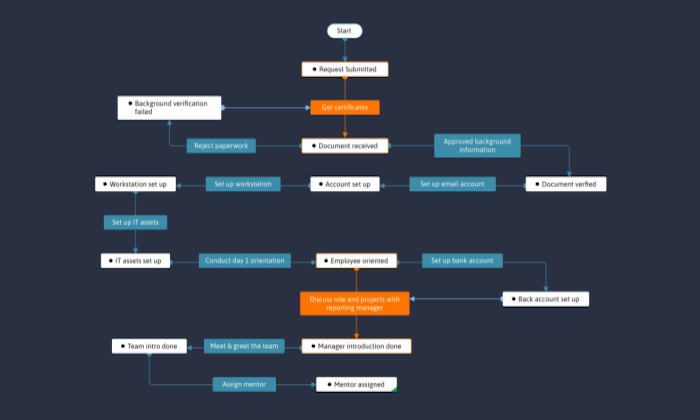
Each step in the series of tasks is clearly defined in a series of stages (white boxes), connected by transitions (turquoise boxes), and parallel transitions (orange boxes). Drill down into each stage to the set of conditions that need to be followed before, during, and after any transition.
This is a super easy interface to master.
There are tons of pre-built templates and, once users want to fine-tune their own scenarios, all of the visualization and basic automation is managed with an intuitive drag-and-drop editor.
Another really nice thing about Orchestly is the monitoring features. There are a host of ready-made report types that give you deep insight into your processes.
You can drill down into transitions to discover how many requests are at a particular stage, the ratio of approvals to rejections, and other metrics. Plus, you can filter search results to get a real-time picture of specific employees, projects, or customers.
Orchestly comes with other features that help you extend BPM functionality throughout your organization:
Role-based access controlRequest managerForm designerAudit logEmail templatesAPIs, extensions, and webhooks
Orchestly offers a free version that is limited to five users and three orchestrations (their word for workflow). The paid version, Orchestly Business, is $7/month per user with an annual subscription.
You can try Orchestly Business free for 15 days. If you have never given BPM software a shot, this is a great, low-risk option to start out.
#2 – Pipefy — Best BPM Software for Kanban
Pipefy is winning over a lot of people because of its approachable style. For companies that are already managing processes within a Kanban framework, Pipefy is going to fit like a missing puzzle piece.
This platform has the feel and flexibility of an agile project management tool, yet you’ve got the power of BPM software.
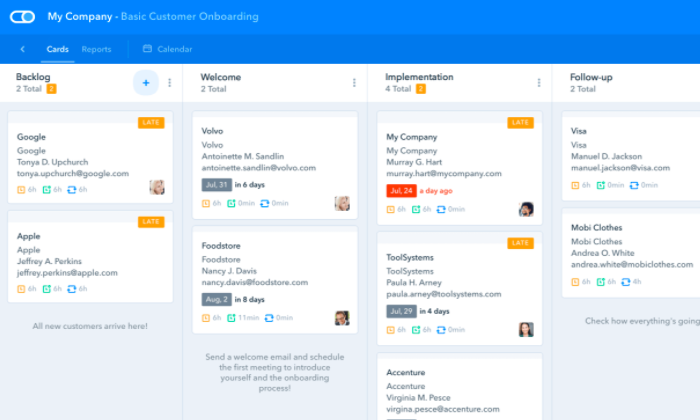
Switch between calendar, list, and Kanban views. Yes it looks like Trello, but in Pipefy you can use the drag-and-drop editor to add rules, custom fields, and ensure that everyone assigned to the process knows exactly what’s necessary to keep things moving.
Build out completely custom workflows with Pipefy’s easy editor. There are hundreds of plug-and-play process templates available in its free gallery.
What’s really helpful for marketing and sales is that you can design these workflows to kick off as soon as someone fills out a form, or reaches out by phone, email or SMS.
They’ve really made it as easy as possible for people to configure their workflows without writing a line of code.
Intuitive doesn’t even begin to describe how helpful Pipefy is for first-time users. It’s always suggesting the next step.
Plus, your customers and clients can create and track requests without being a Pipefy user, which is great for collaboration with clients and other stakeholders.
Other helpful features include:
- Reporting dashboards
- Native integration with Slack and GitHubAPI access
- Self-service portals and forms
- SLA and deadline tracking
Pipefy offers a free trial of their paid plans and a free version for up to five people. To really take advantage of this awesome tool, I recommend one of the paid plans:
- Business: $18/month per user
- Enterprise: $30/month per user
- Unlimited: contact sales
If you like the idea of moving cards through a pipeline, this is a great product. You can start small and gradually automate every one of your processes with Pipefy.
Easy to build, easy to adjust, Pipefy is perfect for the continuously improving agile workflow. If your teams are happy running Kanban, look no further than Pipefy.
#3 – Creatio Studio — Best Low-Code Solution
Creatio Studio gives you the best of both worlds in terms of power and learning curve. Non-technical users will find the platform just about as easy to use as any popular BPM software, but there’s no ceiling to what they can do if they are willing to learn.
The free version of Creatio Studio works for business process modeling, allowing teams to diagram workflows in a collaborative setting. View, comment, and edit the designs in real time, and save everything to a process library for easy access.
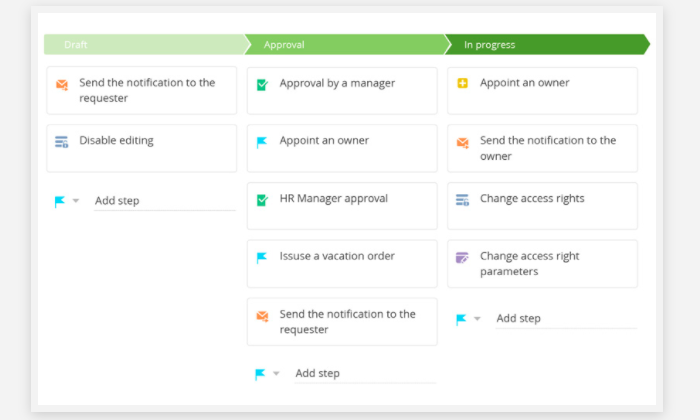
To manage, monitor, and automate processes, you’ll need the Creatio Studio Enterprise. With it, you can design workflows and business applications of any complexity.
Think of building with blocks rather than writing code. Creatio compares it to building with LEGO—you don’t have to make the parts so much as select what you want and snap it together.
There are hundreds of ready-to-use templates in the Creatio marketplace to help you get started. As you design and refine processes within the visual design-builder, Creatio automatically generates the corresponding business logic.
It’s a great product that straddles the divide between technical and non-technical users. Creatio is constantly suggesting actions and helping users double-check their work.
In addition to helping people design exactly what they need, Creatio Studio comes with:
- Role-based access control
- Interactive dashboards
- API access
- No-code data migration
- One-click pdf documentation
- AI and machine learning tools
Creatio Studio is free for an unlimited number of users and Creatio Studio Enterprise starts at $25/month per user.
Shortlist the free version of Creatio if you are just starting to think about business process management. It will help you get off on the right foot at no cost.
If, on the other hand, you are hitting the limits of your current BPM software, Creatio Studio Enterprise is one of the most capable, affordable options available.
Although many low-code platforms are built for general use, Creatio was originally founded as bpm’online in 2011. Every aspect of the design has BPM in mind, which lowers the learning curve tremendously for non-IT users.
#4 – Tallyfy — Best for Automating Recurring Processes
Tallyfy gets away from the idea of flowcharts. Instead of shapes and arrows to guide your design process, Tallyfy keeps everything in something they call a blueprint.
There are pre-made blueprints you can use for marketing, finance, sales, HR, and more. Once you have designed a blueprint, you can use it over and over again.
In the example below, you can see a blueprint that captures the entire onboarding journey.
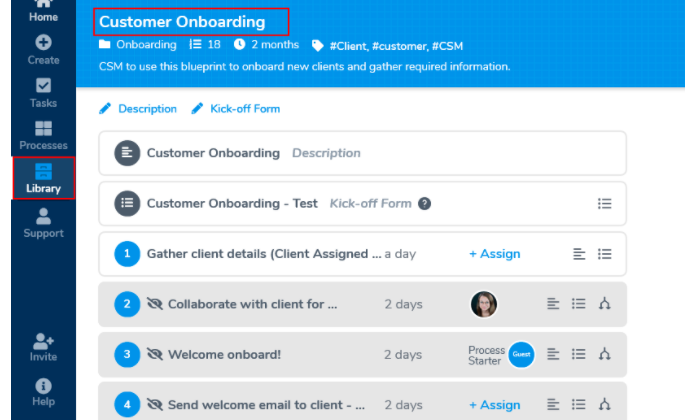
Blueprints are easy to customize without code. Point and click to add new tasks to blueprints. Within tasks, you can set the required fields and add drop-down menus that will pull the names of employees, customers, and projects from connected databases.
When you go to launch these blueprints, end-users love how easy it is to complete each task.
Managers can view progress at a glance or drill down into specific tasks. Clients who need to approve a request or sign off at a particular step will just see that.
Working off blueprints, it’s incredibly easy to set up and automate recurring processes. Quickly create a library of blueprints that suit your needs, and continuously improve each step. Turn all of your recurring processes into error-free workflows that save time and eliminate stress.
After launching your automated processes, Tallyfy’s process monitoring capabilities help you keep track of all your flows in real-time. Some of the highlights include:
- Powerful search and filtering
- Custom process viewsRole-based access control
- Audit trailsCommentingIssue flagging
Having commenting and issue flagging as separate features is so important for surfacing problems quickly.
How many times does a red alert get buried for a few hours among the constant flow of @mentions and comments? With easy opportunities to flag problems, companies never let an employee, client, or goal fall through the cracks again.
You get two months of Tallyfy free if you sign an annual contract for any of their three pricing tiers:
Tallyfy Docs: starting at $42/month, includes 10 membersTallyfy Basic: starting at $100/month, includes 8 membersTallyfy Pro: starting at $100/month, includes 4 members
The way their tiers break down is really easy, though it looks a little unusual at first. Docs lets you create read-only blueprints, Basic lets you launch blueprints as a process, and Pro lets you add automation.
If you need additional users, the added cost increases at each tier, from $4/user with Docs, to $12.50 with Basic, and $25 with Pro.
They offer a free 14-day trial, if you want to see what Tallyfy is all about. I really recommend the blueprint-style BPM software to any business that has repetitive tasks they need to get right every time.
#5 – Zoho Creator — Best for Customizable Workflows
Zoho Creator is a low-code application development platform that can be used to create a wide range of customizable business process workflows.
Unlike Creatio Studio, Zoho Creator wasn’t born as a BPM tool. Think of it as a blank slate with an intuitive toolkit that allows companies to create everything from serverless apps to full-blown, totally specialized ERP software.
The reason companies are finding success with Zoho Creator in the BPM space is that it comes loaded with tools to build out customized workflows.
Between the templates and the drag-and-drop platform, everyone with a few weeks of Zoho Creator under their belt will think they’re a developer.
There’s nothing dazzling about the UI, but it’s easily navigable and you can build out really sophisticated apps to automate your business processes.
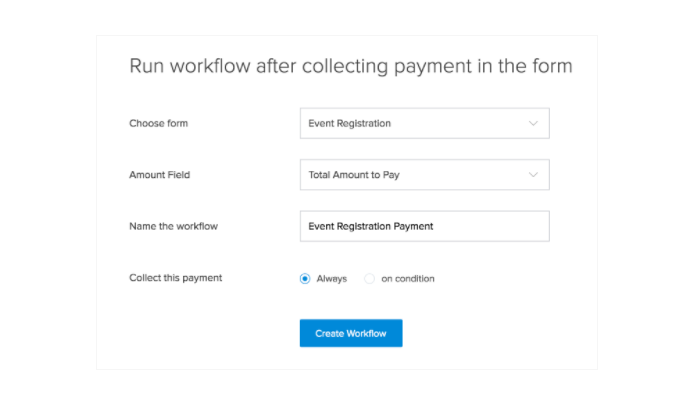
Zoho is really great at guiding users through each step, whether they are trying to set up the simple payment processes or design a mobile app for their office.
To really handle the complex tasks, users will have to familiarize themselves with Zoho’s proprietary language, Deluge, which is short for Data Enriched Language for the Universal Grid Environment.
It’s a mouthful to say, but in terms of building out custom scripts quickly, Deluge is a huge step in the right direction.
An HR manager with no code experience will be able to automate a recruitment application. A sales rep can build a system to track leads automatically using Deluge.
With other platforms, end-users are at the mercy of their automated workflows and have little ability to make changes to the system. With Zoho, they can keep control and ensure that their workflows are designed according to best practices and current challenges.
For their part, technically gifted users will love Zoho Creator because they can add logic and function to their applications without having to wrestle with conventional tools.
Some of the other features that help you get off the ground quickly include:
- 50 ready-to-use apps
- Schema builder
- Developer sandbox
- Payment gateway integration
- Audit trailAutomated application backup
Pricing is remarkable, considering how powerful the platform is.
- Basic: $10/month per user
- Premium: $20/month per user
- Ultimate: $35/month per user
The Basic tier is quite robust, though you are limited to building 3 apps. You get more apps and greater functionality at the Premium and Ultimate tiers.
You can certainly manage simple workflows with Zoho Creator, but I wouldn’t make this your first pick for that reason. It’s just too powerful to justify using when you have Orchestly and Pipefy available.
Choose Zoho Creator if lighter tools aren’t meeting your BPM needs.
Summary
There is no reason to fly blind. Get immediate insight and oversight of all your business processes with an appropriate BPM solution.
If you are just starting out, I really recommend Orchestly for and Tallyfy.
If you have simple automation and workflow goals, go with Orchestly and see how far it gets you. For many companies, it’s going to be enough to better manage all of their operations.
Tallyfy is going to knock out repetitive tasks really quickly with the workflow automation tools. Blueprint your processes and then manage them with little oversight.
For agile teams, especially those working within a Kanban or Scrum process framework, I would definitely check out Pipefy. It’s built for agility. Make adjustments on the fly and monitor performance to continually evolve better processes.
Between Creatio Studio and Zoho Creator, the two low-code options on this list of best BPM software, the choice ultimately comes down to what your users like.
Judging from reviews, lots of new users are falling in love with Zoho’s Deluge scripting language. If that’s the case, you may want to consider implementing Creator and other products from Zoho, like their CRM, which also rely on Deluge.
If someone is looking for a more traditional take on highly-customizable BPM software, I’d point you to Creatio Studio.
The post Best Business Process Management Software appeared first on Neil Patel.
Source: feedproxy.google.com

Why Businesses Can’t Ignore Google AMP Stories
The Accelerated Mobile Pages (AMP) project was launched by Google in February of 2016 with the goal of putting mobile performance above everything else on the web. And Google definitely met their goal. AMP powers more than two billion mobile pages and 900,000 different domains. Pages with AMP now load twice as fast as pages without added AMP elements.
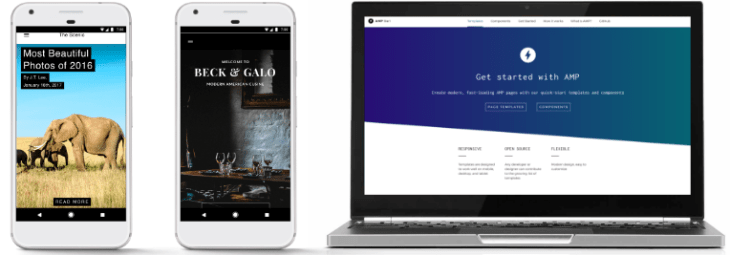
If you think you can ignore AMP, you’re wrong. AMP has some pretty awesome features and benefits that can take your content creation efforts to the next level.
If you don’t take the time to understand or use AMP stories, you’re missing out.
Here’s why businesses can’t afford to ignore them.
But first, let’s analyze that, what AMP stories truly are.
What are AMP Stories?
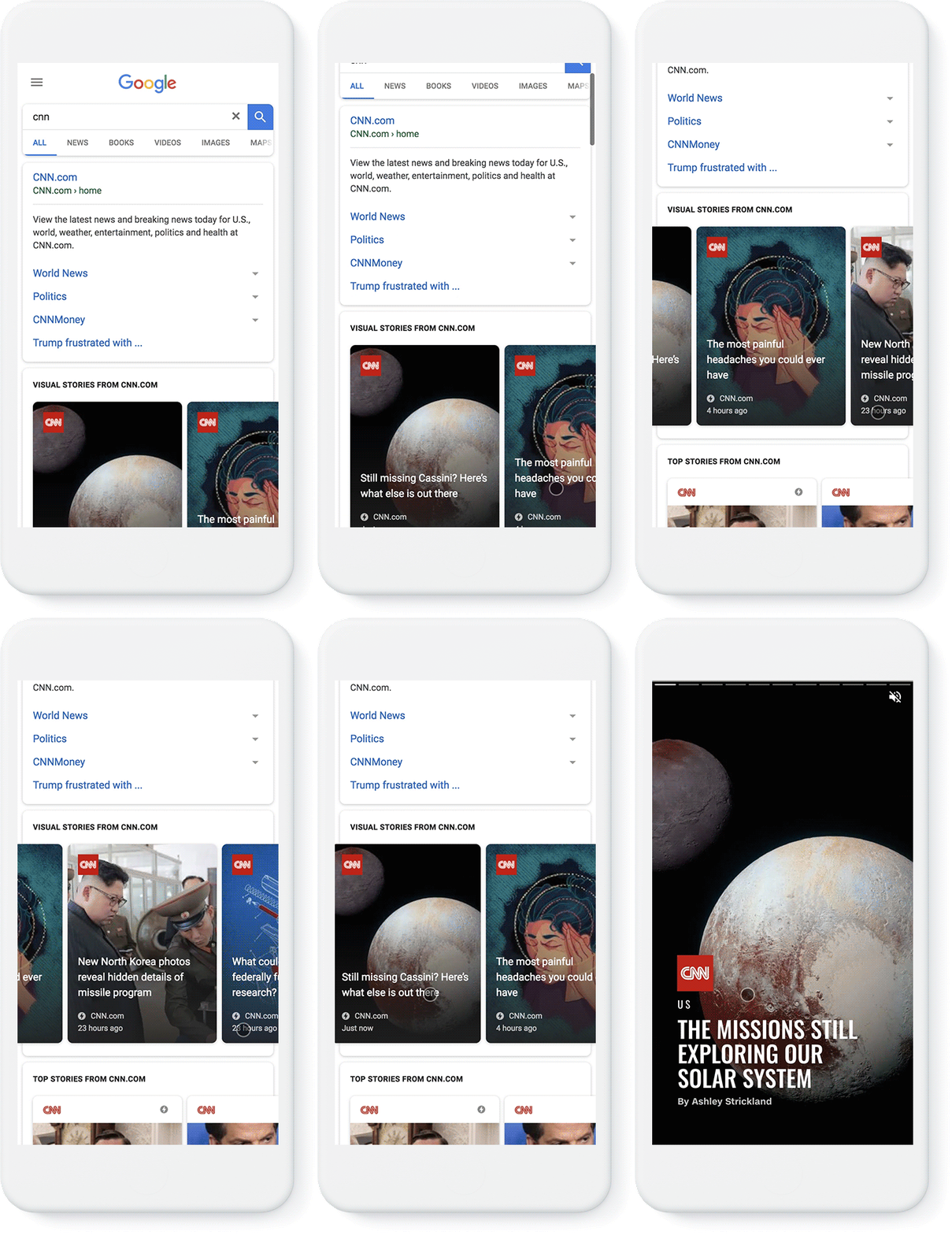
Google’s AMP stories features allow publishers to create content that is very similar to Instagram stories, designed with mobile websites in mind.
But the content created with AMP doesn’t get added to an app. Instead, it’s placed right on search results pages.
AMP is an open-source project that was created in response to the fact that mobile users now spend more time on apps than on websites.
77% of their time, to be exact, according to Statista data.
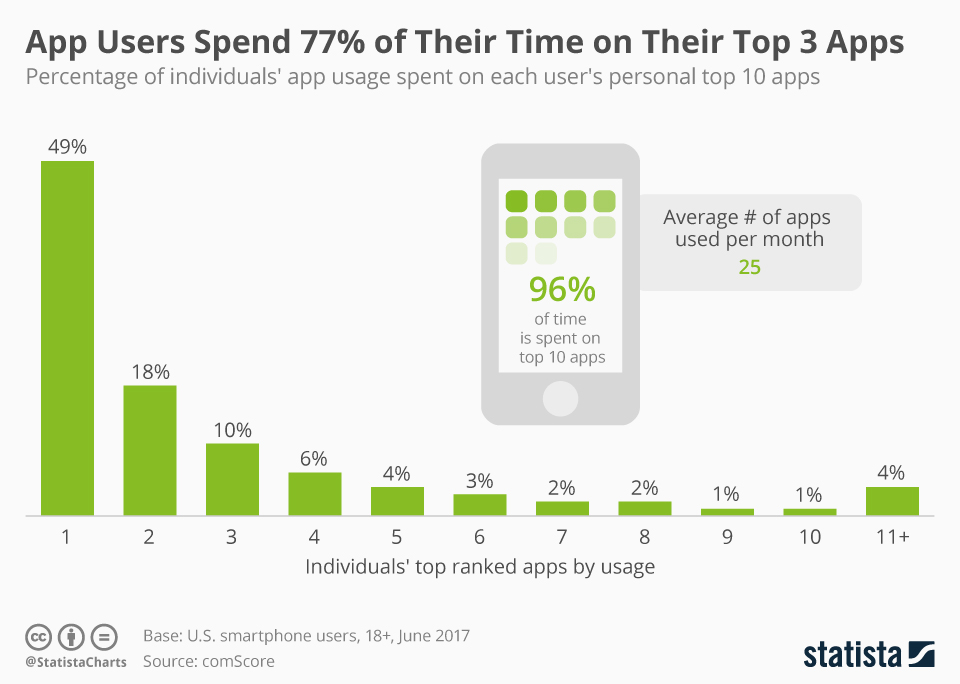
With AMP, content loads extremely fast, which helps keep mobile users on those pages and off of their apps.
Instead of regular search engine results, users receive a swipeable story that’s easy to navigate. The UX is somewhat similar to the popular dating app, Tinder.
AMP partners include CNN, Mic, Wired, The Washington Post, Mashable, and People.
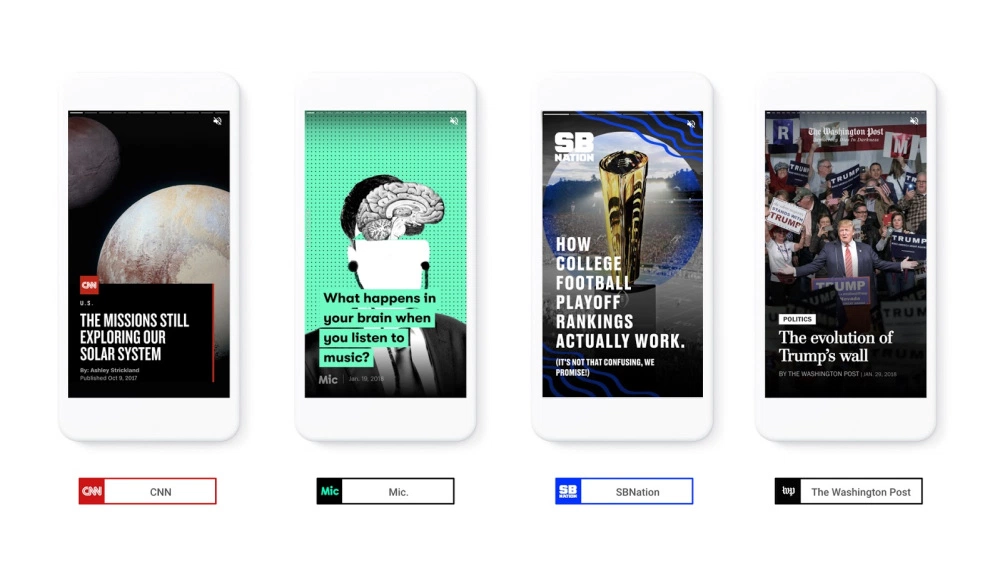
Beyond loading at lightning-fast speeds, AMP Stories can also be shared in the same way news articles are shared.
Here’s a breakdown of how they work.
How Accelerated Mobile Pages Work
Today, JavaScript can be used on almost any web page to modify any portion of it.
But it also slows the loading and rendering of pages. And since page speed is so important (we’ll talk more about that later), that’s something you want to avoid.
AMP only allows for asynchronous JavaScript to run on pages, meaning that the JavaScript code won’t block any other code present on your site.
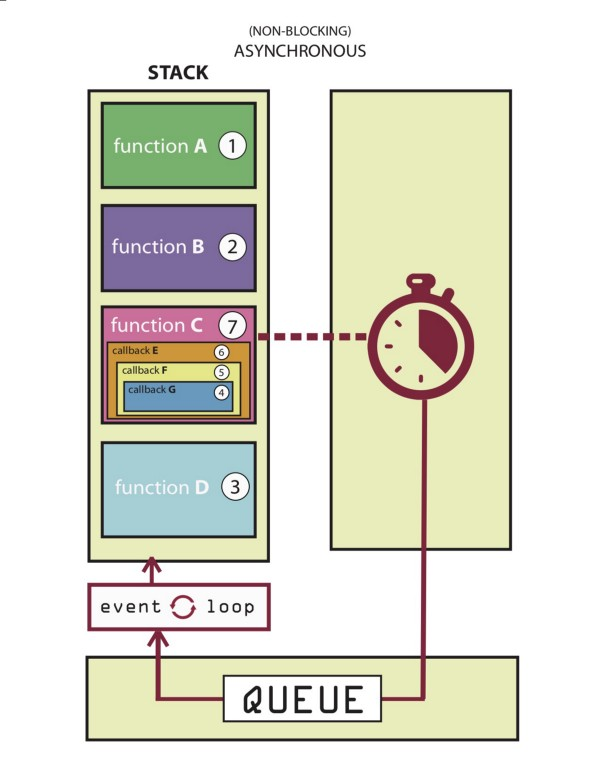
JavaScript written by the webmaster is forbidden on AMP stories, and interactive pages must only contain custom AMP elements.
Custom elements can consist of JavaScript at their core, but they must be specifically designed to make sure that they don’t cause any restrictions on the overall performance of a page.
Third-party JavaScript is also allowed with AMP, but it cannot block page rendering.
AMP also does not allow for any kind of extension mechanisms to block page rendering, but it can be used for Instagram embeds, tweets, or lightboxes.
Because of this, users can swipe through mobile-optimized content on AMP pages without all of the unnecessary distractions.
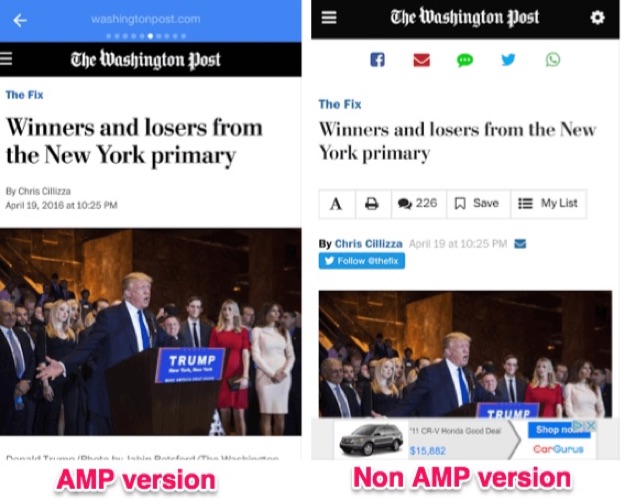
As you can already tell, there are a lot of reasons why AMP stories are growing fast.
Why Should You Use AMP Stories?
Some of your competition is probably consistently using AMP.
If you aren’t, you might as well be accepting defeat.
On the other hand, if you start using AMP protocols before your competitors, you’ll differentiate yourself as a frontrunner in your industry.
Why? Because AMP features can help you tell stories, and storytelling is powerful.
Storytelling is Powerful
Everyone loves a good story.
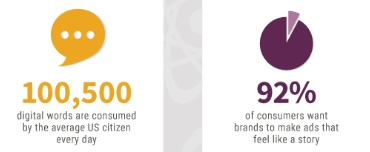
At least 100,500 digital words are consumed by the average U.S. citizen in one day, while 92% of consumers want to view and read ads that feel like stories.
There is some evidence out there that suggests that people view AMP stories much longer than they view traditional alternatives.
This could be because faster loading times make it easier to view more content for a longer period of time.
AMP lets you tell stories in a powerful, fast, unique way. And when you tell a good story well, you’ll be able to reach your audience effectively.
Speak to your readers’ needs, give each piece an interesting arc, and don’t forget to add in all of the hard data needed to prove your point.
Page speed plays a huge role in AMPs success, too.
Page Speed is Important
Site speed is important. Pages that take a long time to load can kill your conversions. If your site takes a while to load, you’ll rack up less and less conversions.
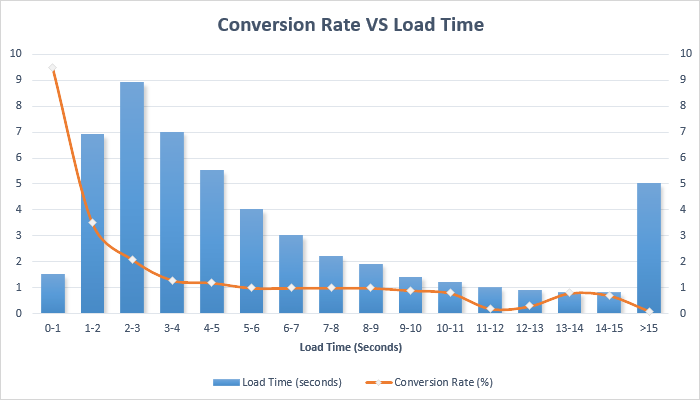
Luckily, AMP pages load about twice as fast as regular mobile pages.
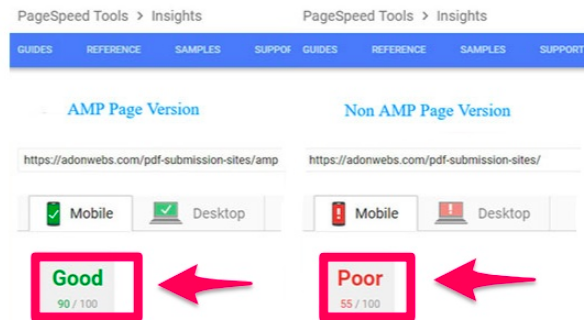
With such quick loading times, customers will be able to get to your content faster than ever before.
This is great news, since the probability of a bounce increases by 32% if a mobile page takes as long as three seconds to load.
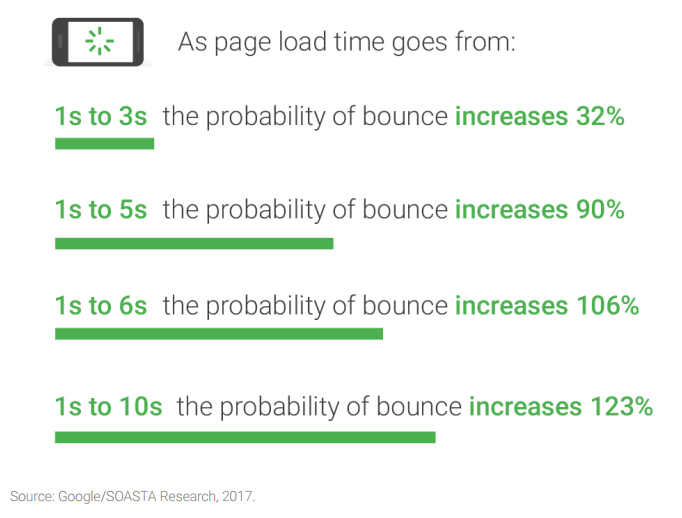
If it takes five seconds, the probability of a bounce increases by 90%.
Because of the quick loading times provided by AMP, users will be more likely to go ahead and buy from you.
When they know they can interact with your brand without any friction or wait time, they’ll be willing to trust you with their money.
To make the case for AMP even stronger, Google tends to give faster loading mobile pages special treatment and better rankings.
Take advantage of the creative design features offered by AMP to keep viewers engaged and intrigued.
Take Advantage of Creative Design
In case you didn’t already know, design is important. And AMP pages let you add in creative elements that take your content to the next level.
Don’t be afraid to add forms, buttons, videos, images, shopping options, or links to your AMP stories.
Your site will look much more sleek and functional, giving you tons of opportunities to attract, engage, and hold your viewers’ attention.
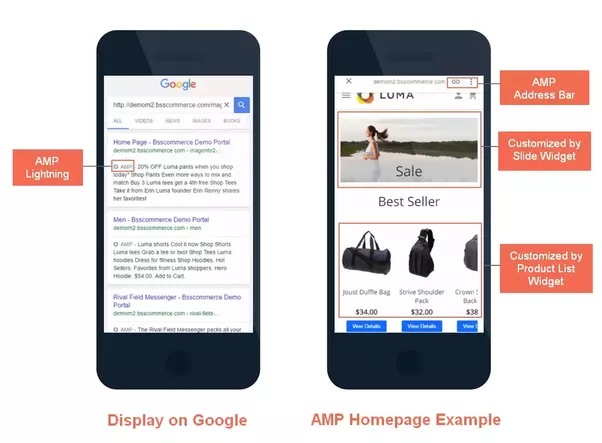
AMP can give your site the SEO boost it needs.
AMP Helps SEO
AMPs give your site a huge visibility boost.
As of right now, a page with AMP protocols won’t increase your site’s page authority or domain authority.
That being said, it does give the page a chance to be featured in the AMP carousel that appears above traditional Google search results.
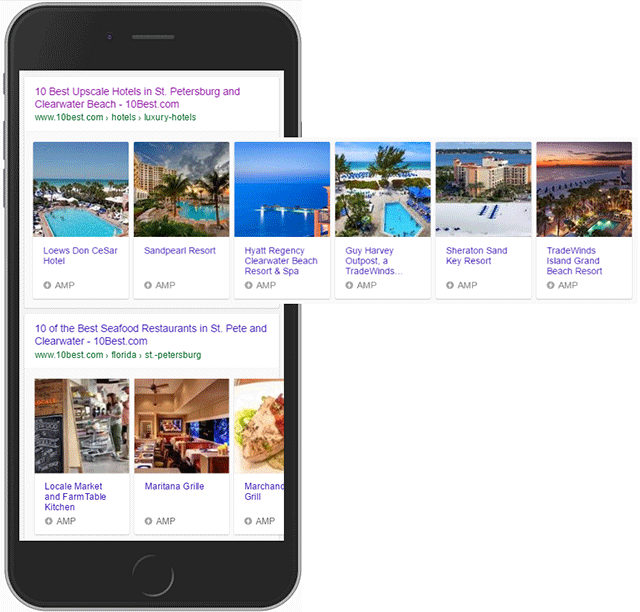
This means that if your site shows up in the carousel, it will appear before the number one placement.
It doesn’t get any better than placing before the number one spot, does it?
This can give you the big boost in organic search results that you need, bringing more traffic to your site than ever before.
Next, let’s break down all of the moving parts that make AMPs so great.
Introducing the AMP Story Features
Traditional AMP content relies solely on text, but the new and improved format includes videos, animation, and images to give users a full experience.
For publishers, you can:
- Embed your stories across apps and websites
- Access stories via both desktop and mobile
- Tell stories without needing to have a ton of technical knowledge
The best part? AMPs are free for everyone to try.
Let’s examine all of the parts involved in completing an AMP story.
Parts of an AMP story
Before you can create your first AMP story, you have to master all of its components.
Every story is structured with individual pages. Each page consists of individual layers that are made up of a combination of HTML code and AMP elements.
Here’s how the components will look when added to your code:
Story = amp-story
Page = amp-story-page
Layers = amp-story-grid-layer
When added to a page, the code might look something like this:
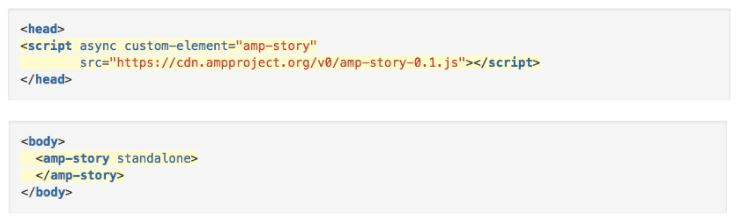
The story component contains your entire AMP story, while the page component contains each specific page that exists within your story.
The layers component contains all of the elements that are present on a page.
Here are some examples of a few AMP stories.
Examples of Google AMP Stories
It’s no secret that Google will link to AMP versions of web pages over traditional ones any time that they’re available because Google prefers them.
Because of this, every AMP partner has used the feature of the service to suit their strengths.
The most commonly known AMP adapters were news organizations since they could use AMPs to get information out quickly and effectively to searchers.
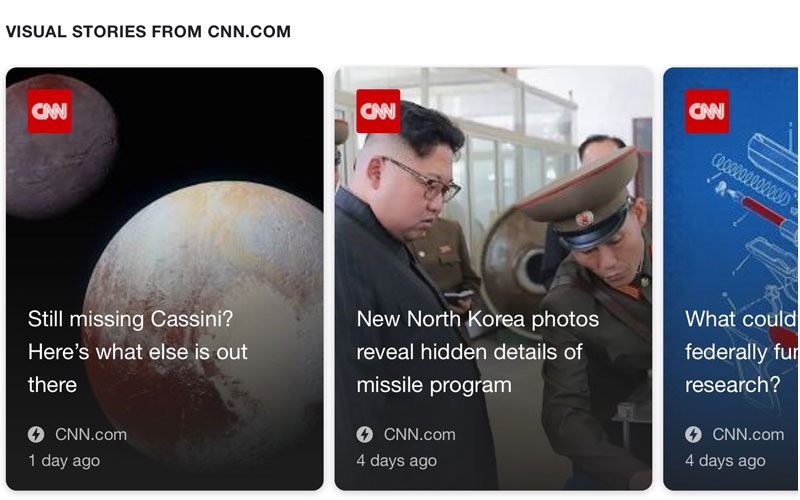
Here are examples of how CNN has utilized AMP stories to share and amplify breaking news:
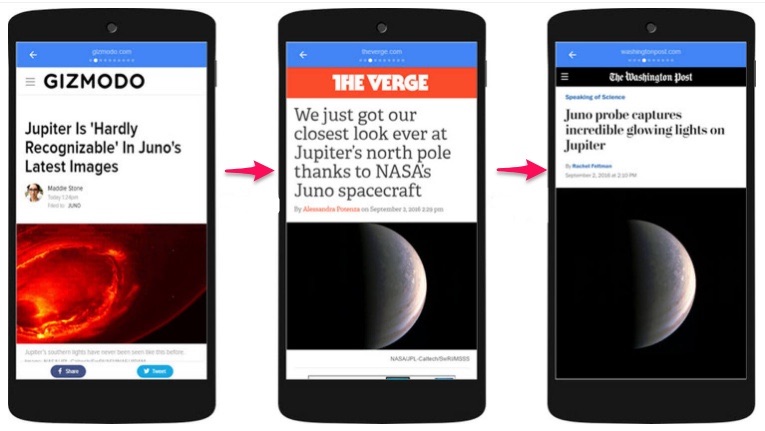
Some publishers have even written AMP stories over the exact same kinds of content (with the same cover photo):
But AMPs aren’t just for news sites. You can turn your long-form content into an AMP if you want to. And you should.
What are people saying about AMP, overall?
What People Are Saying About It
AMP Product Manager Rudy Galfi recently told AdWeek that AMP stories “should make for a really engaging ad format.”
But what does everyone else seem to think about publishing content with AMP?
Econsultancy writer Stuart Shaw says that while AMP pages require some maintenance, the payoff and exposure that they provide is well worth it.
In an April 2018 post, he wrote:
“Sure, all you’ve done is improve things for your mobile users – and only on the few scant pages that you’ve implemented AMP on…But optimization isn’t about making things perfect in an instant It’s a gradual process that must adapt to the ever-changing ‘techscape’ that is search.”
In general, reactions to AMP on sites like Twitter are fairly positive. Some people are calling AMP one of the most important trends of 2018.
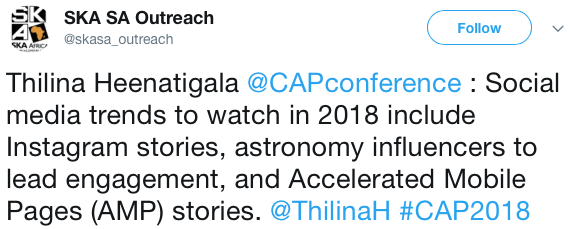
Others really love the recent changes and updates to AMP, like Gumpo, who says “We love this as a way of delivering interactive content with rich visuals.”
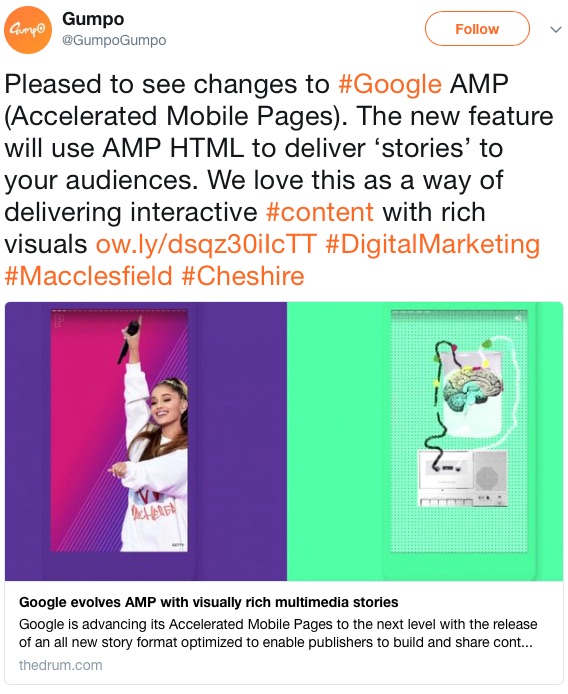
In September of 2017, SEO company Optimising had this to say about AMPs on Facebook:
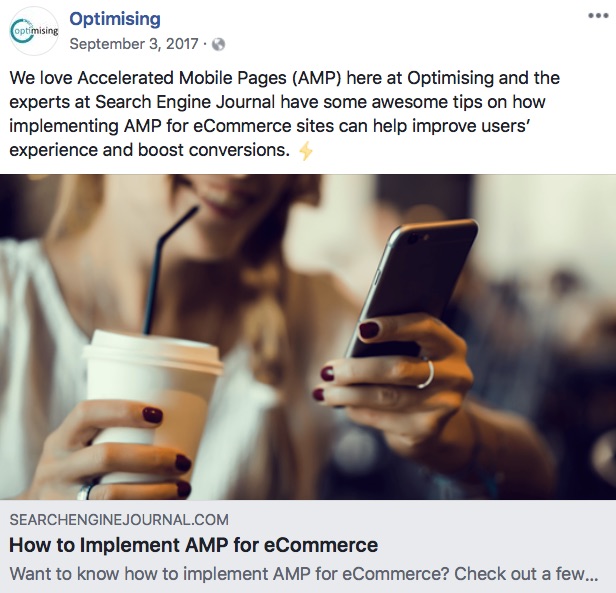
“We love Accelerated Mobile Pages (AMP) here at Optimising.”
The experts at Search Engine Journal have some awesome tips on how implementing AMP for eCommerce sites can help improve users’ experience and boost conversions.”
Overall, it looks like AMP is here to stay.
Here’s how you can get started creating your own AMP stories.
How to Get Started With Google AMP Stories
Now that you know what AMP stories are, how they work, why you should use them, and what people are saying about them, you can get down to business creating your own.
To get started, download the code.
1. Download the code
In order for Google to pick up on the AMP version of your articles, you have to modify the code of the article page.
The original article must have the following tag, which is an AMP canonical tag:
<link rel=”amphtml” href=”http://www.example.com/blog-post/amp/”>
If you want all of the AMP code you need all from one page, click over to the amp-wp GitHub page and select the “Download ZIP” button.
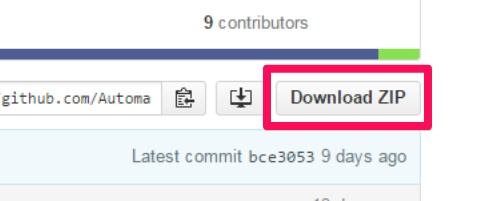
Then, install this code on your WordPress site just like any WordPress plugin.
Alternatively, you can also download the following code from AMP directly and save it to a file with a .html extension.
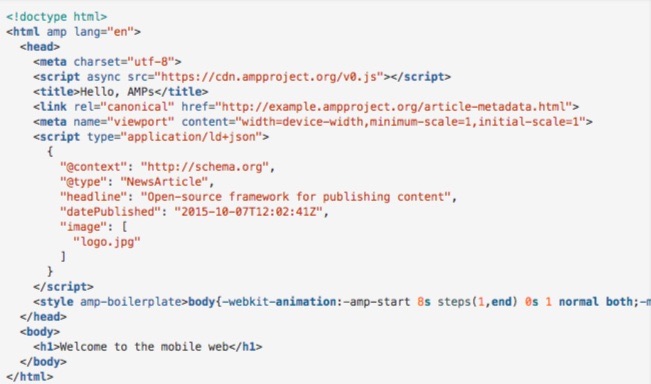
Once your code is downloaded and added, you can run the sample page.
2. Run the sample page
In order to test out your sample page, you’ll need to access your files from a server.
There are a few ways you can create a temporary local webserver to help you test it:
- “Web Server for Chrome” Google Chrome app
- Apache
- A local HTTP Python server
- Nginx
- AMP recommends that you use HTTPS, here, for added security.
After you set up a local web server, you can access your sample article by heading to this URL:
http://localhost:8000/article.html.
If everything looks good, go ahead and create the cover page.
3. Create the cover page
Your cover page is represented with the tag.
You can have more than one component within a story, which contains each of the individual screens for that story.
But the first page that you specify will act as the cover page.
To create a cover page, assign a unique ID for your cover to the first page:
<amp-story standalone>
<amp-story-page id=”cover”>
</amp-story-page>
</amp-story>
That code acts as a shell for your cover page. But you need to specify at least one layer to make it valid.

Layers in AMP work similarly to layers in graphics: they consist of different elements stacked on top of one another.
In the example above, layer one contains the image that serves as the cover photo, while layer two contains the title and byline of the story.
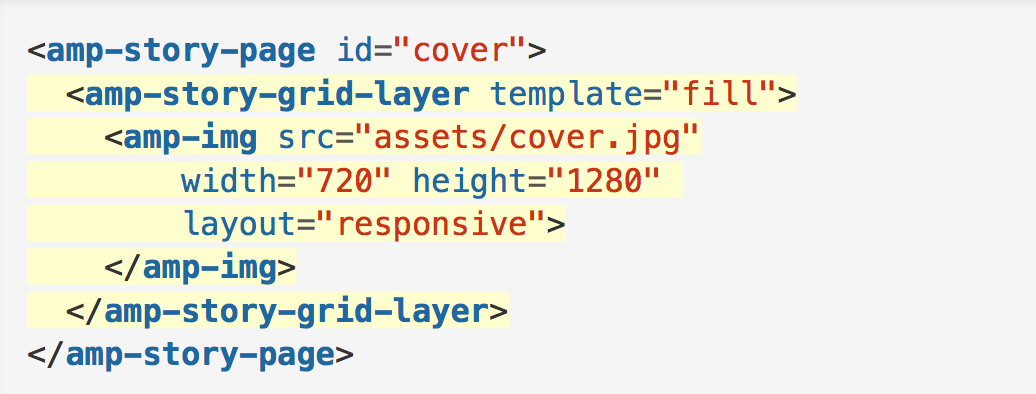
To create layer one, add the <amp-story-grid-layer> element to <amp-story-page>.
If you want the image to fill the screen, add the template=”fill” attribute to the amp-story-grid-layer tag.
Inside the layer, add the <amp-image> element for a cover.jpg file and make sure it’s responsive by adding the tag layout=”responsive”.
Here’s what the code for the first layer should look like when it’s all said and done:
Check how the page displays before moving on.
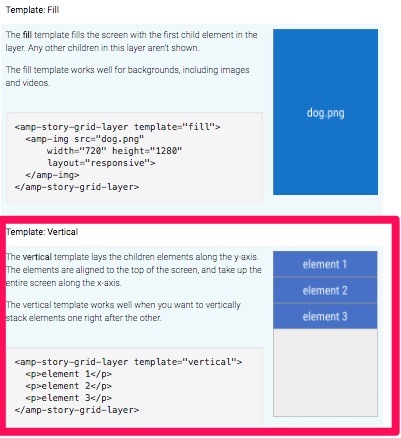
To add a second layer, use the “vertical template” instead of the “fill template” found here.
Once your cover page is complete, you can add more pages.
4. Add more pages
Adding more pages is similar to adding your sample page and cover page.
The code you use will depend on the template you choose.
To add text to a layer with the vertical template, add something similar to the following elements:
An <h1> element containing the title
A responsive amp-img
A <q> element that contains all of your text
Your new page should come out looking something like this:

You can also add animating elements to enhance your story.
5. Add animating elements
If you want to take your story to the next level, you can make your title drop into a page, fade in, twirl in, and so on.
The AMP framework currently includes the following preset animating elements:

If you want to add an animation to an element, add animate-in=”animationpresetcodehere”.
For example, to use the pulse animation, your code might look like this:
<amp-story-page id=”page3″>
<amp-story-grid-layer template=”vertical”>
<p animate-in=”pulse”>Pulse this text into the page </p>
</amp-story-page>
Once you’ve added animating elements, you’re ready to create the bookend.
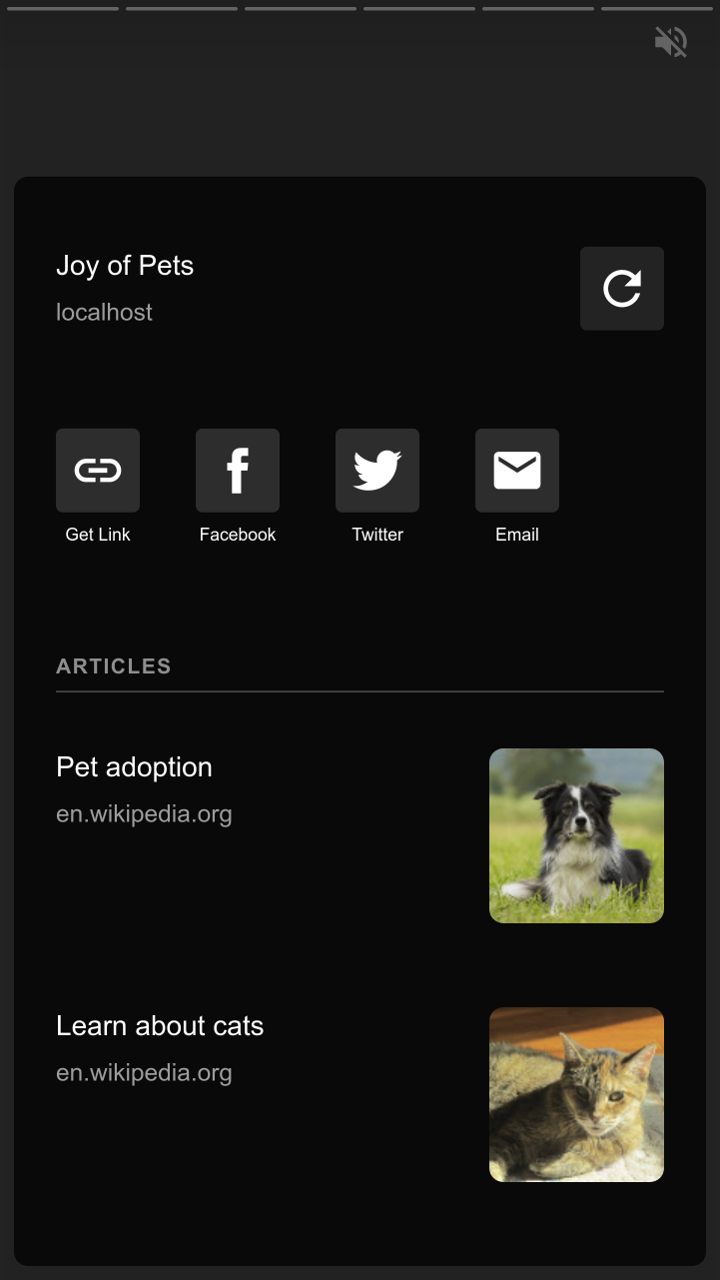
6. Create the bookend
The “bookend” is the last screen that wraps up your story.
You can use it to add related links or social sharing links, too.
In your amp-story elements, add the bookend-config-src attribute. Then, point it toward the bookend.json file.
<amp-story standalone
bookend-config-src=”bookend.json”>
</amp-story>
Your bookend should look something like this when you’re finished:
Finally, you’re ready to validate your AMP HTML.
7. Validate your AMP HTML
There are a number of ways to validate your AMP pages.
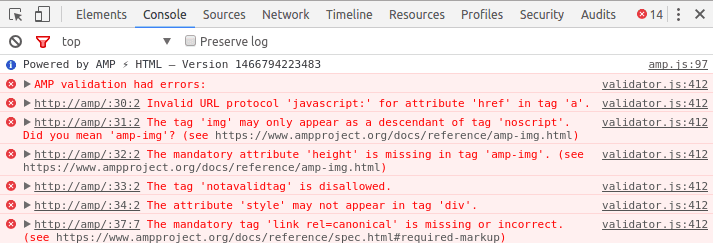
For example, you can use the Chrome DevTools console:
Open your page in a browser
Add “#development=1” to your URL
Open the Chrome DevTools console and check for any validation errors
You can also use the AMP Validator browser extension.
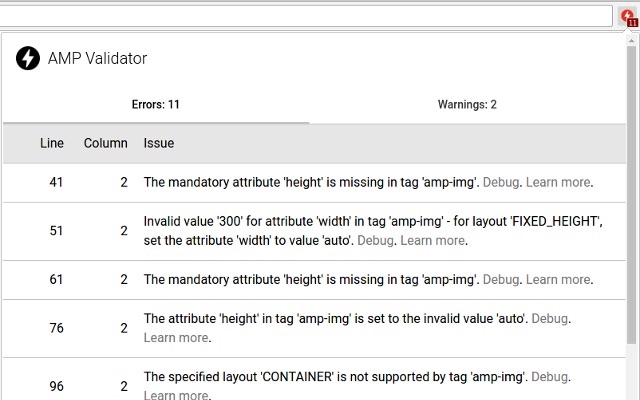
Both tools will show you any issues with your AMP code and describe ways to repair them.
Here are three quick tips to keep in mind when creating AMP stories.
3 Quick Tips
To make a great AMP story, you’ll need to add videos, text, pictures, or all of the above.
Here are some quick and easy ways to save yourself some time in the process.
For videos
It’s not uncommon to add a click-to-play overlay on videos across the web. You can use it to add a custom play icon that matches your page’s style along with the title of your video.

AMP stories don’t come with this feature automatically added.
However, you can easily add it with a tag like:
<div id=”myOverlay”
class=”click-to-play-overlay”>
For text, you may want to manage the size or fit to make the certain text fit within a specified area.
For text
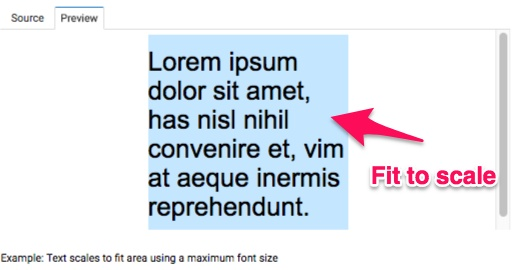
The amp-fit-text component lets you manage the size or fit of text within a specified area, which is perfect if you don’t want to play around with font sizes all day.
The component finds the best font size to fit content in the available space automatically, so you don’t have to.
Some HTML image tags can become problematic when it comes to AMP.
For pictures
Most HTML tags can be added directly in AMP HTML.
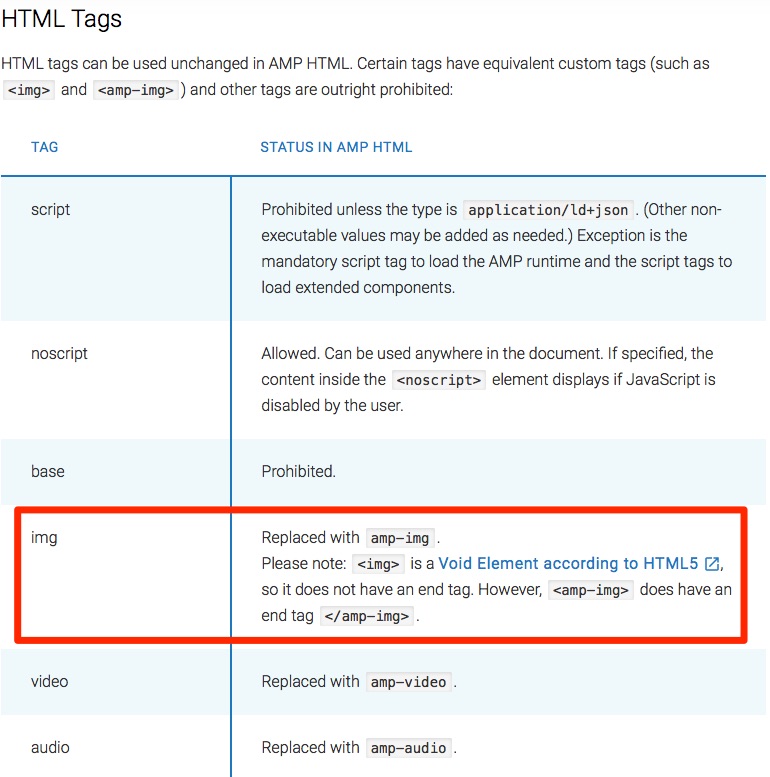
That being said, some tags (like the <img> tag) are sometimes replaced with enhanced AMP HTML tags. A few problematic HTML tags are banned completely.
Instead of the <img> tag, be sure to use <amp-img>, which has an end tag.
You can view the full list of AMP tag conversions here.
Conclusion
AMP was created by Google to put mobile first in search engine results pages and across the web.
AMP stories are similar to Instagram Stories, and tons of well-known companies are dominating the Internet with them. If you think you can ignore them, you’re wrong.
Billions of mobile pages are powered by AMPs. Those pages load twice as fast as before because JavaScript code isn’t allowed to slow them down.
There are plenty of reasons to use AMP stories. They can help improve your storytelling efforts, boost page speeds, improve your site’s creative design, and help SEO efforts.
There are three parts to an AMP story: the story, the page(s), and the layer(s).
Huge media sites like CNN are using AMPs to share breaking news, while other sites are using them to share their long-form or video content.
And the reactions to AMP are positive overall. Most people are calling it the next big thing of 2018. Publishers love it.
To get started creating AMP stories, download the code, run a sample page, create your cover page, add more pages and animating elements, create the bookend, and validate your HTML.
If any issues are uncovered when you validate your AMP code, fix them immediately.
To save some time, there are a few quick tips and tricks you can use when adding videos, text, and pictures to your stories.
Add a custom click-to-play overlay for videos, use the amp-fit-text component to automatically size your text, and never try to use <img> tags. Instead, use <amp-img>.
Now, go forward and put mobile users first on your site, too.
Which piece of content are you going to turn into an AMP story first?
About the Author: Neil Patel is the cofounder of Neil Patel Digital.
Source: feedproxy.google.com